Last updated on: 2026-05-25 | Updated by: MAGNI Docs Team
LMS Reports
The LMS Reports page provides comprehensive insights into learning activities, user engagement, and course effectiveness within your organization. This page is primarily used by administrators to monitor and analyze how users interact with courses and learning content.
👤 Visible to: Learner History Reporting Administrator, Course Activity Reporting Administrator, Course Effectiveness Reporting Administrator
If your account does not have at least one of these roles, you will see a message indicating that your account is missing required roles.
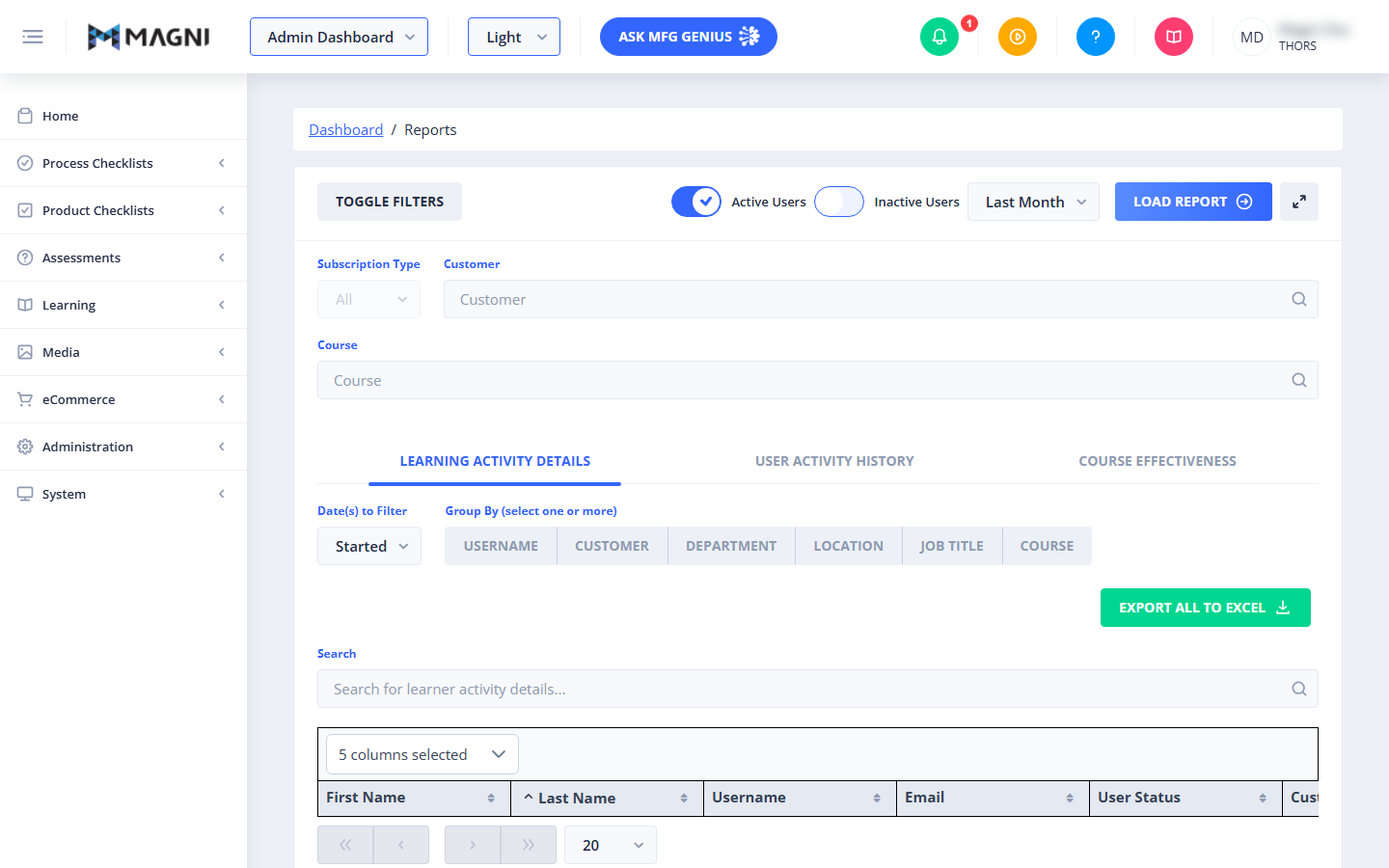
Page Sections
Header
The header section contains the main controls for displaying and managing reports.
- Toggle Filters Button: Click this button to show or hide the filter panel. Hiding the filters provides more screen space for viewing report data.
- Report Controls:
- Active Users / Inactive Users: Use these toggles to include either active users, inactive users, or both in your report data.
- Date Range Selector: A dropdown menu (e.g., "Last Month") allows you to select a specific time period for the report data.
- Load Report Button: After applying filters and selecting a date range, click this button to refresh the report data.
- Maximize Button: Click the expand icon to maximize the report view to full screen or restore it to its original size.
Filters
The filters section allows you to narrow down the report data based on various criteria. This section can be hidden or shown using the Toggle Filters button.
- Subscription Type:
- Dropdown: Select "All" to include data from all subscription types, or "Customer" to focus on customer-specific data.
- Customer:
- Search Field: (Visible to Thors administrators only) Type to search for and select a specific customer.
- Dropdown: Select a customer from the list to filter reports for that customer.
👤 Visible to: Thors administrators
- User:
- Search Field: Type to search for a specific user by username. As you type, a list of matching users appears. Select a user to filter the report to their activity.
- Selected User Display: If a user is selected, their username is displayed. Click the 'x' icon next to the username to remove the filter.
- Show more...: If there are more users than initially displayed, click this option to load additional users.
- Department:
- Multi-Select Dropdown: Select one or more departments to include in the report.
- Placeholder: "Select Departments"
- Show more...: If there are more departments than initially displayed, click this option to load additional departments.
- Location:
- Multi-Select Dropdown: Select one or more locations to include in the report.
- Placeholder: "Select Locations"
- Show more...: If there are more locations than initially displayed, click this option to load additional locations.
- Job Title:
- Multi-Select Dropdown: Select one or more job titles to include in the report.
- Placeholder: "Select Job Titles"
- Show more...: If there are more job titles than initially displayed, click this option to load additional job titles.
- Course:
- Search Field: Type to search for a specific course by name. As you type, a list of matching courses appears. Select a course to filter the report to its activity.
- Selected Course Display: If a course is selected, its name is displayed. Click the 'x' icon next to the course name to remove the filter.
- Show more...: If there are more courses than initially displayed, click this option to load additional courses.
- Course Type:
- System Courses Toggle: Enable or disable to include/exclude courses provided by the system.
- Customer Courses Toggle: Enable or disable to include/exclude courses created by your organization (or by the selected customer for Thors administrators). The label changes to "Our Courses" for non-Thors administrators.
- Course Status:
- Dropdown: Select a status to filter courses by their completion state. Options include: 'in progress', 'passed', 'failed', 'completed', 'browsed', 'not attempted'. The default is 'in progress'.
Report Tabs
The main content area displays report data organized into three tabs. Click on a tab to view the corresponding report.
Learning Activity Details
This tab provides a detailed breakdown of individual learner activities.
- Date(s) to Filter: A dropdown to select specific dates or date ranges for the activity data.
- Group By: A dropdown to group the report data by different criteria (e.g., User, Course, Department).
- Report Table: Displays a table of learning activities with the following columns:
- First Name: The first name of the user.
- Last Name: The last name of the user.
- Username: The username of the user.
- Email: The email address of the user.
- User Status: The current status of the user (e.g., Active, Inactive).
- Customer: The customer associated with the user.
- Department: The department of the user.
- Location: The location of the user.
- Job Title: The job title of the user.
- Course: The name of the course.
- Course Status: The completion status of the course for the user.
- Start Date: The date the user started the course.
- Last Activity: The date of the user's last activity in the course.
- Completion Date: The date the user completed the course.
- Score: The score achieved by the user in the course.
- Time Spent: The total time spent by the user in the course.
- Search Bar: Use this field to search for specific details within the table data.

- Column Selector: A dropdown labeled "5 columns selected" (or similar) allows you to choose which columns are visible in the table.

- Pagination: Controls at the bottom of the table allow you to navigate through multiple pages of results.
- Export All to Excel Button: Click this button to download the entire report data as an Excel spreadsheet. For very large datasets, this may trigger a request process rather than an immediate download.
User Activity History
This tab provides a historical overview of user activities across all courses. It focuses on individual user engagement patterns over time.
Course Effectiveness
This tab offers insights into the performance and impact of your courses. It helps evaluate how effective courses are in achieving their learning objectives.