Admin Reports Competency Report
Last updated on: July 22, 2026 | Updated by: MAGNI Docs Team
The Competency Report page allows administrators to view and analyze learners' performance across various skills and competencies. By using customizable filters, administrators can track progress, identify skill gaps, and export competency data for external analysis.
Page Sections
Breadcrumbs and Header
The top of the page displays the navigation path (Dashboard / Competency Report) and the main page title.
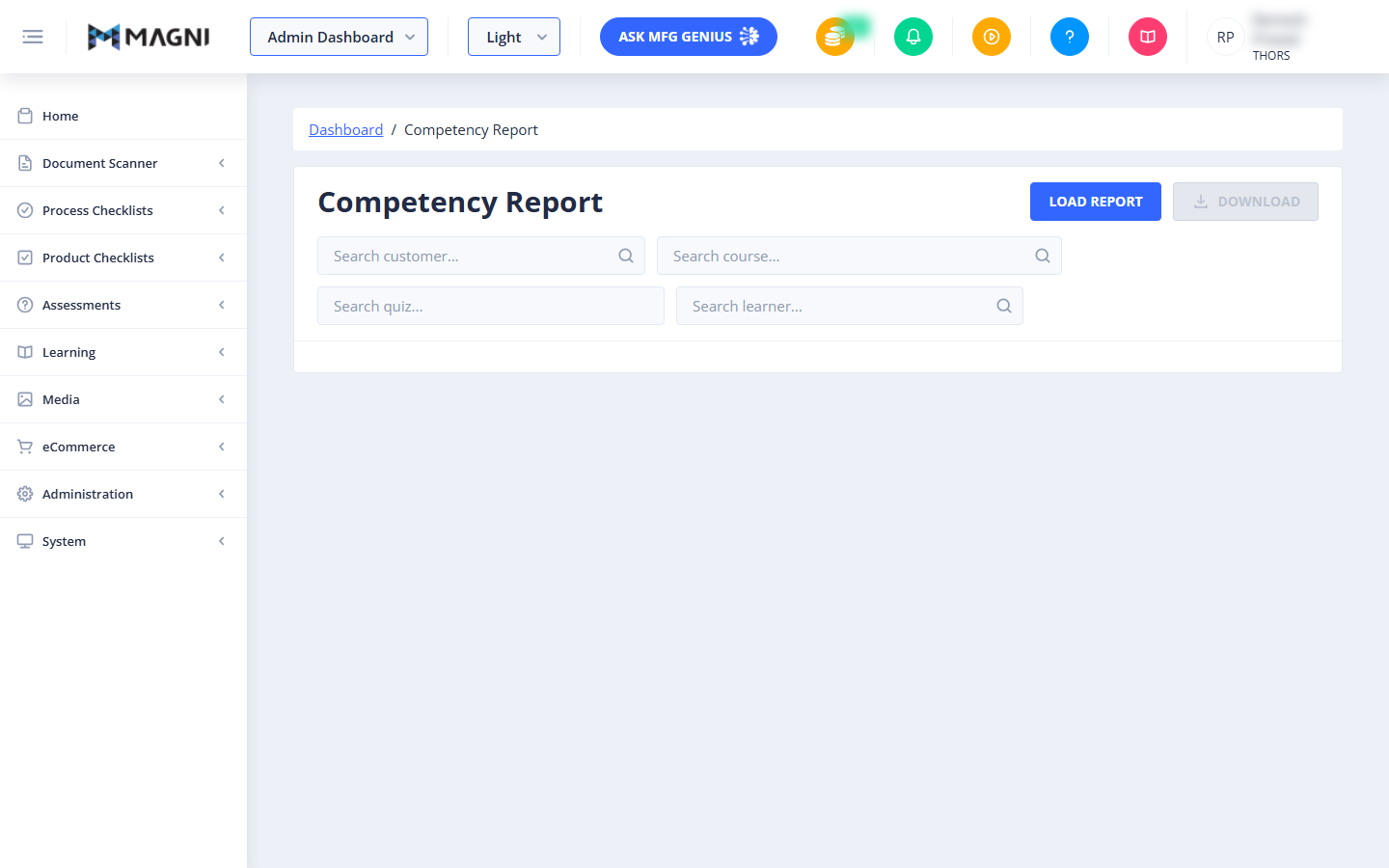
To the right of the title, you will find the primary action buttons:
- Load Report: Click this button to generate and display the competency report based on your selected filters. This button is disabled while the report is loading.
- Download: Click this button to export the currently displayed report data to an Excel spreadsheet. This button is disabled if no report data is loaded or if the system is busy. A tooltip on this button reminds you that it "Exports only the data displayed in the table."
Report Filters
Use the filter fields to narrow down the data displayed in the competency report. Each filter field features an autocomplete search that helps you quickly find and select options.
-
Search customer... (Conditional): Allows you to filter the report by a specific customer organization. Selecting a customer will reset and reload the options for the course, quiz, and learner filters. If there are more customers available than displayed, a "Show More..." option will appear at the bottom of the list.
👤 Visible to: THORS Administrators. For non-THORS administrators, this filter is hidden, and the system automatically filters by your active customer organization.

- Search course...: Allows you to filter the report by a specific course tag.
- Search quiz...: Allows you to filter the report by a specific quiz. If there are more quizzes available than displayed, a "Show More..." option will appear at the bottom of the list.
- Search learner...: Allows you to filter the report by a specific learner. If there are more learners available than displayed, a "Show More..." option will appear at the bottom of the list.
Competency Report Table and Legend
Once you select your filters and click Load Report, the competency report table displays below the filters.
- Skill Column: The leftmost column is sticky and displays the names of the skills (tags) being evaluated.
- Learner Columns: Each learner included in the report is displayed as a column header.
- Competency Cells: The intersection of a skill and a learner displays a Harvey Ball icon representing the learner's competency score:
- 0%: Empty ball
- 25%: Quarter-filled ball
- 50%: Half-filled ball
- 75%: Three-quarters filled ball
- 100%: Fully filled ball
- No Score (—): Displays a dash if the learner has not attempted any assessments associated with that skill.
- Tooltips: Hovering over any Harvey Ball displays a detailed tooltip showing the skill name, the number of correct answers out of total questions, and the exact percentage score (for example, "Welding: 3 / 4 correct (75%)").
- Legend: A visual legend is displayed directly below the table to help you quickly identify the percentage ranges associated with each Harvey Ball fill level.
Common Actions
| Action | How to do it |
|---|---|
| Generate a Report | 1. Select your desired filters (Customer, Course, Quiz, and/or Learner). 2. Click the Load Report button. |
| Export Report Data | 1. Generate a report so that data is visible in the table. 2. Click the Download button to save the data as an Excel file. |
| Clear Filters | Clear the text in any search filter input to reset that specific filter. Selecting a new customer will automatically clear all other filters. |
Tips
- Hover for Details: Always hover your cursor over the Harvey Balls in the report table to see the exact raw scores (correct answers versus total questions) behind the visual percentage.
- Customer Reset: If you are a THORS Administrator, keep in mind that changing the selected customer will clear any currently loaded report and reset all other filter selections.
- Targeted Coaching: Use the report to identify learners with empty or quarter-filled Harvey Balls to target them for additional training or coaching in those specific skill areas.