Profile
Last updated on: 2026-05-27 | Updated by: MAGNI Docs Team
The Profile page allows Magni LMS users to view and update their personal details, contact information, and registration preferences. Depending on whether you are registered as a corporate (B2B) user or an individual (B2C) customer, you can also manage your billing details, job roles, and organization locations from this central hub.
Page Sections
The Profile page is divided into several cards containing related user settings.
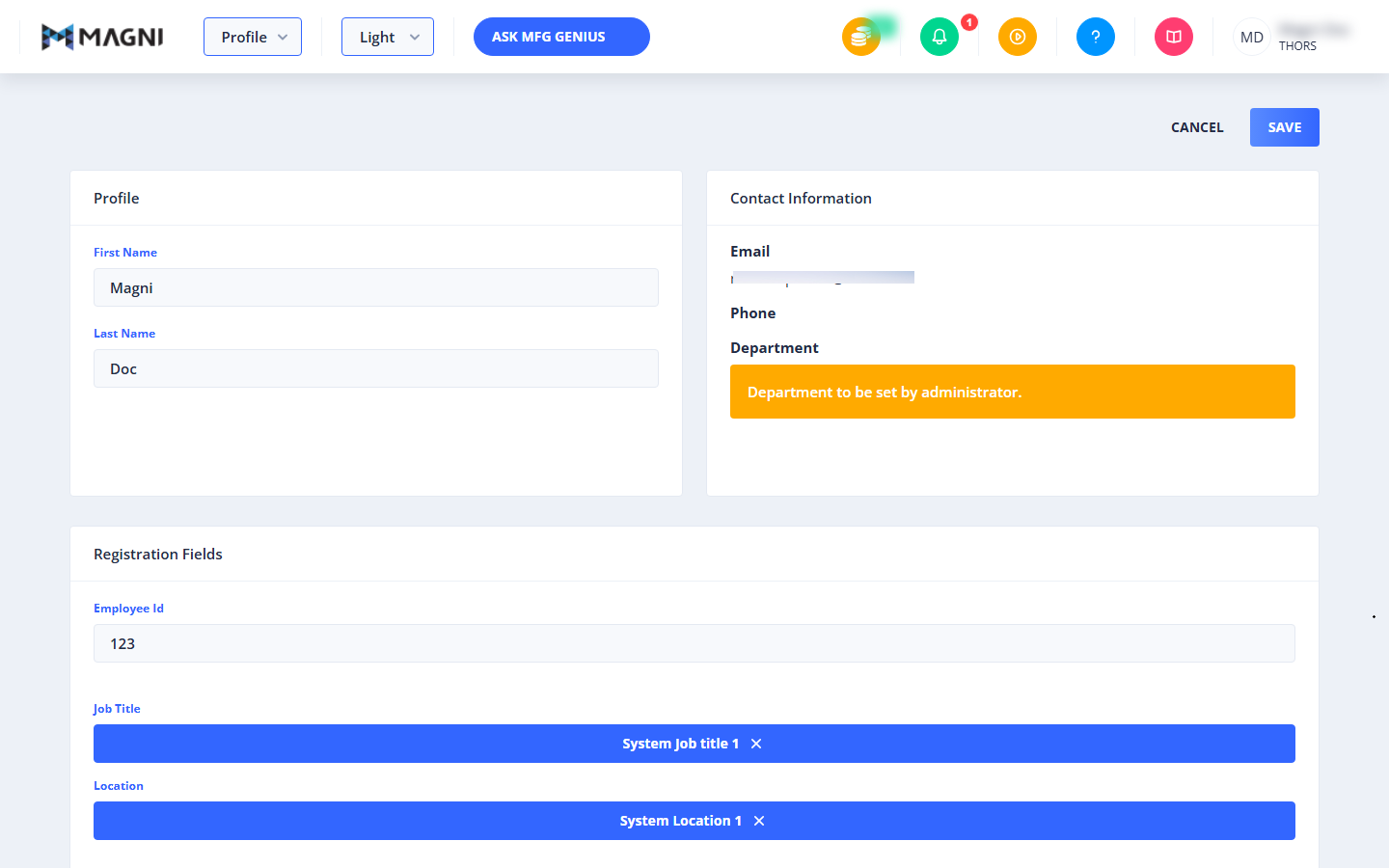
Profile Card
This section contains your primary identity details.
- First Name: Your first name. This field is required.
- Last Name: Your last name or surname. This field is required.
- Link to Microsoft (Conditional): If your organization supports Microsoft Single Sign-On (SSO) and your account is not yet connected, a "Link to Microsoft" button will appear. Clicking this connects your Microsoft credentials to Magni. If already connected, a green success message displays "Microsoft account connected".
Contact Information Card
This section displays your primary contact details and organizational alignment.
- Email: Your registered email address (read-only).
- Phone (Corporate Users Only): Your contact phone number (read-only).
- Department (Corporate Users Only): Displays your assigned department. If your administrator has not yet assigned you to a department, a warning message displays: "Department to be set by administrator."
Billing Information Card
👤 Visible to: Individual (B2C) Customers only
This card displays your billing address configuration. It allows you to enter and update your billing address lines, country, city, state, postal code, and tax identification numbers for invoicing purposes.
Registration Fields Card
👤 Visible to: Corporate (B2B) Users only
This card contains custom fields configured by your organization's administrator. Depending on your company's preferences, some of these fields may be hidden or marked as required.
- Employee Id (Conditional): Your internal company employee identifier.
- Job Title (Conditional): Displays your current selected job title. If a job title is already selected, it appears as a blue button. Click the "X" icon on the button to remove it and search for a new one. If no job title is selected, use the search field to find and select your title from the autocomplete list.
- Location (Conditional): Displays your physical or regional work location. If a location is already selected, it appears as a blue button. Click the "X" icon on the button to remove it and search for a new one. If no location is selected, use the search field to find and select your location from the autocomplete list.
Common Actions
| Action | How to do it |
|---|---|
| Update Profile Details | 1. Modify your First Name or Last Name in the Profile card. 2. Click Save in the top-right corner. |
| Link Microsoft SSO | 1. Locate the Link to Microsoft button in the Profile card. 2. Click the button and follow the Microsoft authentication prompts. |
| Change Job Title | 1. Click the "X" icon on your current job title button to clear it. 2. Type your job title into the search field. 3. Select the correct title from the autocomplete dropdown list. 4. Click Save in the top-right corner. |
| Change Location | 1. Click the "X" icon on your current location button to clear it. 2. Type your location into the search field. 3. Select the correct location from the autocomplete dropdown list. 4. Click Save in the top-right corner. |
| Discard Changes | Click the Cancel button in the top-right corner to revert any unsaved modifications. |
Tips
- Keep Certification Names Accurate: Ensure your First Name and Last Name are spelled correctly, as these fields are often used to automatically generate your course completion certificates.
- Missing Job Titles or Locations: If your specific job title or work location does not appear in the autocomplete search results, contact your organization's LMS administrator to have them added to the system.
- Single Sign-On Convenience: Linking your Microsoft account allows you to log in to Magni with a single click, eliminating the need to remember a separate password.