Settings
Last updated on: 2026-05-27 | Updated by: MAGNI Docs Team
The Settings page allows you to customize your Magni LMS experience to match your local preferences and daily workflow. Here, you can configure regional settings like timezone, date formatting, and language, manage your notification preferences, and select your default landing dashboard.
Page Sections
General Settings
This section contains regional and communication preferences that apply across the entire platform.
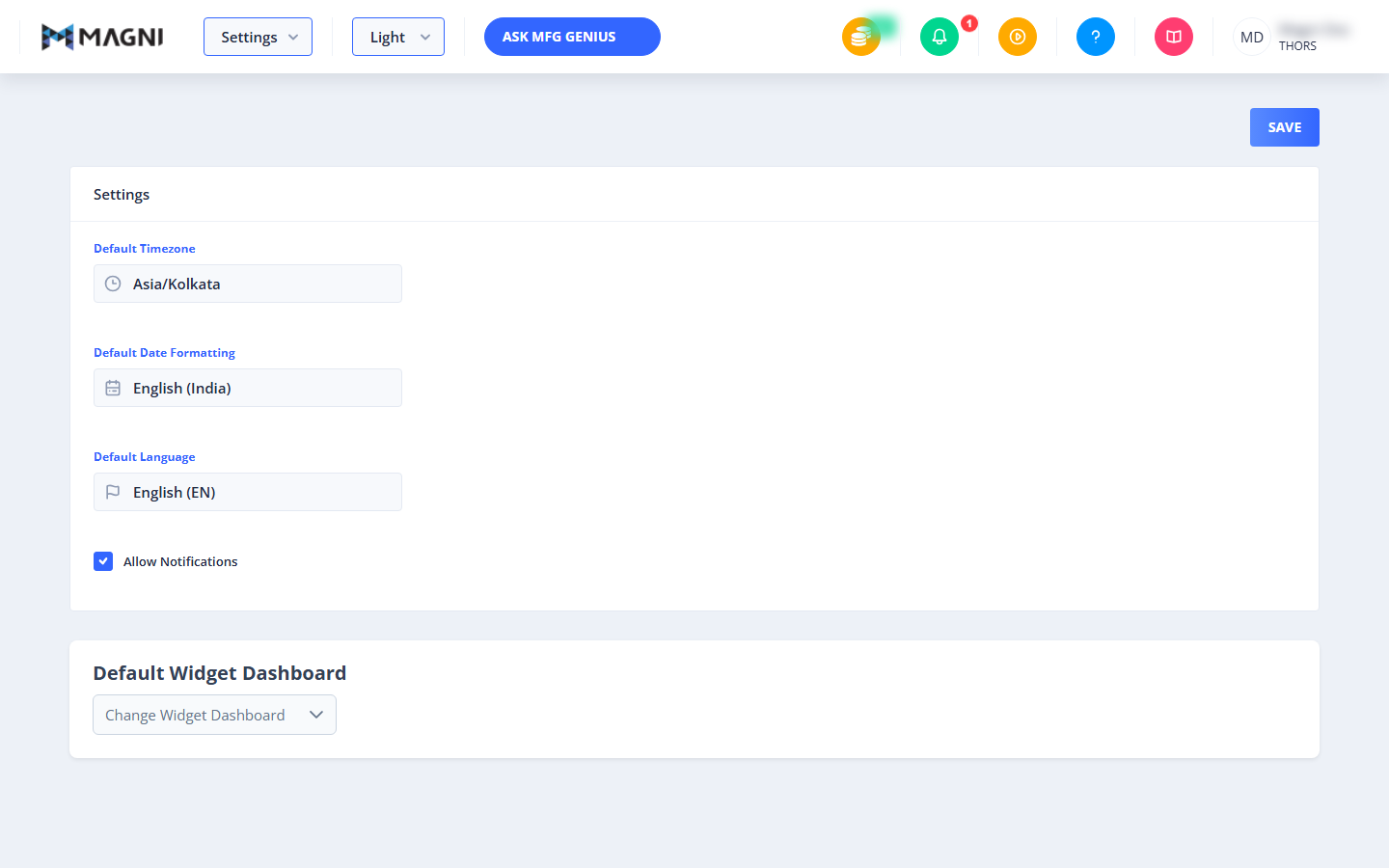
- Default Timezone: A searchable dropdown field used to set your local timezone. This ensures that all course deadlines, scheduled events, and activity logs display in your local time. The field displays both the UTC offset and the location.

- Default Date Formatting: A searchable dropdown field to select your preferred date and time display format (for example, "English (India)" or "English (US)").
- Default Language: A searchable dropdown field to select your preferred interface language. Languages are listed with their corresponding national flags and standard abbreviations (such as "EN" for English).
- Allow Notifications: A checkbox that controls whether you receive email notifications and alerts from the system. Check this box to stay updated on course enrollments, system alerts, and platform updates.
Default Widget Dashboard
👤 Visible to: Administrator
This section allows administrators to set the default widget-based dashboard layout for the organization.
- Change Widget Dashboard: A dropdown selector used to choose which pre-configured widget dashboard is displayed by default to users.
Default Dashboard
👤 Visible to: Users with multiple roles (such as Learner, Checklist Operator, or Issues Owner) who are not Administrators.
If you have more than one active role in the system, this section will automatically appear, allowing you to choose which interface you land on immediately after logging in.
- Default Dashboard Radio Group: Select your preferred landing experience. The options displayed depend on your assigned roles:
- Learner: Select this to default to the standard learner dashboard.
- Checklist Operator: Select this to default to the checklist operator interface.
- Issues Owner: Select this to default to the issues management dashboard.
Common Actions
| Action | How to do it |
|---|---|
| Update Personal Preferences | 1. Click into the Default Timezone, Default Date Formatting, or Default Language fields. 2. Type to search or select an option from the dropdown list. 3. Toggle the Allow Notifications checkbox as desired. 4. Click the Save button in the top-right corner of the page. |
| Set a Default Landing Dashboard | 1. Scroll to the Default Dashboard section (if available for your account). 2. Select the radio button corresponding to your preferred default view (e.g., Learner or Checklist Operator). 3. Click the Save button in the top-right corner of the page. |
| Change the Default Widget Dashboard (Admin Only) | 1. Scroll to the Default Widget Dashboard section. 2. Click the Change Widget Dashboard dropdown. 3. Select the desired dashboard layout from the list. 4. Click the Save button in the top-right corner of the page. |
Tips
- Keep Timezones Accurate: Always ensure your default timezone matches your physical location so that course deadlines and scheduled training sessions do not display with confusing time offsets.
- Optimize Your Login Flow: If you hold multiple roles but spend 90% of your time performing checklist operations, set your Default Dashboard to "Checklist Operator" to save yourself navigation clicks every time you log in.
- Don't Forget to Save: Any changes made to your preferences will not take effect until you click the blue Save button located in the top-right corner of the page.