Checklists Dashboard
Last updated on: 2026-05-27 | Updated by: MAGNI Docs Team
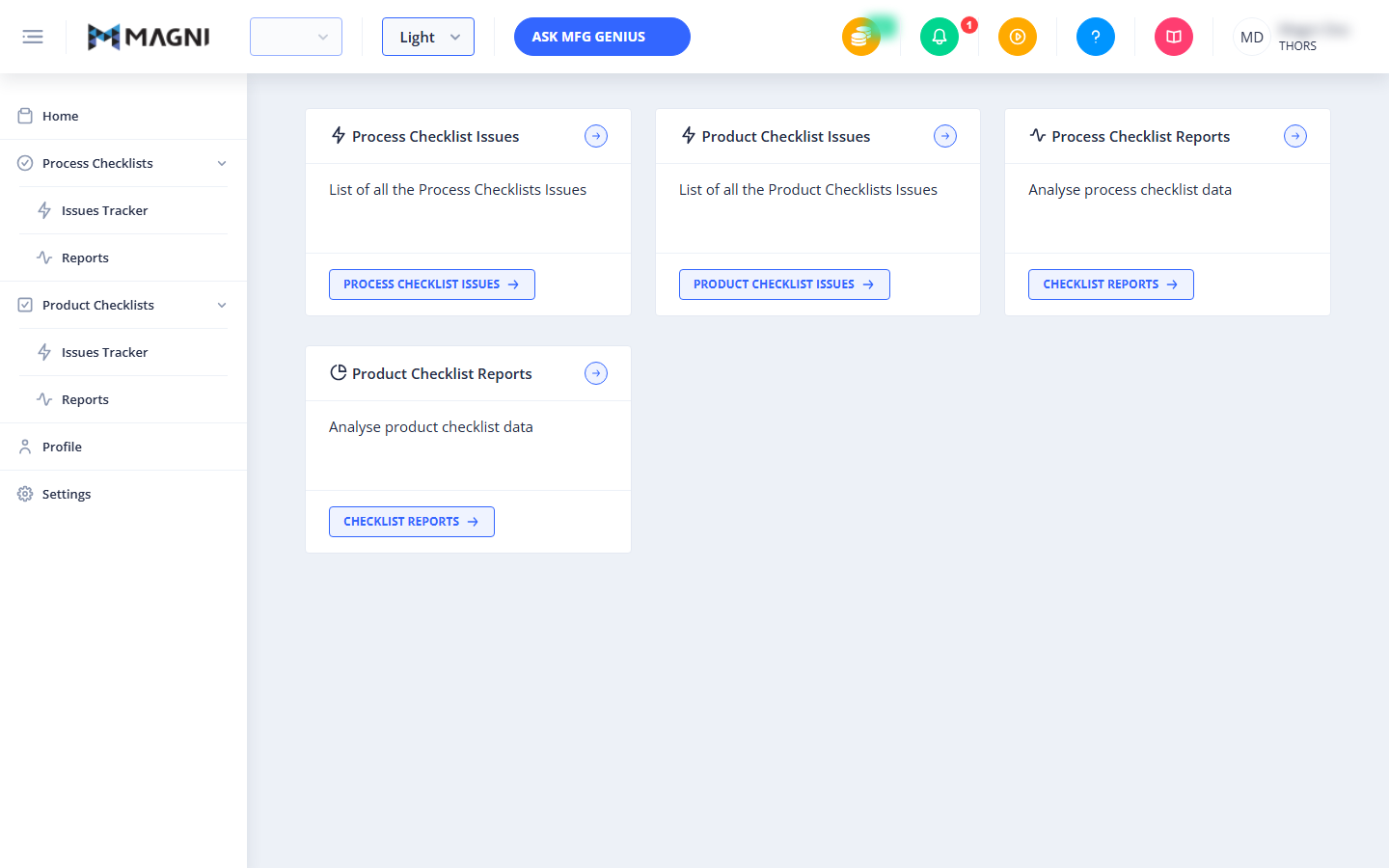
The Dashboard serves as the central navigation hub for Magni users, providing quick access to checklists, issue trackers, and analytical reports. Depending on your assigned user role and organization settings, this page dynamically displays the specific tools you need to perform inspections, review submissions, and track operational quality.
Page Sections
Authorization Alert
This alert appears at the top of the dashboard if you attempt to access or execute a checklist that you do not have permission to view.
- Message: "You are not authorized to execute this checklist!"
Process Checklists Card
This card provides direct access to your active process-related inspections.
- Description: Displays a summary indicating it contains the list of all scheduled and assigned checklists.
- Access Control:
👤 Visible to: Users with Process Checklists enabled and Checklist Operator Review permissions.
Product Checklists Card
This card provides direct access to your active product-related inspections.
- Description: Displays a summary indicating it contains the list of all scheduled and assigned checklists.
- Access Control:
👤 Visible to: Users with Product Checklists enabled and Checklist Operator Review permissions.
QA Supervisor Submissions Card
This card allows supervisors to manage and approve product checklists that require quality assurance sign-off.
- Description: Displays a list of Product Checklists with an active Approval Workflow.
- Access Control:
👤 Visible to: QA Supervisors (when Product Checklists are enabled). Note that the card title may be customized with a dynamic workflow tag.
MFG Supervisor Submissions Card
This card allows manufacturing supervisors to manage and approve product checklists that require manufacturing sign-off.
- Description: Displays a list of Product Checklists with an active Approval Workflow.
- Access Control:
👤 Visible to: MFG Supervisors (when Product Checklists are enabled). Note that the card title may be customized with a dynamic workflow tag.
QA Manager Submissions Card
This card allows quality managers to perform final reviews and approvals on product checklists.
- Description: Displays a list of Product Checklists with an active Approval Workflow.
- Access Control:
👤 Visible to: QA Managers (when Product Checklists are enabled). Note that the card title may be customized with a dynamic workflow tag.
Process Checklist Issues Card
This card provides a centralized view of all logged issues arising from process checklists.
- Description: Displays a list of all current Process Checklist issues.
- Access Control:
👤 Visible to: Users with Process Checklists enabled and Issue Review permissions.
Product Checklist Issues Card
This card provides a centralized view of all logged issues arising from product checklists.
- Description: Displays a list of all current Product Checklist issues.
- Access Control:
👤 Visible to: Users with Product Checklists enabled and Issue Review permissions.
Process Checklist Reports Card
This card allows you to view analytical data and performance trends for process checklists.
- Description: Provides tools to analyze process checklist data.
- Access Control:
👤 Visible to: Users with Process Checklists enabled and Checklist Report permissions.
Product Checklist Reports Card
This card allows you to view analytical data and performance trends for product checklists.
- Description: Provides tools to analyze product checklist data.
- Access Control:
👤 Visible to: Users with Product Checklists enabled and Checklist Report permissions.
Common Actions
| Action | How to do it |
|---|---|
| Open Process Checklists | Click the Process Checklists button at the bottom of the card, or click the small blue arrow icon in the top-right corner of the card. |
| Open Product Checklists | Click the Product Checklists button at the bottom of the card, or click the small blue arrow icon in the top-right corner of the card. |
| Review Pending Submissions | Click the Checklist Submissions button on your respective Supervisor or Manager card to view checklists awaiting your approval. |
| Track Logged Issues | Click the Process Checklist Issues or Product Checklist Issues button to open the issues tracker. |
| Analyze Checklist Reports | Click the Checklist Reports button on either the Process or Product Reports card to view data analytics. |
Tips
- Quick Navigation: You can use either the large button at the bottom of any card or the small round arrow button in the top-right corner of the card header to navigate to that section.
- Missing Cards: If you cannot see a specific card (such as Reports or Supervisor Submissions), verify with your system administrator that your user profile has the correct roles and that the corresponding feature is enabled for your organization.
- Dynamic Titles: The names of the Supervisor and Manager submission cards may change depending on your organization's custom workflow terminology (e.g., "QA Supervisor" might be renamed to fit your internal department titles).