Signoff Approvals
Last updated on: October 15, 2026 | Updated by: MAGNI Docs Team
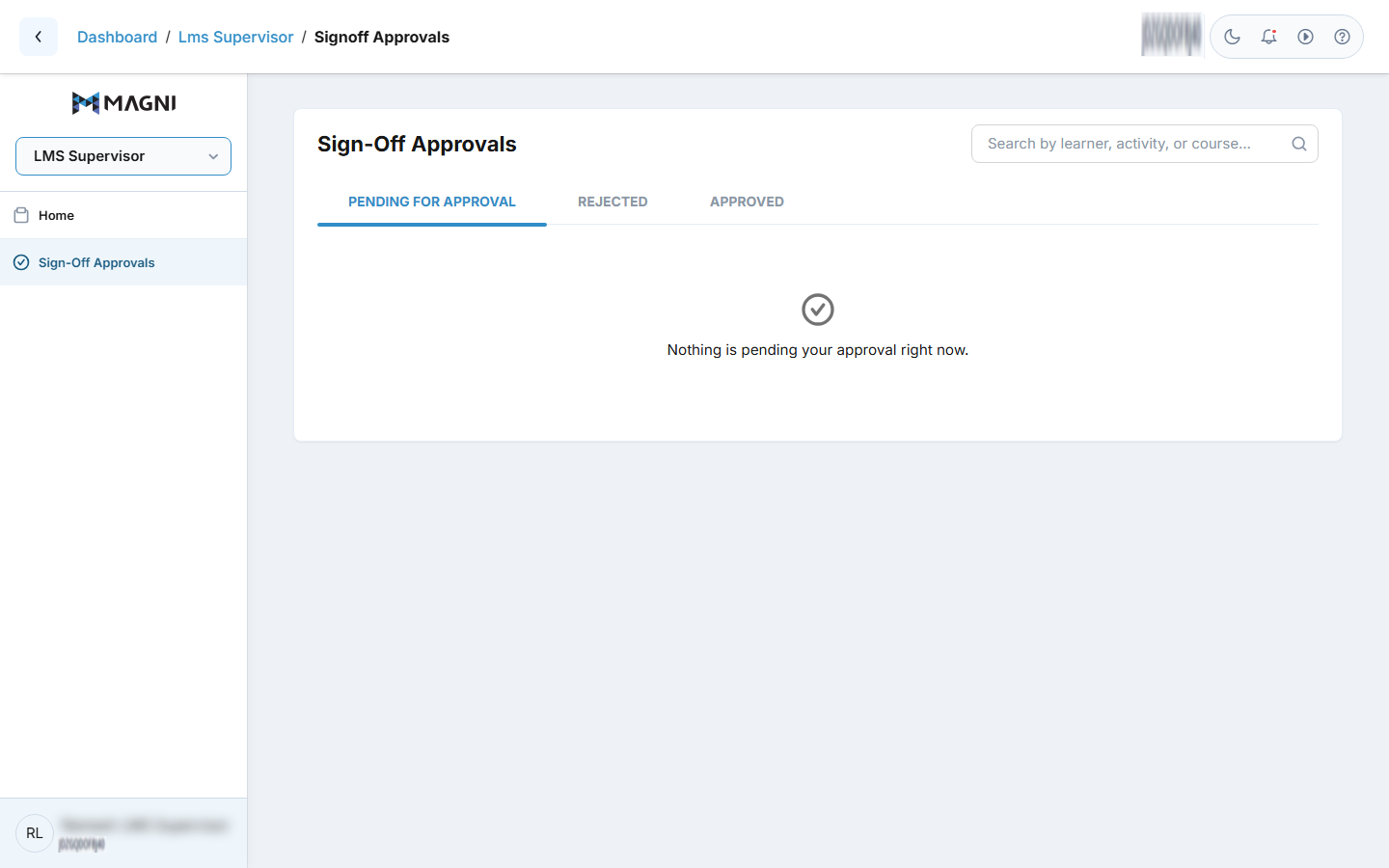
The Sign-Off Approvals page allows LMS supervisors to review, track, and manage activity sign-off requests submitted by learners. Supervisors can inspect learner checklist responses, verify electronic signatures, add feedback, and approve or reject submissions.
Overview
When learners complete activities that require supervisor sign-off, their submissions appear on this page. Supervisors can filter through requests, examine submitted details (such as completed checklist items and signatures), and provide feedback while approving or rejecting each item.
Page Sections
Search Bar
Use the search input at the top right of the page to quickly locate specific submissions.

- Search Input: Type keywords to filter sign-off records by learner name, activity title, or course name. Results update automatically as you type.
Status Tabs
The page is organized into three tabs based on approval status:
- Pending for Approval: Displays all learner submissions currently awaiting your review. If no requests are pending, an empty state message reads "Nothing is pending your approval right now."
- Rejected: Displays submissions that were reviewed and rejected. If no rejected items exist, an empty state message reads "No rejected sign-offs found."
- Approved: Displays submissions that were reviewed and approved. If no approved items exist, an empty state message reads "No approved sign-offs found."
Submissions Table
Each tab displays a list of submissions in a table format with the following columns:
- Activity: Displays the title of the activity requiring sign-off along with the parent course name beneath it. Hovering over the title displays the full activity name in a tooltip.
- Learner: Displays the full name of the learner who submitted the sign-off request.
- Submitted / Reviewed: Displays the submission date and time when viewing the Pending for Approval tab, or the review date and time when viewing the Rejected or Approved tabs.
Columns can be sorted in ascending or descending order by clicking the column headers: Activity, Learner, or Submitted/Reviewed.
Expanded Details and Review Panel
Clicking any row or activity title in the table expands that submission to reveal full details and review controls.
Checklist Responses
If the activity includes checklist requirements, this section lists each checklist item alongside an indicator showing whether it was checked or unchecked.
e-Signature
If an electronic signature was captured upon submission, the learner's signature image is displayed here.
Comment (Optional)
- On Pending Submissions: Includes an optional text field labeled Comment (optional) where you can enter notes or feedback for the learner ("Add a note for the learner...").
- On Approved or Rejected Submissions: Displays any review comment previously entered by the supervisor inside an alert box.
Decision Buttons (Pending Tab Only)
When reviewing items under the Pending for Approval tab, the following action buttons are available at the bottom of the expanded section:
- Approve: Submits an approval decision for the request. The learner is notified, and the item moves to the Approved tab.
- Reject: Submits a rejection decision for the request. The learner is notified, and the item moves to the Rejected tab.
Both buttons are disabled while the review request is processing.
Pagination
When the list contains more items than fit on a single page, pagination controls appear below the table. Use these controls to navigate between pages or adjust the number of items displayed per page.
Common Actions
| Action | How to do it |
|---|---|
| Search for a submission | Enter the learner's name, activity name, or course title into the search input. |
| View submission details | Click anywhere on a submission row or click the activity title to expand or collapse details. |
| Approve a request | Expand a pending request, optionally add a comment, and click Approve. |
| Reject a request | Expand a pending request, optionally add a comment explaining why, and click Reject. |
| Sort submissions | Click the Activity, Learner, or Submitted/Reviewed column header to toggle sort order. |
| Filter by approval state | Switch between the Pending for Approval, Rejected, and Approved tabs. |
Tips
- Add explanatory notes in the comment box when rejecting a submission so the learner knows what needs to be corrected before resubmitting.
- Click directly on column headers to quickly sort submissions by learner name or date to prioritize older pending requests.
- Use the search field to quickly find all sign-off records associated with a specific course or learner across any tab.