Process Checklists — List
Last updated on: 2026-05-26 | Updated by: MAGNI Docs Team
This help page describes how to access, view, and manage operational checklists within the Magni Learning Management System (LMS). Administrators and managers use this page to organize standard procedures, track frequencies, and configure checklist alerts.
Overview
Overview
The Product Checklist Execution page displays all checklists that have been assigned or scheduled for the currently logged-in user. These assignments are configured by an administrator from the Authorization page. Once a checklist is assigned, the user can access and execute it from this page.
Page Sections
Feature Access & Breadcrumbs
The breadcrumb path at the top of the page helps you navigate back to the Dashboard.
Depending on your organization's settings, you may see either Process Checklists or Product Checklists as the active page. If the Process Checklists feature is not enabled for your organization, a "Feature Not Enabled" message will display instead of the management tools.
👤 Visible to: Administrators and managers with checklist management permissions.
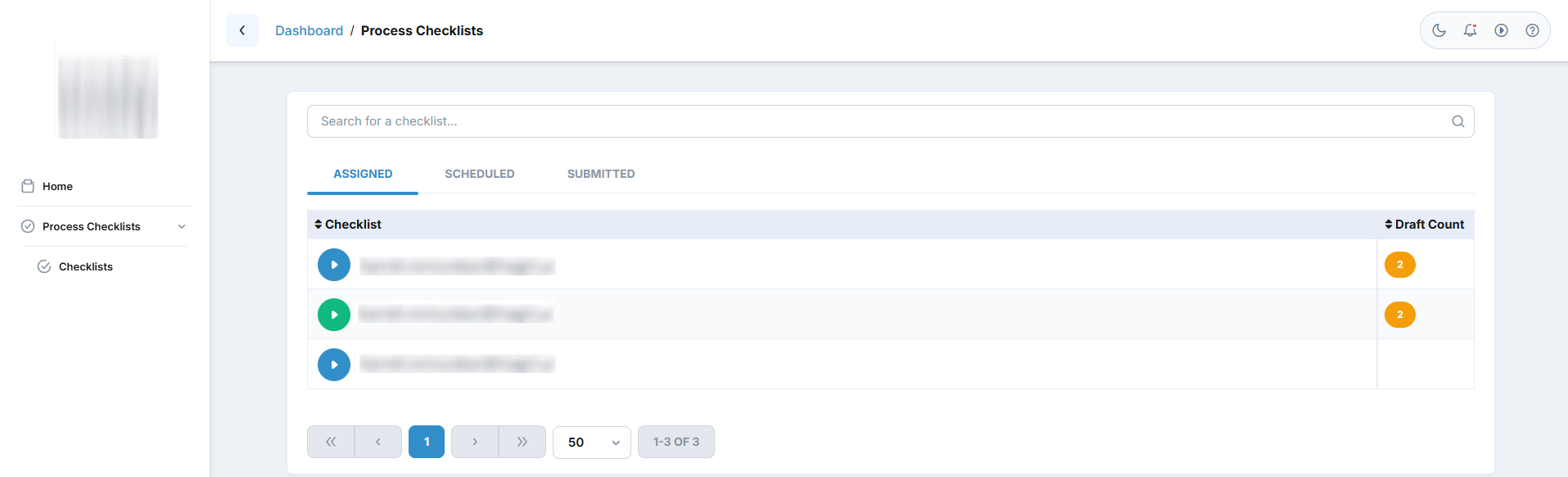
The page is divided into three tabs:
- Assigned – Displays all checklists assigned directly to the logged-in user.
- Scheduled – Displays all checklists that are scheduled for execution based on their configured schedule.
- Submitted – Displays all checklist executions that have already been completed and submitted by the user.
Assigned Tab
The Assigned tab lists all checklists that have been assigned to the logged-in user and are available for execution.
Search Checklist
Use the Search for a checklist... field to quickly locate a checklist by its name. The list updates automatically as you type.
Checklist List
The table displays all assigned checklists.
Checklist
Displays the name of the assigned checklist.
Click on the checklist row to expand or start the execution.
Status Indicator
Each checklist displays a coloured status icon indicating its current execution state.
Blue Icon
- Indicates that there is at least one new execution available to start.
- The checklist has not yet been opened for that execution.
- Clicking the checklist starts a new checklist execution.
Green Icon
- Indicates that the checklist has one or more draft executions.
- A draft is created automatically when a checklist execution is saved without being submitted.
- Users can reopen any draft and continue the execution later.
Note: A checklist can display both Green and Blue icons simultaneously.
This happens because Product Checklists support multiple draft executions. For example:
- A user starts one execution and saves it as Draft.
- Later, another execution becomes available.
- The existing draft is shown using the Blue icon.
- The new execution waiting to be started is shown using the Green icon.
Draft Count
The Draft Count column displays the total number of draft executions currently available for that checklist.
Examples:
- 1 – One draft execution exists.
- 2 – Two draft executions exist.
- 5 – Five draft executions exist.
- 8 – Eight draft executions exist.
The draft count only represents saved but not submitted checklist executions.
Scheduled Tab
The Scheduled tab displays all Product Checklists that have been scheduled for the logged-in user.
These checklists become available according to their configured schedule (Daily, Weekly, Monthly, or other configured frequency).
Users can:
- View scheduled checklist executions.
- Start the checklist when it becomes available.
- Save progress as a draft.
- Submit the completed checklist.
Submitted Tab
The Submitted tab contains all checklist executions that have been successfully completed and submitted by the logged-in user.
Submitted checklists are read-only records used for tracking completed inspections and maintaining execution history.
The Submitted tab allows users to:
- View completed checklist executions.
- Review submitted responses.
- Verify previously completed inspections.
- Track completed execution history.
Common Actions
| Action | How to do it |
|---|---|
| Start a Checklist | Click the checklist with the Green status indicator to begin a new execution. |
| Continue a Draft | Click the checklist with the Blue status indicator and open one of the available drafts. |
| Search a Checklist | Enter the checklist name in the Search for a checklist... field. |
| View Scheduled Checklists | Open the Scheduled tab.. |
| View Submitted Checklists | Open the Submitted tab. |
| Check Draft Count | View the Draft Count column beside each checklist. |
Tips
- Only checklists that are assigned or scheduled for the logged-in user are displayed.
- Checklist assignments are managed by administrators from the Authorization page.
- Product Checklists support multiple draft executions for the same checklist.
- A checklist may display both Green and Blue status indicators when a new execution is available while one or more previous executions remain in draft status.
- The Draft Count shows only saved draft executions and does not include submitted executions.
- Once a checklist is submitted, it is moved to the Submitted tab and is no longer counted as a draft..