Process Checklists - MIS Schedules
Last updated on: July 1, 2026 | Updated by: MAGNI Docs Team
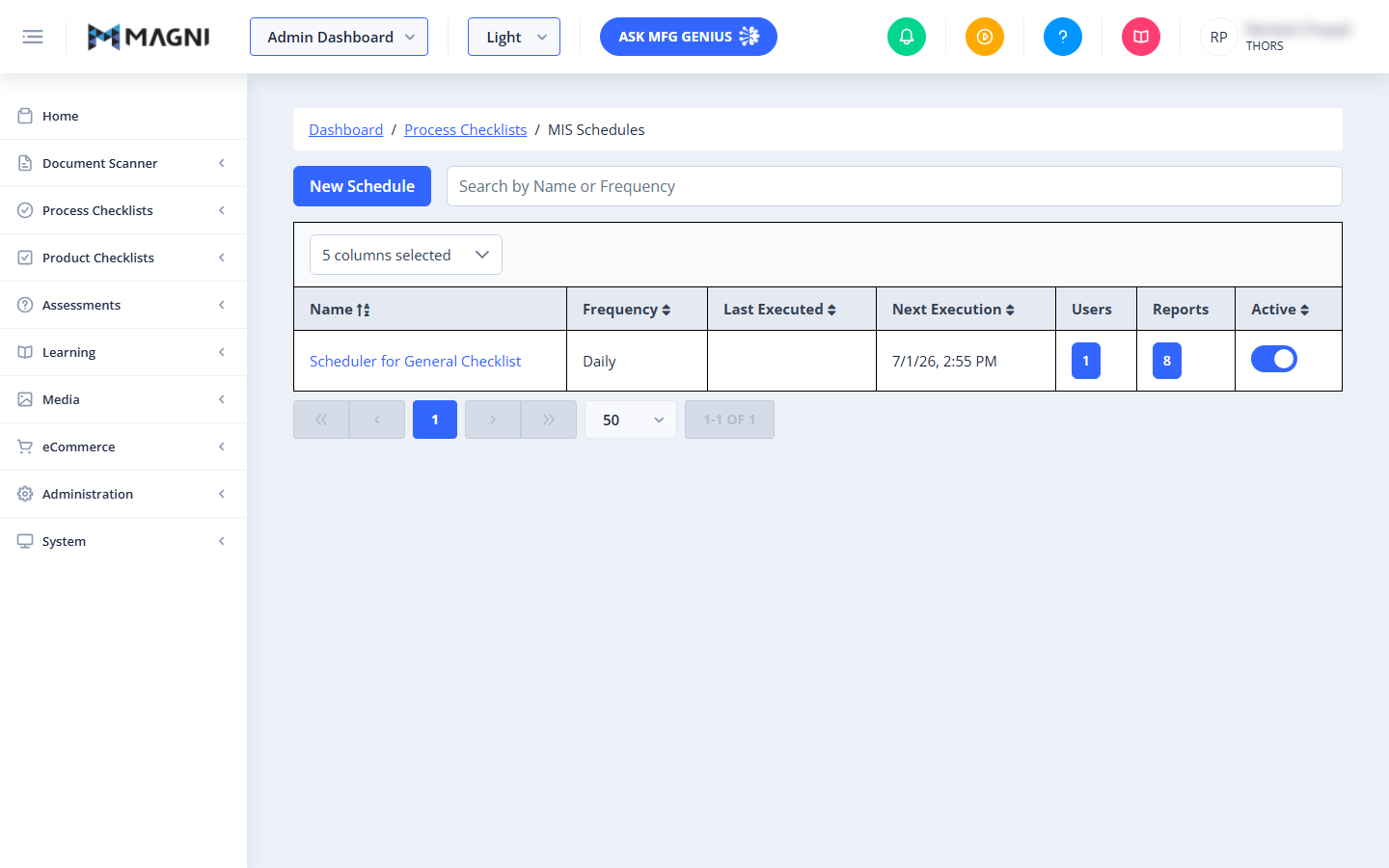
The MIS Schedules page allows Administrators to manage automated schedules for Process Checklists. From this page, you can create new schedules, search existing configurations, toggle schedule statuses, and view the specific users and reports associated with each schedule.
👤 Visible to: Administrator, System Administrator
Page Sections
Action Bar
The Action Bar at the top of the page contains the primary controls for creating and searching schedules.
- New Schedule Button: Click this button to open the schedule creator form and set up a new automated checklist schedule.
- Search Bar: Type a schedule name or frequency into this field to instantly filter the list. The table updates automatically as you type.
Schedules Table
The Schedules Table displays all configured checklist schedules along with their current execution status and metadata.

- Column Selector: Located at the top left of the table, this dropdown allows you to customize your view. Click it to select or deselect columns. The available columns are:
- Frequency: How often the schedule runs (e.g., Daily, Weekly, Monthly).
- Last Executed: The date and time the schedule last ran.
- Next Execution: The scheduled date and time for the next run.
- Users: The number of users assigned to receive the scheduled reports.
- Reports: The number of checklist reports included in the schedule.
- Modified By: The username of the person who last edited the schedule.
- Last Modified: The date the schedule was last updated.
- Created By: The username of the person who created the schedule.
- Created: The date the schedule was originally created.
- Table Headers: Click on any sortable header (Name, Frequency, Last Executed, Next Execution, Last Modified, Created, or Active) to sort the table in ascending or descending order.
- Name Column: Displays the name of the schedule as a clickable link. Clicking the name opens the schedule editor.
- Users Column: Displays a button with the total count of assigned users. Clicking this button opens a dialog listing all assigned users.
- Reports Column: Displays a button with the total count of assigned reports. Clicking this button opens a dialog listing all assigned reports.
- Active Column: Contains a toggle switch to enable or disable the schedule. When disabled, the automated schedule is paused and will not execute.
- Pagination: Located at the bottom of the table, this control allows you to navigate through multiple pages of schedules and adjust the number of items displayed per page.
Detail Dialogs
- Users Dialog: A modal popup that displays a list of all users assigned to receive reports for the selected schedule.
- Reports Dialog: A modal popup that lists all specific checklist reports generated and sent by the selected schedule.
Common Actions
| Action | How to do it |
|---|---|
| Create a New Schedule | Click the New Schedule button at the top left of the page. |
| Search Schedules | Type a schedule name or frequency into the Search by Name or Frequency input field. |
| Edit an Existing Schedule | Click the blue hyperlink name of the schedule in the Name column. |
| Toggle Schedule Status | Click the toggle switch in the Active column to turn the schedule on (blue) or off (gray). |
| View Assigned Users | Click the blue button in the Users column for the desired schedule row. |
| View Assigned Reports | Click the blue button in the Reports column for the desired schedule row. |
| Customize Table Columns | Click the Columns Selected dropdown above the table and check or uncheck columns to customize your view. |
Tips
- Pause Instead of Delete: If you temporarily do not need a schedule to run, use the Active toggle switch to pause it. This preserves your configuration so you do not have to recreate it later.
- Keep Track of Executions: Regularly monitor the Last Executed and Next Execution columns to ensure your automated reports are running as expected.
- Clean Up Your View: Use the column selector to hide columns you rarely use (such as "Created By" or "Created") to keep your dashboard clean and focused on active schedules.