AI Assessment Generator
Last updated on: 2026-05-25 | Updated by: MAGNI Docs Team
The AI Assessment Generator is a powerful tool designed for administrators to create structured competencies and skills. By uploading reference documents or entering details manually, administrators can leverage AI to automatically map out training requirements and generate corresponding assessments.
👤 Visible to: Administrators with Competency Builder permissions enabled.
Page Sections
Document Selection & Upload
This section allows you to choose the reference materials that the AI will analyze to build your competencies.
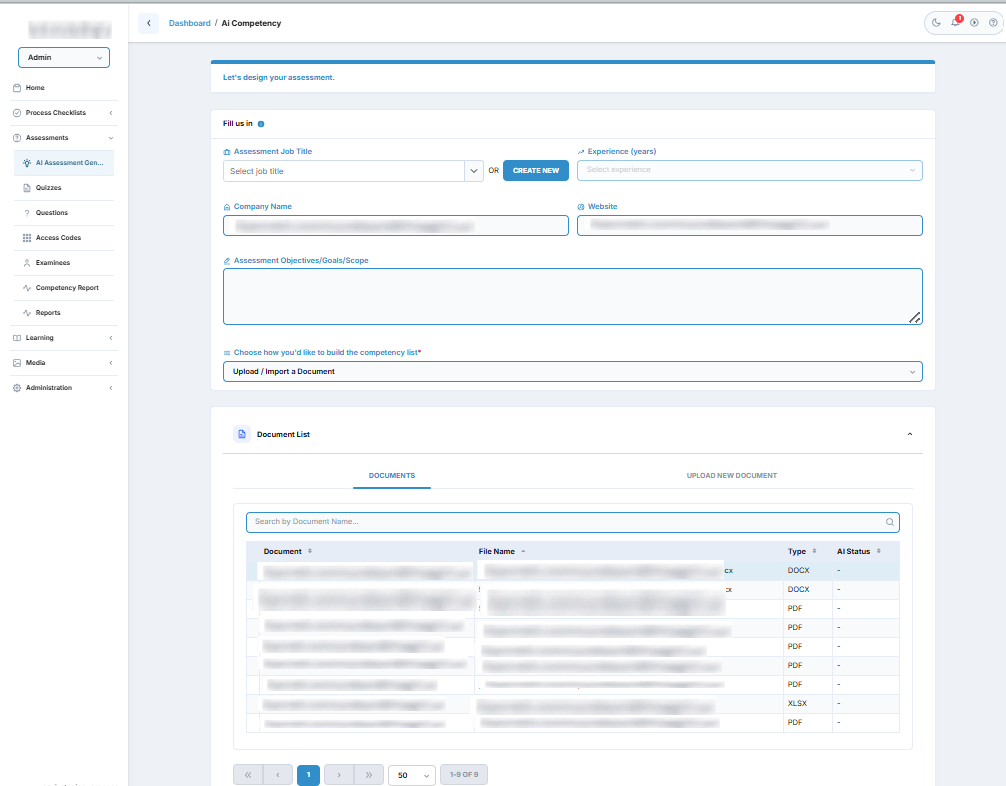
You can manage your documents using two primary tabs under Choose how you'd like to build the competency list:
- Documents Tab: Displays a list of previously uploaded files. Use the search bar to quickly find documents by name.

- Upload New Document Tab: Allows you to upload new reference files directly from your device to use for competency generation.
Selected Files & Competency Controls
Once you select or upload reference files, they will appear in this section.
- Selected File(s) List: Lists all files currently chosen for AI analysis. Each file has a Remove button next to it if you wish to deselect it.
- File Limit Warning: You can select multiple files, but if you select more than 4 files, a red warning message (*Too many files selected!) will appear, and competency generation will be disabled.
- Generate Competencies Button: Initiates the AI analysis of your selected documents to automatically draft competencies and skills. This button is disabled if no files are selected or if the file limit is exceeded.
- Add Competency Button: Allows you to bypass document upload and manually create a competency card from scratch.
Competency & Skills Editor
Once competencies are generated by the AI or manually added, the Edit Competencies & Skills card appears. This interface allows you to review, edit, and validate the generated framework before creating assessments.
- Competency Name Input: Enter or edit the competency title (maximum 100 characters). If a duplicate competency name is detected, the input field border turns red and displays a warning icon with a "Duplicate competency" tooltip.
- Remove Competency Button: Click the red "X" button next to a competency name to delete the entire competency and its associated skills.
- Core Skills Inputs: Each competency contains a list of associated core skills (maximum 100 characters per skill). If a duplicate skill is detected within the same competency, the field turns red and displays a "Duplicate skill in this competency" warning.
- Remove Skill Button: Click the red "X" button next to an individual skill to delete it.
- + Add skill Button: Adds a new blank skill field under the corresponding competency.
- Clear All Button: Located in the footer, this button clears all competencies and skills from the editor so you can start over.
- Proceed Button: Located in the footer, this button saves your finalized competencies and moves you to the quiz recommendation step. This button is disabled if any competency or skill field is invalid or contains duplicate errors.
Common Actions
| Action | How to do it |
|---|---|
| Select a Reference Document | Click the Documents tab, search for your document by name, and select it from the list. |
| Upload a New Document | Click the Upload New Document tab, choose your file, and upload it to the system. |
| Generate Competencies with AI | Select up to 4 reference documents, then click the Generate Competencies button. |
| Manually Add a Competency | Click the Add Competency button to create a blank competency card. |
| Add a Skill to a Competency | Click the + Add skill button inside the competency card, then type the skill name. |
| Remove a Competency or Skill | Click the red X icon next to the competency or skill you want to delete. |
| Clear All Progress | Click the Clear All button at the bottom of the editor to start over. |
| Proceed to Quiz Generation | Ensure all competencies and skills are valid (no red warnings), then click Proceed. |
Tips
- Keep Files Focused: For the best AI generation results, limit your document selection to 2 or 3 highly relevant files that directly outline the job roles or technical standards you want to assess.
- Watch for Validation Warnings: Pay close attention to red input fields. The system will not let you proceed to quiz generation if there are duplicate competencies or duplicate skills within the same competency.
- Refine AI Output: AI-generated competencies are highly customizable. Always review and edit the generated text to match your organization's specific terminology before clicking Proceed.