Last updated on: 2026-05-25 | Updated by: MAGNI Docs Team
Reports
The Reports page in Magni provides administrators with tools to generate and view various reports related to user activity, assessments, and learning progress within the system. This page allows you to filter and customize report settings to gain insights into how users are engaging with the platform.
Overview
This page is primarily used by administrators to access and configure different types of reports. You can select specific criteria such as customer, report type, scoring method, user type, and date ranges to generate detailed reports.
Page Sections
Breadcrumb Navigation
At the top of the page, the breadcrumb navigation shows your current location within the Magni system: Dashboard > Reports. You can click on "Dashboard" to return to the main administrator dashboard.
Reports Dashboard
This is the main area where you configure and view report settings. It is divided into two tabs: SETTINGS and USER REPORT. The screenshot below shows the SETTINGS tab active.
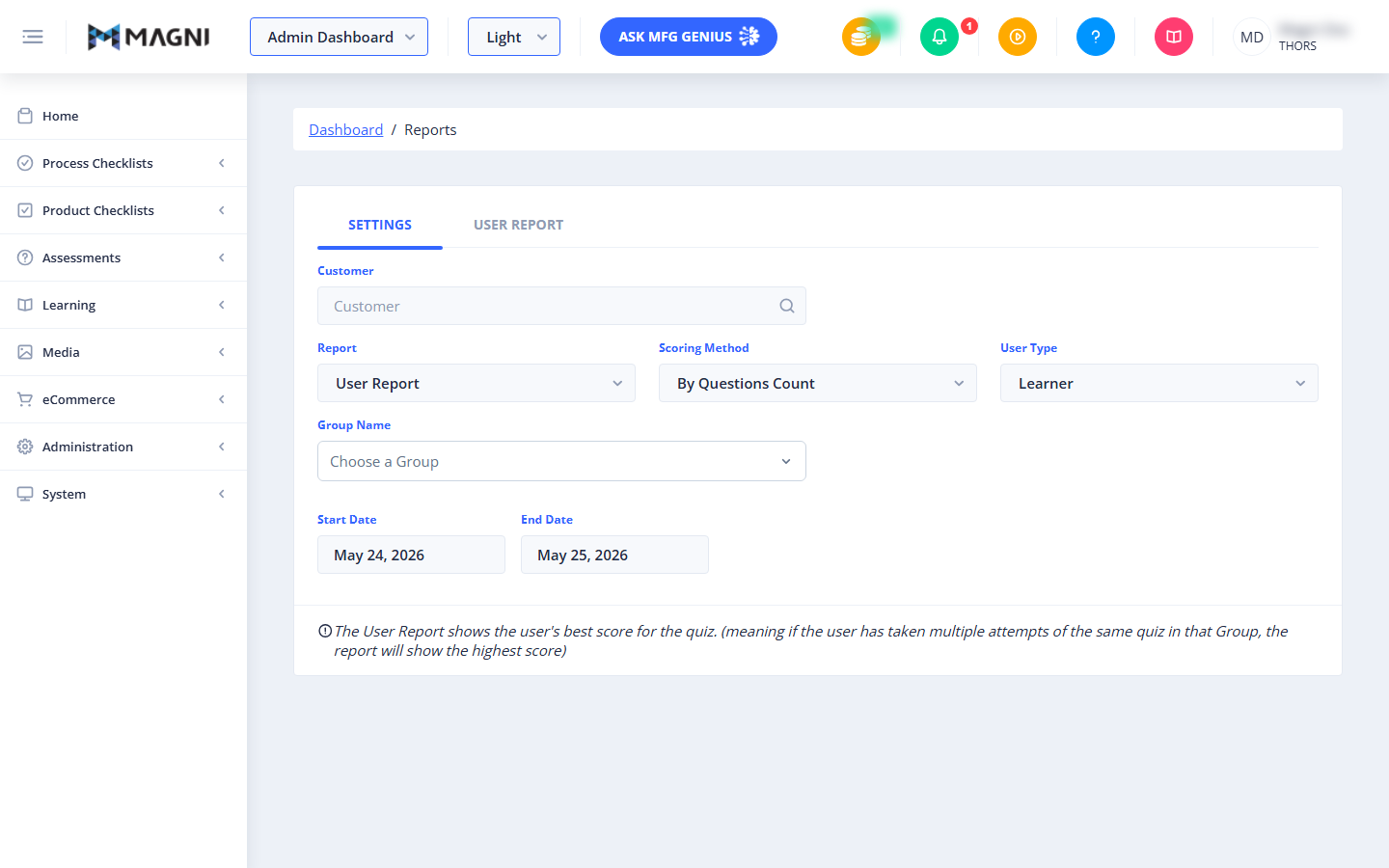
SETTINGS Tab
The SETTINGS tab allows you to define the parameters for the report you wish to generate.
- Customer:
- Purpose: Use this field to search for and select a specific customer whose data you want to include in the report.
- Type: Text input with a search icon.
- How to use: Type the name of a customer, and the system will likely filter or suggest matching customers.

- Report:
- Purpose: Select the type of report you want to generate.
- Type: Dropdown menu.
- Default Value: "User Report".
- Options: The visible option is "User Report", but other report types may be available in the dropdown.
- Scoring Method:
- Purpose: Choose how scores are calculated or presented in the report.
- Type: Dropdown menu.
- Default Value: "By Questions Count".
- Options: The visible option is "By Questions Count", but other scoring methods may be available.
- User Type:
- Purpose: Filter the report by specific user roles or types.
- Type: Dropdown menu.
- Default Value: "Learner".
- Options: The visible option is "Learner", but other user types may be available.
- Group Name:
- Purpose: Select a specific group to include in the report.
- Type: Dropdown menu.
- Default Value: "Choose a Group".
- Options: You can select from available groups.
- Start Date:
- Purpose: Define the beginning of the date range for the report data.
- Type: Date picker.
- Default Value: "May 24, 2026".
- End Date:
- Purpose: Define the end of the date range for the report data.
- Type: Date picker.
- Default Value: "May 25, 2026".
Important Note: Below the date fields, there is a note explaining how the "User Report" calculates scores: "The User Report shows the user's best score for the quiz: (meaning if the user has taken multiple attempts of the same quiz in that Group, the report will show the highest score)"
USER REPORT Tab
This tab is where the generated report data would be displayed once you have configured your settings and initiated the report generation. The content of this tab is not visible in the current view.
Common Actions
| Action | How to do it |
|---|---|
| Return to the main dashboard | Click Dashboard in the breadcrumb navigation |
| Choose which customer's data to report on | Type into the Customer search field and select a match |
| Choose the type of report to generate | Select a value from the Report dropdown (defaults to "User Report") |
| Choose how scores are calculated | Select a value from the Scoring Method dropdown (defaults to "By Questions Count") |
| Filter the report by user role | Select a value from the User Type dropdown (defaults to "Learner") |
| Limit the report to a specific group | Select a value from the Group Name dropdown (defaults to "Choose a Group") |
| Set the report's date range | Enter a Start Date and End Date using the date pickers |
| View the generated report | Configure your settings on the SETTINGS tab, then switch to the USER REPORT tab |
Tips
- Customer, Report, Scoring Method, and User Type all come with sensible defaults, so for a quick User Report you may only need to adjust the Customer, Group Name, and date range.
- The User Report always shows each user's best score for a quiz — if someone attempted the same quiz multiple times within a group, only their highest score is reflected, not an average or most-recent attempt.
- Double-check Start Date and End Date before generating a report — these directly control which activity is included, and both default to a recent short window (around a day apart) rather than a full history.
- If Group Name is left at "Choose a Group," confirm whether that means the report covers all groups or none — verify this behavior in the live app, since it wasn't specified in the source material.
- The dropdowns for Report, Scoring Method, and User Type may have more options than the single default shown — open each dropdown to see the full list of choices available to your account.
- The USER REPORT tab's exact layout and output weren't visible in the reference material — update this page once you can confirm what the generated report actually displays.