Process Checklist Issues — List
Last updated on: 2026-05-27 | Updated by: MAGNI Docs Team
The Admin Checklists Process Issues page allows administrators to monitor, track, and manage issues flagged during the execution of process checklists. This centralized tracker helps maintain quality control and ensures that operational problems are quickly identified, assigned, and resolved.
👤 Visible to: Administrator, System Administrator
Page Sections
Breadcrumb Trail
Located at the very top of the page, the breadcrumb trail helps you quickly navigate back to the main Dashboard or the Process Checklists list.
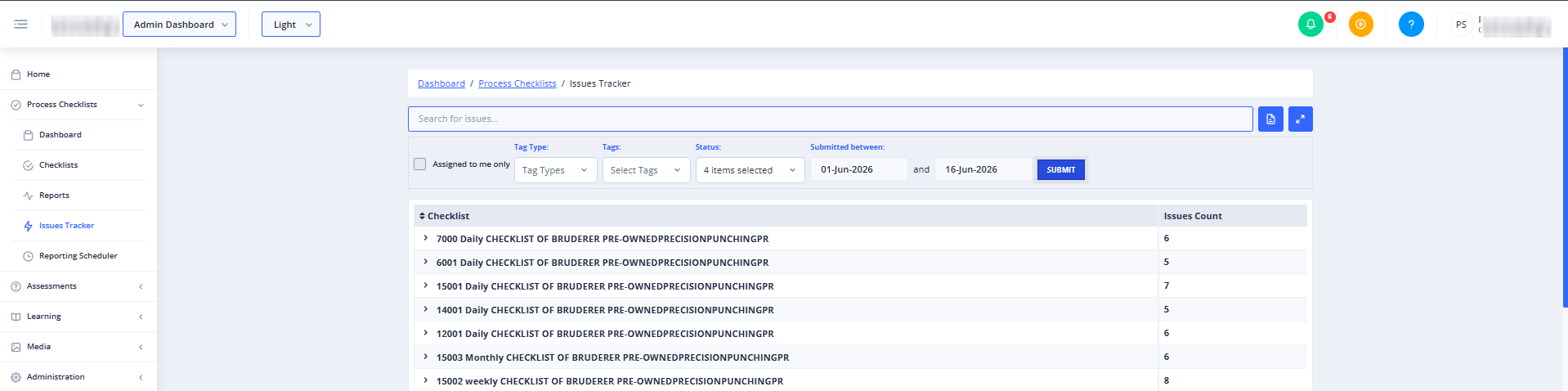
Search and Action Bar
This section contains the primary controls for finding, creating, and exporting issues.
- New Issue Button (Conditional): This button is only visible if you have permission to create issues and the active feature is set to tasks. It allows you to manually log a new issue.
- Search Bar: Type keywords here to instantly search for specific issues across your checklists.
- Export to Excel Button: Click the document icon to export the currently displayed table data to an Excel spreadsheet. This button is disabled if there are no issues in the list.
- Toggle Filters Button: Click the expand icon to show or hide the advanced filters panel.
Filters Panel
Expand this panel to narrow down the list of issues using specific criteria. Click the Submit button to apply your selected filters.
- Assigned to me only: Check this box to only display issues assigned to your user account. By default, this is unchecked for administrators.
- Tag Type: Select a tag category from the dropdown to filter issues by their tag classification.
- Tags: Select specific tags to filter the list.
- Category (Product Checklists Only): This dropdown is only visible when viewing Product Checklist issues. It allows you to filter issues by their checklist category.
- Status: A multi-select dropdown that lets you filter issues by their current state (such as New, Assigned, In Progress, or Resolved).
- Submitted between: Select a start date and end date to view issues submitted within a specific timeframe.
- Created Date: Select a Created Date to filter records based on their creation date. This filter is applied along with the selected Status. For example, if the selected statuses are Assigned, New, Hold, Resolved, and Closed, the results will display only the records that match both the selected statuses and the specified created date.
- Closed Date: Select a Closed Date to filter records based on their closure date. This filter is applied independently of the Status filter. Regardless of the statuses selected (e.g., Assigned, New, Hold, Resolved, and Closed), the results will include only the records whose Closed Date matches the selected date. The Status filter is not considered when the Closed Date filter is applied.
- Submit Button: Applies all selected filters to the issues list.
Issues List Table
Displays the filtered list of issues categorized by checklist.
- Checklist: Displays the name of the checklist where the issue was flagged.
- Issues Count: Displays the number of active issues associated with each checklist.
- Pagination Controls: Located at the bottom of the table, these controls let you navigate through multiple pages of issues. You can select how many records to display per page (e.g., 50) and use the navigation arrows (First, Previous, Next, Last) to browse.
Feature Not Enabled State (Conditional)
If your organization has not enabled the Issues Tracker feature, or if it is disabled for Process Checklists in your system settings, you will see a "Feature Not Enabled" message instead of the tracker interface. Contact your System Administrator to enable this feature.
Common Actions
| Action | How to do it |
|---|---|
| Search for an issue | Type your search terms into the Search for issues... bar and press Enter. |
| Filter by status | Click the Status dropdown, check the boxes next to the statuses you want to view, and click Submit. |
| Filter by date range | Select a start date and end date in the Submitted between fields, then click Submit. |
| Export data | Click the Export to Excel (document) button to download the currently filtered list. |
| Show/Hide filters | Click the Toggle Filters (expand) button to collapse or expand the filter options. |
Tips
- Combine Filters for Precision: Use a combination of Status, Tags, and Date Range filters to quickly isolate high-priority issues from specific operational windows.
- Export for Reporting: Use the Export to Excel feature to generate quick status reports for team meetings or external quality audits.
- Check Your Assignments: If you are responsible for resolving issues, toggle the "Assigned to me only" checkbox to quickly clear out clutter and focus on your direct tasks.