Activities — List
Last updated on: 2026-05-25 | Updated by: MAGNI Docs Team
This page allows administrators to view and manage all learning activities within the Magni system. It provides a comprehensive list of activities, including their status, revision history, and modification details.
Overview
The Activities page serves as a central hub for administrators to oversee and interact with all learning content. From here, you can quickly find specific activities, check their publication status, and access them for further management.
👤 Visible to: Users with permission to review all activities. If you do not have the necessary permissions, you will see an "Unauthorized to view activities" message.
Page Sections
Breadcrumbs
At the top of the page, the breadcrumbs indicate your current location within the system: Dashboard > Activities. You can click on Dashboard to return to the main administrator dashboard.
Activities List
This is the main section of the page, displaying a table of all learning activities. By default, the list shows published activities, sorted by their most recent modification date in descending order.
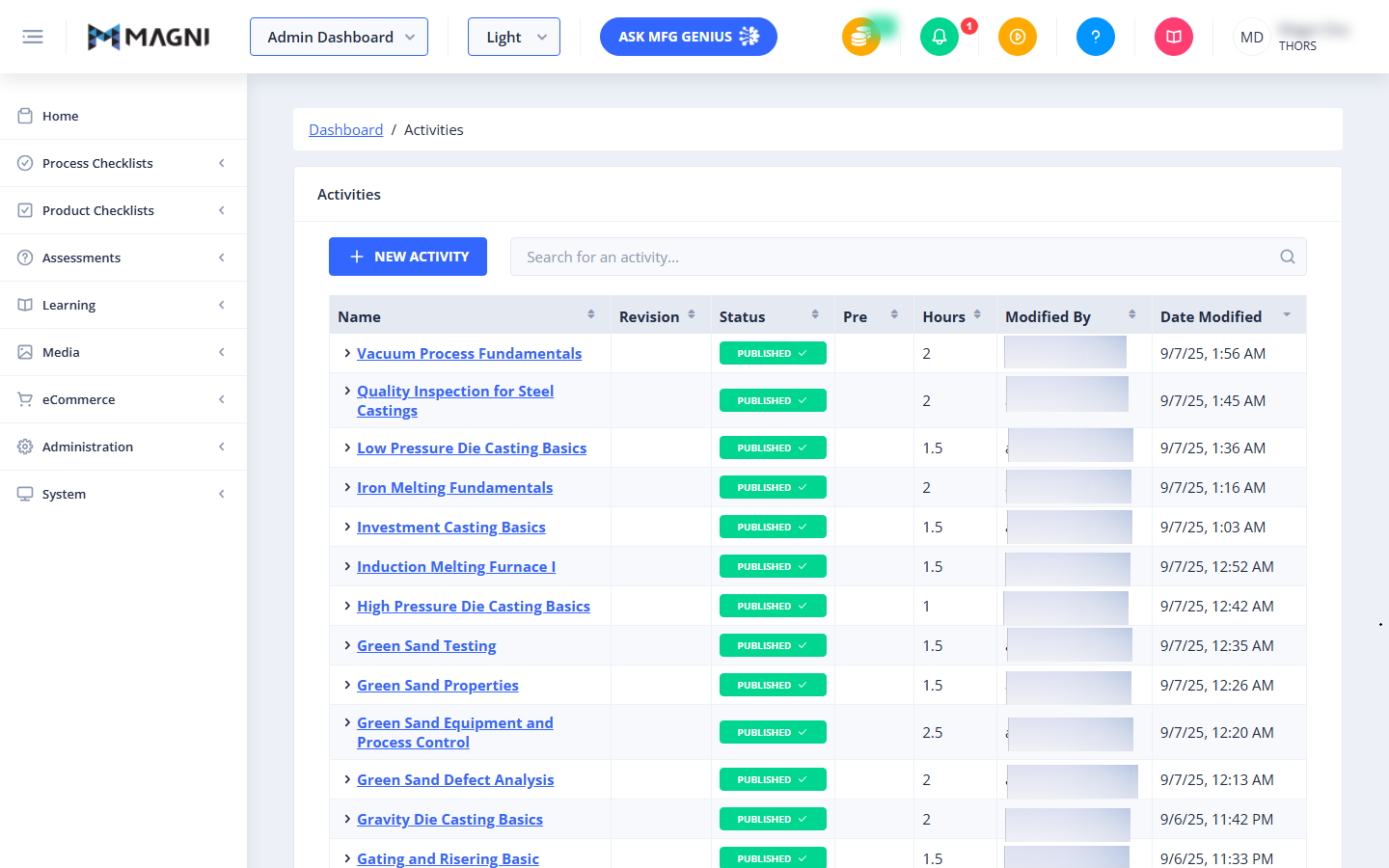
Search Bar
Use the search bar to quickly find specific activities by name.

- Search for an activity...: Enter keywords into this field to filter the list of activities. The list will update dynamically as you type.
New Activity Button
The + NEW ACTIVITY button allows you to create a brand new learning activity.
Activities Table
The table lists all activities with the following columns:
- Name: The title of the learning activity. Clicking on an activity's name will likely take you to its details or editing page (feature not explicitly shown in source, but common UI pattern).
- Revision: Indicates the current revision number of the activity.
- Status: Shows the publication status of the activity (e.g., "PUBLISHED").
- Pre: (Purpose not explicitly defined in source, but typically indicates prerequisite hours or a similar metric).
- Hours: The estimated time required to complete the activity.
- Modified By: The username of the last person who modified the activity.
- Date Modified: The date and time when the activity was last updated.
- AI Status: Indicates the current processing state of the activity relative to AI integration (e.g., "Submitting", "Processing", "Complete", "Failed")
Common Actions
| Action | How to do it |
|---|---|
| Return to the main dashboard | Click Dashboard in the breadcrumb navigation. |
| Find a specific activity | Type keywords into Search for an activity... — the list updates dynamically as you type. |
| Create a new learning activity | Click + NEW ACTIVITY. |
| Open an activity for details or editing | Click the activity's Name in the Activities table. |
| Check an activity's revision number | Review the Revision column. |
| Check if an activity is published | Review the Status column (e.g., "PUBLISHED"). |
Tips
- By default, the list only shows published activities, sorted by most recently modified first — if you're looking for a draft or unpublished activity, you may need to adjust filters (verify what filtering options exist in the live app).
- If you see an "Unauthorized to view activities" message, you don't currently have permission to review all activities — this page requires that permission to load the list.
- The search bar filters by name only, so use exact or partial title keywords rather than other details like status or modifier.
- Date Modified sorting defaults to descending (newest first), which makes it easy to spot recently changed activities at a glance without extra filtering.
- The purpose of the Pre column wasn't explicitly defined in the source material — confirm what it represents (e.g., prerequisite hours) before publishing this documentation, and update this table once confirmed.
- Clicking an activity's Name is the expected way to drill into its details or edit it, but this wasn't explicitly confirmed in the source — verify the actual click behavior in the live app.