Last updated on: 2026-05-25 | Updated by: MAGNI Docs Team
Activities — Detail
This page allows administrators and content managers to view the detailed information of a specific learning activity within Magni's Learning Management System (LMS). From here, you can review the activity's content, manage its status, and perform administrative actions such as editing, deleting, or restoring previous versions.
⚠️ Unauthorized Access: If you do not have the necessary permissions to view an activity, an "Unauthorized to view activity" alert will be displayed, and the activity content will not be visible.
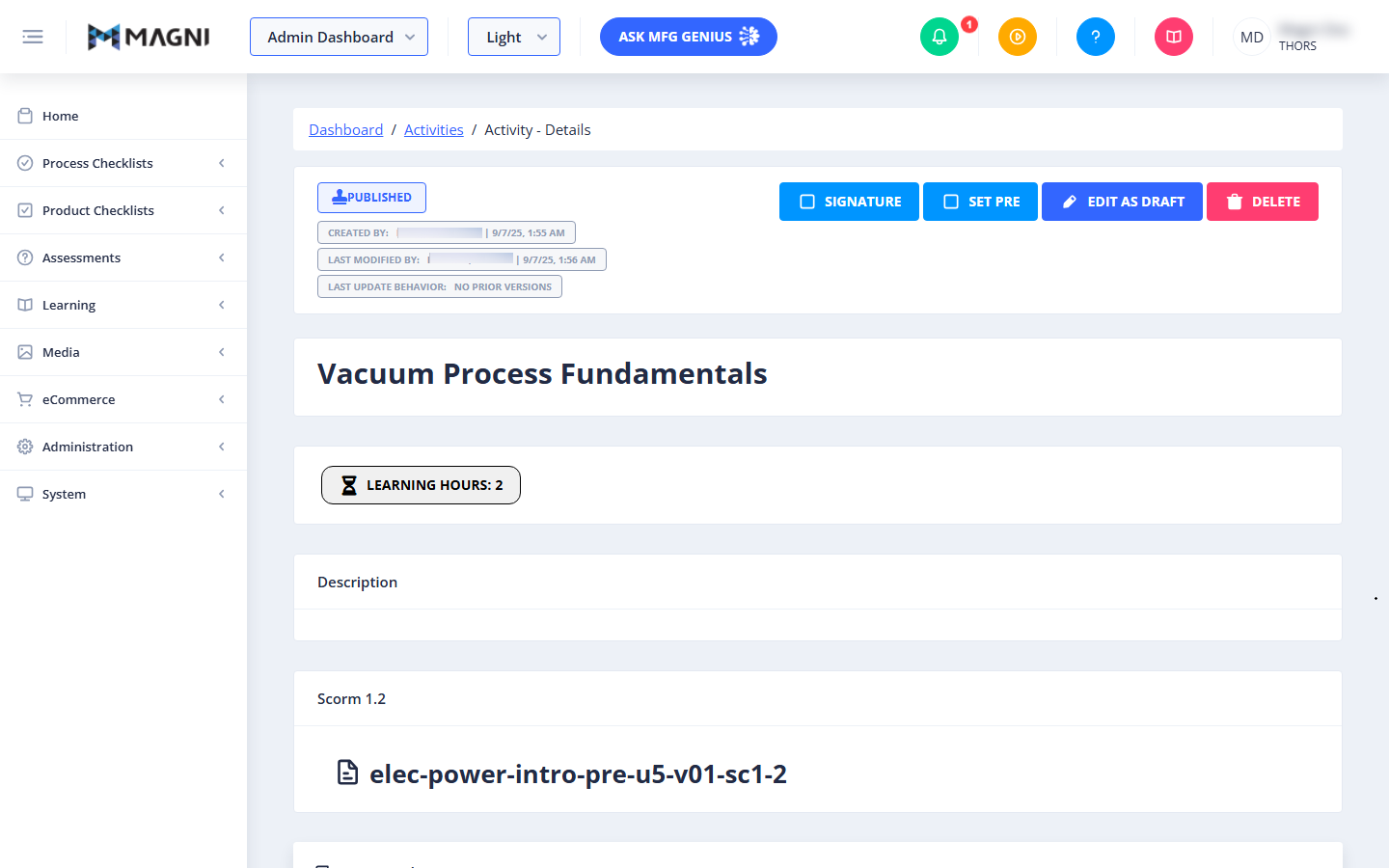
Page Sections
Breadcrumb Navigation
At the top of the page, a breadcrumb trail helps you navigate: Dashboard > Activities > [Activity Name] Clicking Dashboard takes you to the main administration dashboard. Clicking Activities returns you to the list of all learning activities. The last item in the trail displays the name of the current activity you are viewing.
Activity Header and Management Actions
This section provides key information about the activity and buttons for various management tasks.
-
Activity Status Indicator:
- Published: If the activity is currently live and available to users, a Published button with a stamp icon is displayed. If the activity is also designated as a Pre-Assessment, it will show Published (Pre-Assessment).
- History: If you are viewing a historical version of an activity, a History #[Revision Number] button with a history icon is displayed, indicating the specific revision number.
-
Action Buttons:
- Signature:
- This button is visible only when viewing a Published activity.
- It allows you to toggle whether a signature is required for users to complete this activity.
- A checked box icon indicates that a signature is required, while an unchecked box means it is not.
- A tooltip appears on hover: "Signature required for activity completion."
- Set Pre / Unset Pre:
- This button is visible only when viewing a Published activity.
- It allows you to designate the activity as a Pre-Assessment or remove that designation.
- A checked box icon indicates it is a Pre-Assessment; an unchecked box means it is not.
- The button text changes between "Set Pre" and "Unset Pre" based on the current status.
- Tooltips appear on hover: "Designate activity as a Pre-Assessment" or "Remove activity designation as a Pre-Assessment."
- Edit as Draft:
- Clicking this button allows you to create a new draft of the current activity for editing. If a draft already exists for this activity, it will open the existing draft for further modifications.
- Restore:
- This button is visible only when viewing a History version of an activity.
- Clicking it will restore the current historical version, making it the new published version of the activity.
- Delete:
- Clicking this button initiates the process to delete the activity. A confirmation dialog will appear, detailing any associated items (like enrollments or checklists) that might be affected by the deletion.
- Signature:
-
Activity Metadata:
- Created by: Displays the name of the user who originally created the activity and the date and time it was created.
- Last Modified by: Displays the name of the user who last modified the activity and the date and time of that modification.
- Last Update Behavior: Indicates how the activity behaves when a new version is published.
- Maintain Existing Version: When a new version is published, existing user progress is maintained.
- Force New Version/Retain User Progress: A new version is forced, but user progress from the previous version is carried over.
- Force New Version/Remove User Progress: A new version is forced, and all user progress from the previous version is reset.
- No Prior Versions: This activity has no previous versions or specific update behavior set.
Activity Content Display
This is the main area where the actual learning content of the activity is displayed.
- Activity Title: The prominent title of the activity, e.g., "Vacuum Process Fundamentals".
- Learning Hours: Indicates the estimated time required to complete the activity, e.g., "LEARNING HOURS: 2".
- Description: A section for a detailed description of the activity.
- SCORM Content: If the activity is a SCORM package, it will display the SCORM version (e.g., "Scorm 1.2") and a link to the SCORM file, e.g., "elec-power-intro-pre-u5-v01-sc1-2".
Common Actions
| Action | How to do it |
|---|---|
| Return to the dashboard or activities list | Click Dashboard or Activities in the breadcrumb navigation |
| Check if the activity is live | Look for the Published status indicator (or Published (Pre-Assessment) if it's also a pre-assessment) |
| Check which historical version you're viewing | Look for the History #[Revision Number] indicator |
| Require a signature for completion | On a Published activity, click Signature to toggle it on (checked box = required) |
| Mark the activity as a Pre-Assessment | On a Published activity, click Set Pre (checked box = it's a Pre-Assessment) |
| Remove the Pre-Assessment designation | On a Published activity showing Unset Pre, click it to remove the designation |
| Edit the activity | Click Edit as Draft — creates a new draft, or opens the existing draft if one is already in progress |
| Make a historical version the current published version | While viewing a History version, click Restore |
| Delete the activity | Click Delete, then review and confirm in the dialog (it lists any associated enrollments or checklists that may be affected) |
| See who created or last modified the activity | Review Created by and Last Modified by in the Activity Metadata |
| Check how a new version will affect user progress | Review Last Update Behavior in the Activity Metadata |
| Review the activity's content | Scroll the Activity Content Display area for the title, learning hours, description, and any SCORM content |
Tips
- Signature, Set Pre/Unset Pre, and Restore are all context-dependent — Signature and Set Pre only appear on a Published activity, while Restore only appears when you're viewing a History version.
- Edit as Draft is safe to click even if you're not sure a draft exists yet — it opens the existing draft if there is one, rather than creating a duplicate.
- Before clicking Delete, read the confirmation dialog carefully — it lists related items like enrollments or checklists that could be affected, so you can assess the impact first.
- Check Last Update Behavior before publishing a new version if you're unsure whether learner progress will be kept or reset — the four possible states (Maintain Existing Version, Force New Version/Retain Progress, Force New Version/Remove Progress, No Prior Versions) have very different effects on users mid-activity.
- If you land on this page and see an "Unauthorized to view activity" alert, you don't currently have permission to view this specific activity's content.
- If the activity is a SCORM package, the SCORM Content section shows the SCORM version and a link to the file — useful for confirming which package version is currently live.