Last updated on: 2026-05-25 | Updated by: MAGNI Docs Team
Activities — Edit
The Activities — Edit page in Magni allows you to modify the details of an existing learning activity or finalize the creation of a new one. This page is used by learning administrators and content creators to manage the core properties, content, and settings of activities offered within the Learning Management System (LMS).
Overview
This page serves as the central hub for updating all aspects of a learning activity, from its basic information like name and description to its associated media and learning content. When editing an existing activity, changes are saved automatically for most fields. For new activities, you can define initial settings before saving.
⚠️ Unauthorized Access: If you do not have the necessary permissions to update activities, you will see an "Unauthorized to update activities" message, and the page content will not be accessible.
Page Sections
Breadcrumb Navigation
At the top of the page, a breadcrumb trail helps you navigate back to previous sections: Dashboard > Activities > Activities - Edit.
Activity Management Bar
This section provides key actions and status information for the activity.
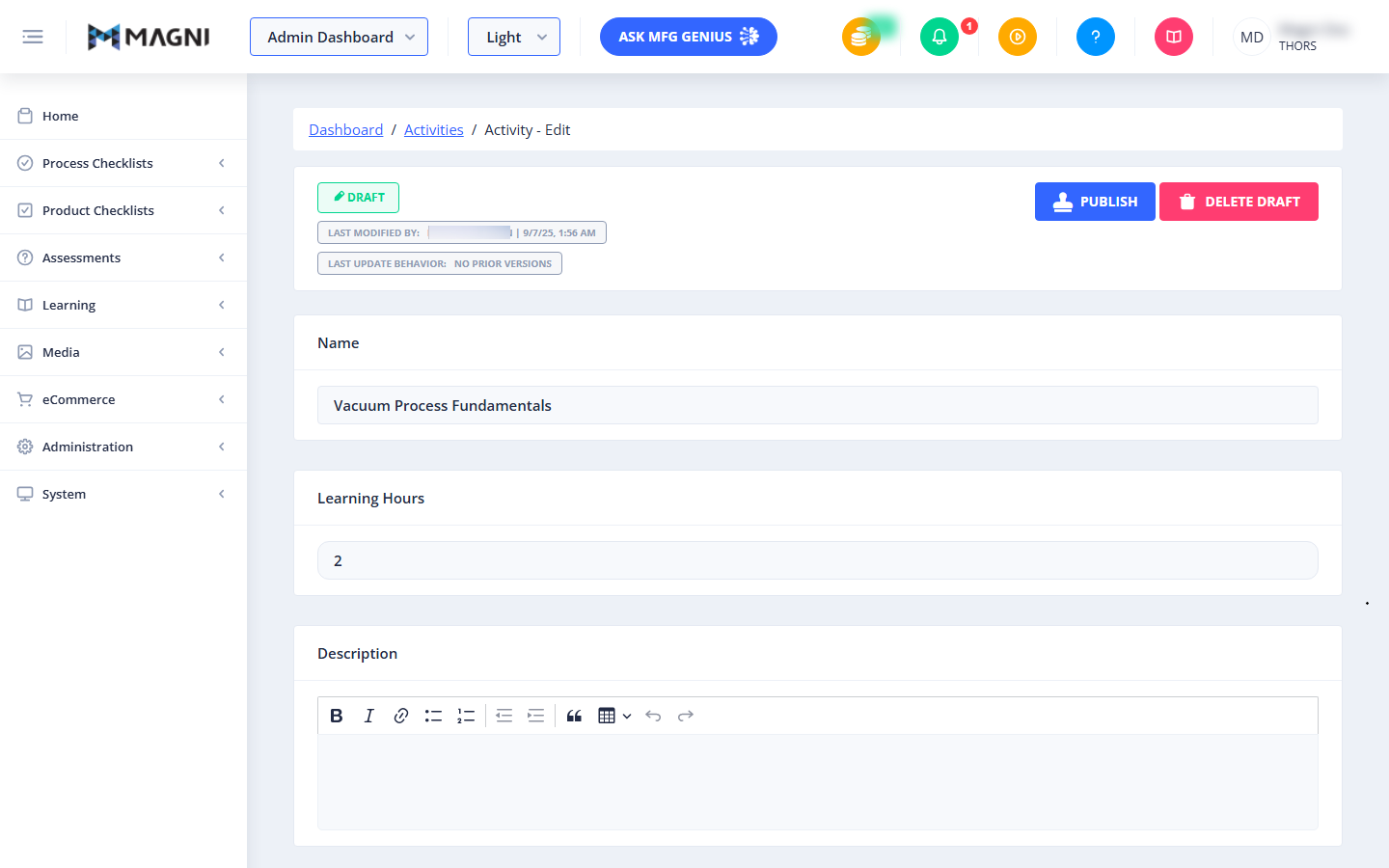
- Draft Status: A button labeled "Draft" with an edit icon indicates that you are currently working on a draft version of the activity.
- Publish Button: Click this button to publish the activity, making it available to users.
- Delete Draft Button: Click this button to delete the current draft of the activity. This action typically requires a confirmation.
- Last Modified by: Displays the name of the user who last modified the activity and the date and time of the modification.
- Last Update Behavior: Shows information about how updates to the activity are handled, particularly when publishing.
New Activity Options
👤 Visible to: Users creating a new activity (not in edit mode).
When creating a new activity, this section allows you to define initial settings.
- Create as Pre-Assessment? Toggle:
- Purpose: Check this box to designate the activity as a pre-assessment.
- Condition: This toggle is disabled if the "Signature" toggle is checked.
- Signature Toggle:
- Purpose: Check this box to require a signature for activity completion.
- Condition: This toggle is disabled if the "Create as Pre-Assessment?" toggle is checked.
- Tooltip: Hovering over this toggle displays "Signature required for activity completion."
Activity Details Form
This section contains the main form fields for defining and editing the activity's content and properties.

- Name:
- Purpose: Enter or edit the name of the learning activity.
- Required: Yes, this is a mandatory field.
- Validation: The name must be unique. If you enter a name that already exists, you will receive a warning: "Name already in use... Please pick a unique name."
- Saving: Changes to the name are automatically saved as you type.
- Learning Hours:
- Purpose: Specify the estimated number of learning hours required to complete the activity.
- Input Type: Numeric field.
- Saving: Changes to learning hours are automatically saved.
- Description:
- Purpose: Provide a detailed description of the activity. You can use the rich text editor to format the text, add bolding, italics, lists, and quotes.
- Saving: Changes to the description are automatically saved.
- Storyline (SCORM 1.2 File):
- Purpose: Upload or remove a SCORM 1.2 compatible file for the activity content.
- Actions:
- Upload: Select a SCORM 1.2 file from your computer to upload.
- Remove: Delete the currently uploaded SCORM 1.2 file. This action will trigger a confirmation dialog.
- Errors: If an upload fails, you may see an error message such as "SCORM 1.2 File could not be uploaded. If attempting to upload a file from a network drive, please try uploading from your local machine."
- Image:
- Purpose: Set or change the thumbnail image associated with the activity.
- Actions: You can add a new image or remove the existing one.
- Video:
- Purpose: Link or embed a video as part of the activity content.
- Actions: You can add a new video or remove the existing one.
- Document:
- Purpose: Attach a document to the activity.
- Actions: You can add a new document or remove the existing one.
- Update Behavior:
- Purpose: This option controls how updates to the activity's content files (like SCORM) are handled when publishing. Options typically include maintaining the current file, replacing it in place, or resetting it.
Common Actions
| Action | How to do it |
|---|---|
| publish | Click this button to publish the activity, making it available to users. |
| Delete draft | Click this button to delete the current draft of the activity. This action typically requires a confirmation. |