Courses — Detail
Last updated on: 2026-05-25 | Updated by: MAGNI Docs Team
This page provides a detailed view of a specific course within Magni's Learning Management System (LMS). It allows authorized users to review course content, manage its publication status, and perform administrative actions like editing or deleting the course.
Overview
The Course Detail page displays all information related to a selected course, including its title, description, learning hours, and associated tags and categories. Depending on your role and the course's status, you can also perform various management actions such as editing the course, publishing/unpublishing it, or deleting it.
⚠️ Unauthorized Access: If you do not have the necessary permissions to view a course, a "Unauthorized to view course" message will be displayed, and the course content will be hidden.
Page Sections
Breadcrumbs
At the top of the page, a breadcrumb navigation trail shows your current location within the system: Dashboard / Courses / [Course Title]. You can click on "Dashboard" or "Courses" to navigate back to those respective pages.
Course Status and Actions
This section displays the current status of the course and provides buttons for various management actions.
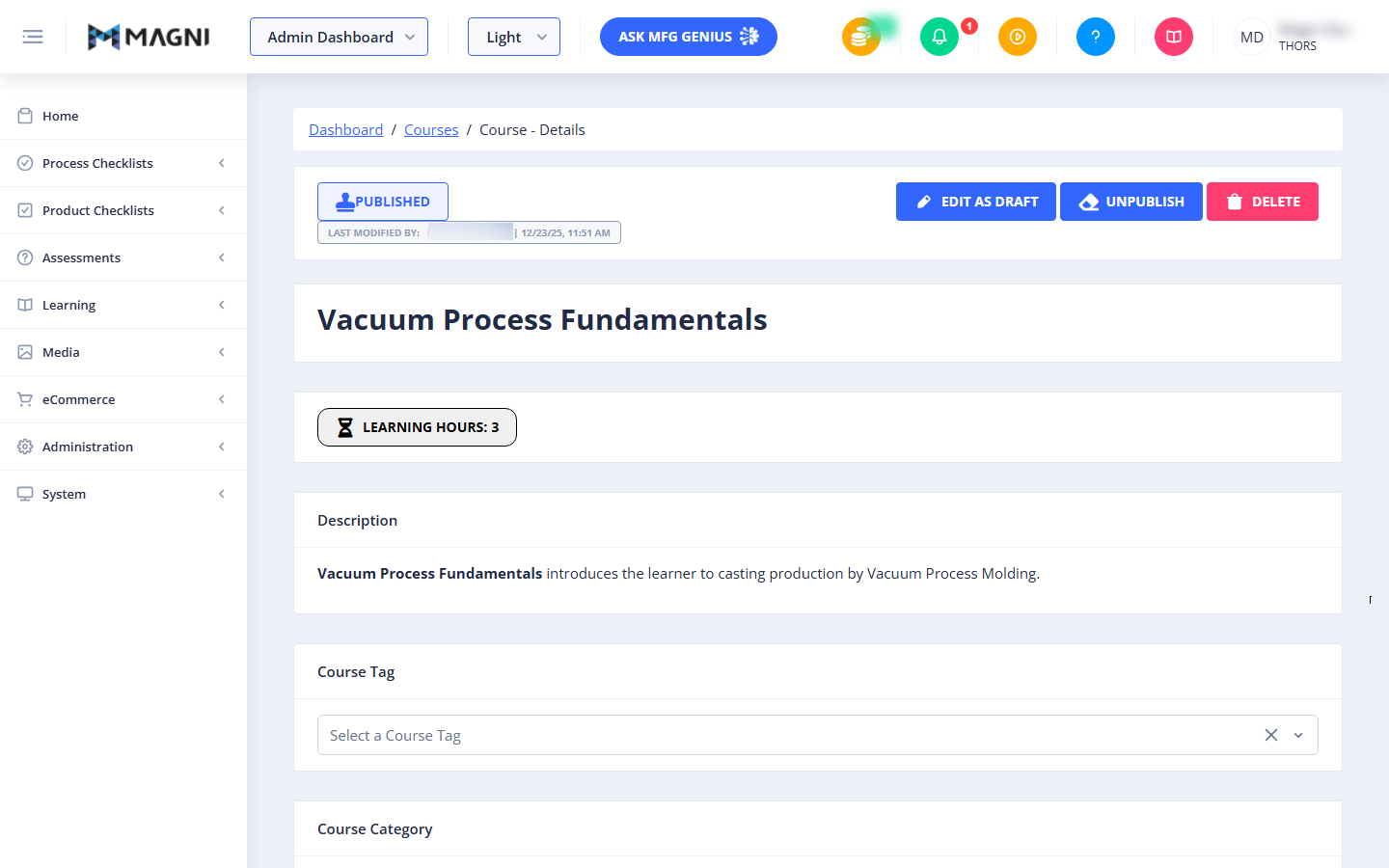
-
Course Status Badge:
- Published: Indicates that the course is currently live and available to learners. This badge is displayed when the
courseOptions.statusis 'published'. - History: Indicates that you are viewing a historical version of the course. This badge is displayed when the
courseOptions.statusis 'history'. The badge also shows the revision number (e.g., #1).
- Published: Indicates that the course is currently live and available to learners. This badge is displayed when the
-
Last Modified Information: Below the status badge, you'll find details about the last modification:
- Last Modified by: Displays the name of the user who last modified the course.
- Date and Time: Shows the exact date and time of the last modification.
-
Action Buttons: A set of buttons allows you to manage the course. The visibility of these buttons depends on your user role, whether you are the course owner, and the course's current status.
👤 Visible to: Users with appropriate permissions (e.g., Course Editor, Course Deleter, Course Unpublisher, Course Restorer roles) and if the user is Thors or the course owner.
- Set/Unset Sharable:
- Purpose: Toggles whether the course can be shared with other customer accounts.
- Visibility: This button is only visible if the course is
Published, the user has theshowButtonspermission (Thors or course owner), and thecustomerassociated with the course is marked as aprovider. - Action: Clicking this button changes the course's sharable status and displays a success or error toast message.
- Edit as Draft:
- Purpose: Creates a new draft version of the course for editing. If a draft already exists, it navigates to that existing draft.
- Visibility: This button is visible if the user has the
showButtonspermission and thecourseEdit.canSee()permission. - Action: Navigates to the course editing page. If a draft already exists, a warning toast message will appear.
- Unpublish:
- Purpose: Removes a published course from being available to learners.
- Visibility: This button is visible if the course
statusis 'published', the user has theshowButtonspermission, and thecourseUnpublish.canSee()permission. - Confirmation: Triggers a confirmation dialog asking, "Are you sure you want to unpublish this course?".
- Action: If confirmed, the course is unpublished, and you are redirected to the main Courses list page.
- Restore:
- Purpose: Restores a historical version of a course, making it the current published version.
- Visibility: This button is visible if the course
statusis 'history', the user has theshowButtonspermission, and thecourseRestore.canSee()permission. - Action: Restores the course, and you are redirected to the published detail view of the course.
- Delete:
- Purpose: Permanently removes the course from the system.
- Visibility: This button is visible if the user has the
showButtonspermission and thecourseDelete.canSee()permission. - Confirmation: Triggers a confirmation dialog that also shows any associated LMS items (like enrollments) that will be affected by the deletion.
- Action: If confirmed, the course is deleted, and you are redirected to the main Courses list page.
- Set/Unset Sharable:
Course Content Details
This section displays the core information of the course.
- Course Title: The main title of the course, e.g., "Vacuum Process Fundamentals".
- Learning Hours: A badge indicating the estimated learning duration for the course, e.g., "LEARNING HOURS: 3".
- Description: A text area providing a summary or introduction to the course content.
- Course Tag: A dropdown field to select or assign tags to the course, helping with organization and searchability.
- Course Category: A field (not fully visible in the screenshot) to assign the course to a specific category.
Common Actions
| Action | How to do it