Courses — Edit
Last updated on: 2026-05-25 | Updated by: MAGNI Docs Team
This page allows authorized users to edit the details of an existing course in the Learning Management System (LMS). You can modify course information such as its name, description, and learning hours, as well as manage its publication status.
Overview
The Courses — Edit page is where you manage the specifics of individual courses within Magni. It's primarily used by content creators and administrators to refine course content, update metadata, and control the course's lifecycle from draft to published.
👤 Visible to: Users with permission to update courses. If you do not have the necessary permissions, you will see an "Unauthorized to update courses" message.
Page Sections
Breadcrumbs
The breadcrumbs at the top of the page provide a navigation path, allowing you to easily return to previous sections like the Dashboard or the main Courses list.
Course Management Bar
This section contains actions related to the course's status and lifecycle.
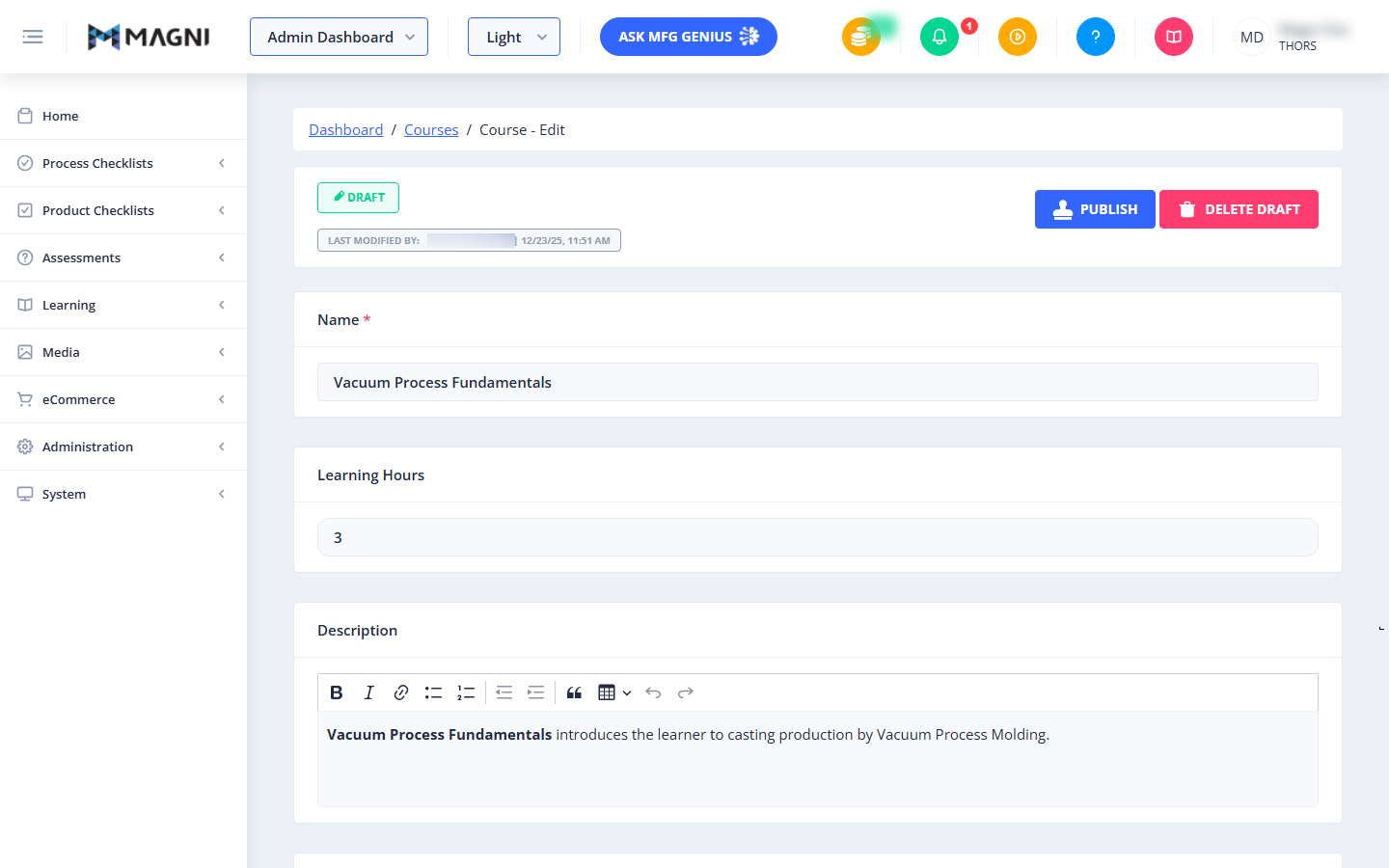
- Draft Status Button: This button displays the current status of the course, indicating that the changes you are making are currently in a draft state. It is a visual indicator and not an interactive button.
- Last Modified By:
Below the action buttons, you will see information about the last user who modified the course and the date and time of the modification. This helps track changes and authorship.
⚠️ This information is only visible if the course has been modified.
- Publish Button:
Clicking this button publishes the current draft of the course, making it available to learners.
- AI Model Update Confirmation:
👤 Visible to: Users with
ArtificialIntelligenceDefaultPublishCourseorArtificialIntelligenceAdministrationroles. If you have the necessary AI permissions, clicking "Publish" will first open a dialog asking if you want to update the AI model with this course change.- Publish & Update: Publishes the course and updates the AI chat system to reflect the new information.
- Publish Only: Publishes the course without updating the AI model.
- Cancel: Closes the dialog without publishing.
- Validation: If the course is invalid (e.g., missing required information), it will not be published, and warning messages will appear detailing the reasons.
- AI Model Update Confirmation:
- Delete Draft Button:
This button allows you to delete the current draft of the course.
- Confirmation Dialog: Clicking this button will open a confirmation dialog, showing any associated items (e.g., lessons, quizzes) that will be affected by deleting the course draft. You must confirm your decision to proceed with the deletion.
Course Details Form
This section contains the editable fields for the course's properties.
- Name:
Enter the name of the course. This is a required field.
- Purpose: This name will be displayed to learners and used for identification throughout the system.
- Validation: The course name must be unique. If you enter a name that already exists, you will receive a warning.

- Learning Hours:
Enter the estimated number of hours required to complete the course.
- Purpose: Provides learners with an expectation of the time commitment for the course.
- Description:
Provide a detailed description of the course content and objectives.
- Purpose: This description helps learners understand what the course covers and if it meets their needs.
- Formatting: The field includes a rich text editor with options for bold, italic, underline, lists, alignment, quotes, and undo/redo.
- Category Tag:
Select a category tag to classify the course.
- Purpose: Helps organize courses and makes them easier to find.
- Course Tag:
Select a specific course tag to further categorize the course.
- Purpose: Provides more granular classification for courses.
- Blooms Category Tags:
Select one or more Bloom's Taxonomy category tags relevant to the course's learning objectives.
- Purpose: Helps define the cognitive level of the course content.
- Enforce Order:
Toggle this option to specify whether lessons within this course must be completed in a specific sequence.
- Purpose: Ensures learners follow a predefined learning path if enabled.
Tips
- Create as Pre-Assessment? and Signature are mutually exclusive — enabling one disables the other, so decide up front which applies to this activity.
- Most fields (Name, Learning Hours, Description) save automatically as you type — there's no separate "Save" button for these, so changes take effect immediately.
- The Name field must be unique across activities; if you see "Name already in use... Please pick a unique name," try a more specific title.
- If a SCORM upload fails, and you're uploading from a network drive, try copying the file to your local machine first — that's the workaround called out in the app's own error message.
- Delete Draft removes the draft you're working on, not the published activity — use the Delete action on the [[Activities Detail]] page if you need to remove a published activity entirely.
- Check Update Behavior before publishing changes to content files like SCORM — it determines whether the current file is kept, replaced in place, or reset, which can affect learners already partway through the activity.
- The New Activity Options (Pre-Assessment/Signature toggles) only appear when you're creating a new activity — once an activity exists, use the Set Pre/Unset Pre and Signature actions on the [[Activities Detail]] page instead.