Last updated on: 2026-05-25 | Updated by: MAGNI Docs Team
Lessons
The Lessons page in Magni's Learning Management System (LMS) provides a centralized view of all available lessons. Here, authorized users can browse, search, and manage educational content. This page is primarily used by administrators and content managers to oversee the learning materials within the system.
Overview
This page displays a comprehensive list of lessons, allowing you to quickly find specific content using the search bar and review key details such as revision, status, and modification history.
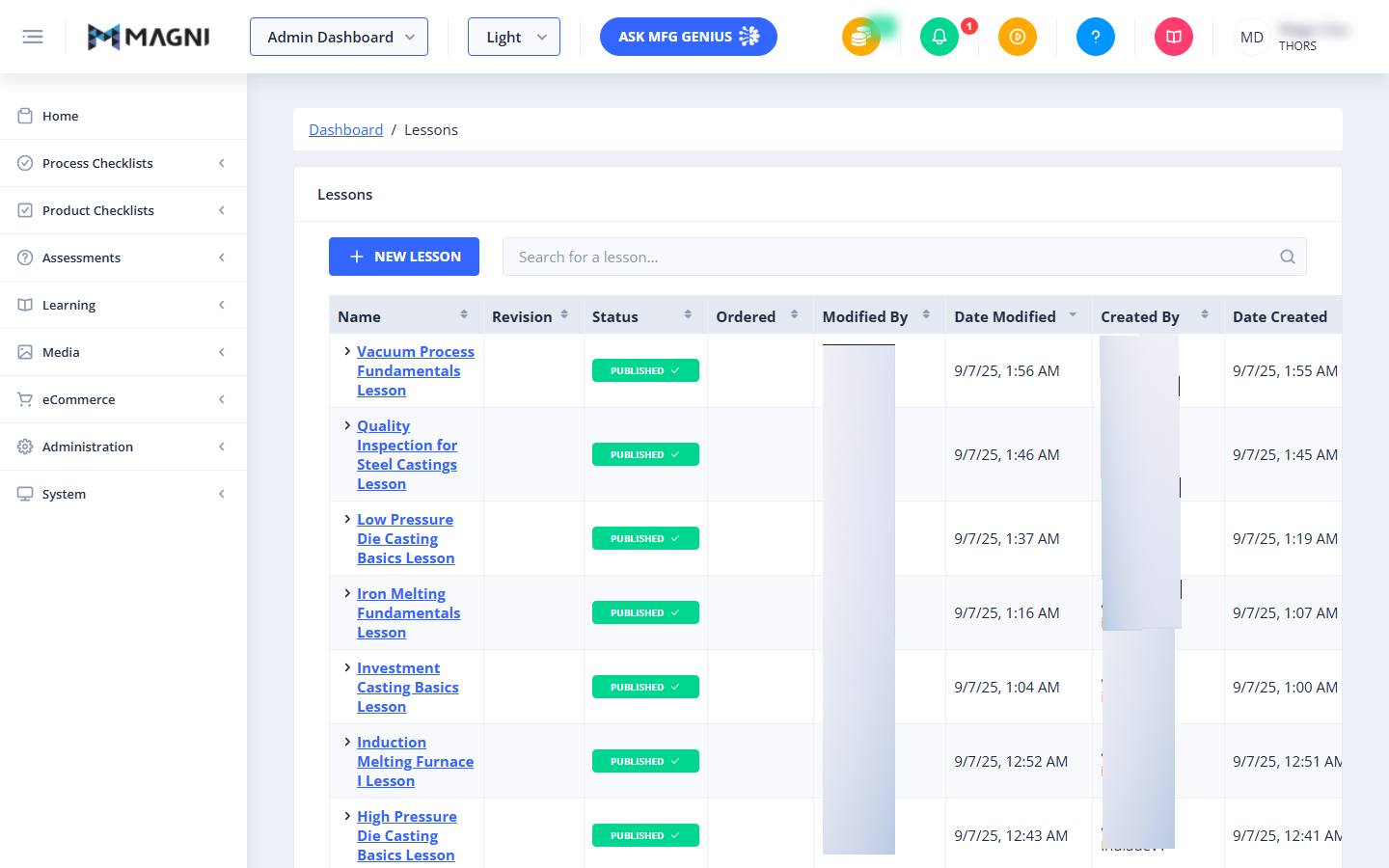
Page Sections
Breadcrumb Navigation
At the top of the page, the breadcrumb navigation shows your current location within the Magni system: Dashboard > Lessons. You can click on "Dashboard" to return to the main administration dashboard.
Unauthorized Access Alert
👤 Visible to: Users without
lessonReviewAll.canSee()permission
If your user role does not have the necessary permissions to view lessons, a red alert message will be displayed instead of the lessons list.
Unauthorized to view lessons
This message indicates that you do not have the required access rights. Please contact your system administrator if you believe this is an error.
Lessons List
👤 Visible to: Users with
lessonReviewAll.canSee()permission
This section contains the main content of the page, displaying all lessons in a sortable and searchable table.
Page Header
The header for this section simply states "Lessons".
New Lesson Button
The blue + New Lesson button allows authorized users to create a new lesson. Clicking this button will typically navigate you to a form where you can define the details and content of a new learning module.
Search Bar
Use the search bar to quickly find specific lessons by typing keywords from their name.

As you type, the list of lessons will filter in real-time, showing only those that match your search query.
Lessons Table
The table lists all lessons with the following columns:
- Name: The title of the lesson. Each lesson name has an arrow icon next to it, indicating that you can click on the name to view or edit the lesson's details.
- Revision: The current revision number of the lesson.
- Status: The publication status of the lesson. By default, the table displays lessons with a "PUBLISHED" status, indicated by a green tag.
- Ordered: This column may indicate the order of the lesson within a larger course or module.
- Modified By: The user who last modified the lesson.
- Date Modified: The date and time when the lesson was last modified.
- Created By: The user who originally created the lesson.
- Date Created: The date and time when the lesson was first created.
By default, lessons are sorted by their "Date Modified" in descending order, showing the most recently updated lessons first.
Tips
- By default, the table shows PUBLISHED lessons sorted by Date Modified (newest first) — check for additional status filters in the live app if you need to find drafts or unpublished lessons.
- If you see an "Unauthorized to view lessons" alert, your role doesn't have the
lessonReviewAll.canSee()permission — contact your system administrator to request access. - The search bar filters by lesson name only, so use title keywords rather than other details like status or creator.
- The exact meaning of the Ordered column wasn't fully confirmed in the source material — verify whether it reflects order within a specific course/module (and which one) before relying on it, and update this description once confirmed.
- Use Created By/Date Created alongside Modified By/Date Modified to distinguish a lesson's original author from whoever most recently updated it — useful when tracking down who to ask about recent changes.
- Clicking a lesson's Name is the fastest way into its details or edit view — look for the arrow icon next to the name as the visual cue that it's clickable.