Lessons — Edit
Last updated on: 2026-05-25 | Updated by: MAGNI Docs Team
This page allows you to create new lessons or edit existing lesson drafts within the Learning Management System (LMS). As an administrator, you can define the lesson's name, description, manage its associated activities, and control its publication status.
Overview
The Lessons — Edit page is where you configure the content and settings for a specific lesson. You can update the lesson's basic information, decide if the order of activities should be enforced, and connect various learning activities to the lesson. Once a lesson draft is complete, you can publish it to make it available to users.
👤 Visible to: Users with permission to update lessons.
Page Sections
Unauthorized Access
If you do not have the necessary permissions to update lessons, you will see an alert message at the top of the page, and the rest of the page content will be inaccessible.
⚠️ Unauthorized to update lessons This alert indicates that your user role does not have the required permissions to perform actions on this page.
Lesson Actions
At the top of the page, above the lesson details, you'll find a set of actions and status indicators related to the lesson draft.
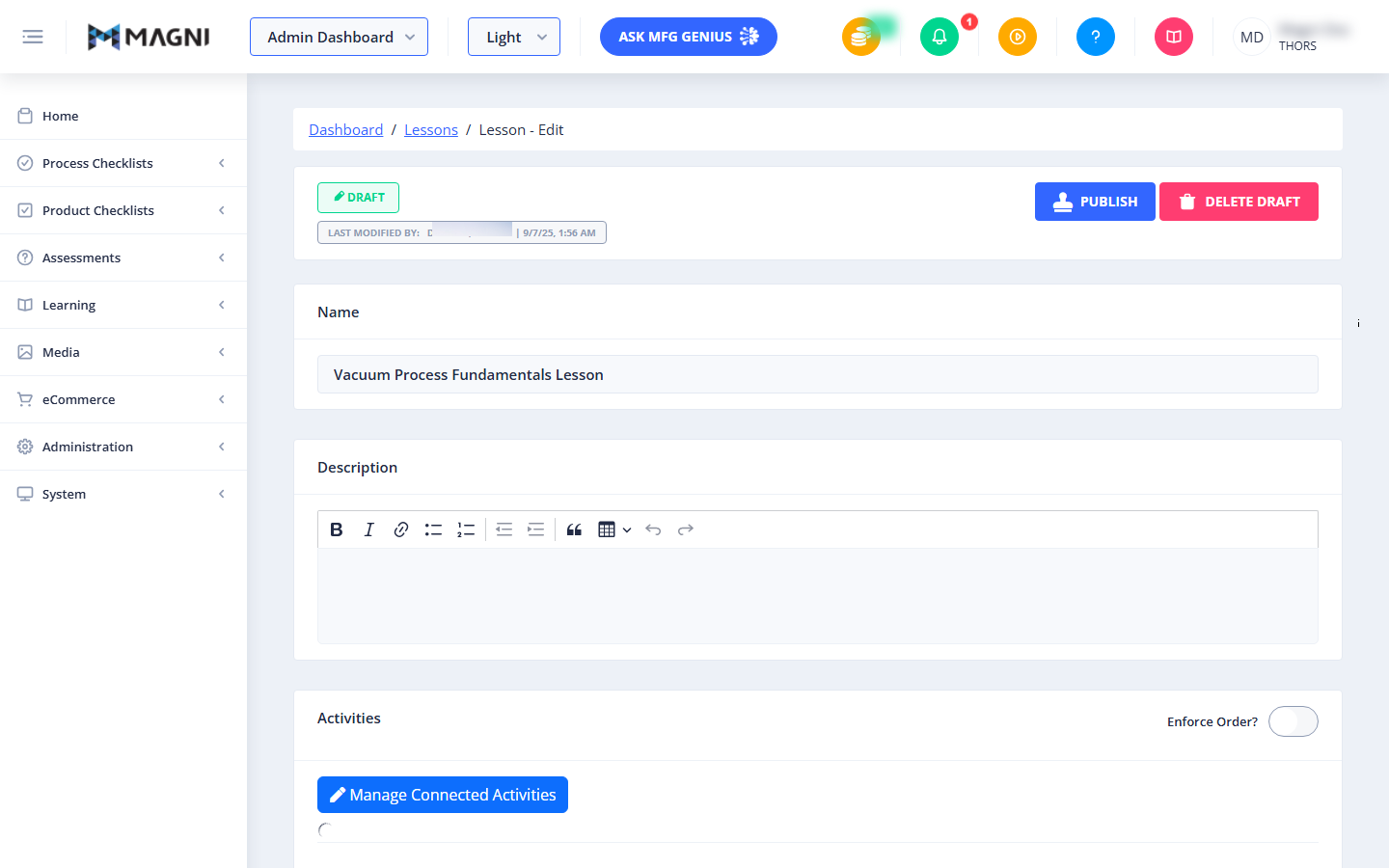
- Draft Status Indicator: Displays "Draft" to confirm you are currently working on an unpublished version of the lesson.
- Last Modified By: Shows the name of the user who last modified the lesson and the date and time of the modification. This helps track changes and identify the most recent editor.
- Publish Button: Publishes the current draft of the lesson, making it available for users.
- Delete Draft Button: Deletes the current lesson draft. This action requires confirmation.
Lesson Details Form
This section contains the core fields for defining your lesson.
Name
This field allows you to set or change the name of your lesson.

- Field Name: Name
- Purpose: To provide a clear and descriptive title for the lesson.
- Required: Yes. A lesson must have a name.
- Validation: The lesson name must be unique. If you enter a name that already exists, you will receive a warning message: "Name already in use... Please pick a unique name."
Description
This rich text editor allows you to provide a detailed description for your lesson.
- Field Name: Description
- Purpose: To give users an overview of what the lesson covers.
- Required: No.
- Controls: The editor includes standard formatting options such as bold, italic, lists, and quotes.
Activities
This section allows you to manage the learning activities associated with this lesson.
- Enforce Order? Toggle:
- Purpose: Determines whether users must complete the connected activities in a specific sequence.
- State:
- On (blue): Users must complete activities in the order they are listed.
- Off (grey): Users can complete activities in any order.
- Manage Connected Activities Button: Clicking this button will open a separate interface where you can add, remove, and reorder the learning activities linked to this lesson.
Common Actions
| Action | How to do it
| Action | How to do it |
|---|---|
| Return to the dashboard or lessons list | Click Dashboard or Lessons in the breadcrumb navigation |
| Check if you're viewing the live version or a past version | Look for the Published badge, or a History #[Revision Number] badge |
| See who last modified the lesson, and when | Review Last Modified By in the Lesson Header |
| Edit the lesson | Click Edit as Draft — creates a new draft, or opens the existing draft if one is already in progress |
| Make a historical version the current published version | While viewing a History version, click Restore |
| Delete the lesson | Click Delete, then review and confirm in the dialog (it lists associated LMS items that will be affected) |
| Read the lesson's title and description | Review Lesson Title and Description in the Lesson Content section |
| Browse a long list of activities | Use the Pagination controls below the Activities table, and adjust items per page as needed |
Tips
- Restore only appears when you're viewing a History version — on the current Published version, use Edit as Draft instead if you need to make changes.
- Edit as Draft is safe to click even if you're not sure a draft already exists — it opens the existing one instead of creating a duplicate.
- Before clicking Delete, review the confirmation dialog carefully — it lists other LMS items connected to the lesson that would also be affected.
- The Order Unenforced label means the numbered
#column in the Activities table is sequential for reference, not a strict playback/completion order — don't assume activities must be completed in that sequence unless something else in the app says otherwise. - If you land on this page and see an unauthorized access alert, you don't currently have permission to view this specific lesson.
- Check Connected Courses before deleting or majorly editing a lesson — it shows where else in the LMS the lesson is being used, which helps you gauge the impact of a change.