Lessons — Create
Last updated on: 2026-05-25 | Updated by: MAGNI Docs Team
This page allows administrators to create new lessons for the Magni Learning Management System (LMS). Lessons are a core component of the learning experience, enabling you to structure educational content and activities for users.
Overview
The Lessons — Create page is used by administrators to define new learning modules. Here, you can give your lesson a name, add a description, and configure whether the order of activities within the lesson should be enforced. Once a lesson is created, you can further develop it by adding content and activities.
👤 Visible to: Users with permission to update lessons. If you do not have the necessary permissions, an "Unauthorized to update lessons" alert will be displayed, and you will not be able to access the lesson creation form.
Page Sections
Breadcrumbs
The breadcrumbs provide a navigation path, showing your current location within the Magni system.
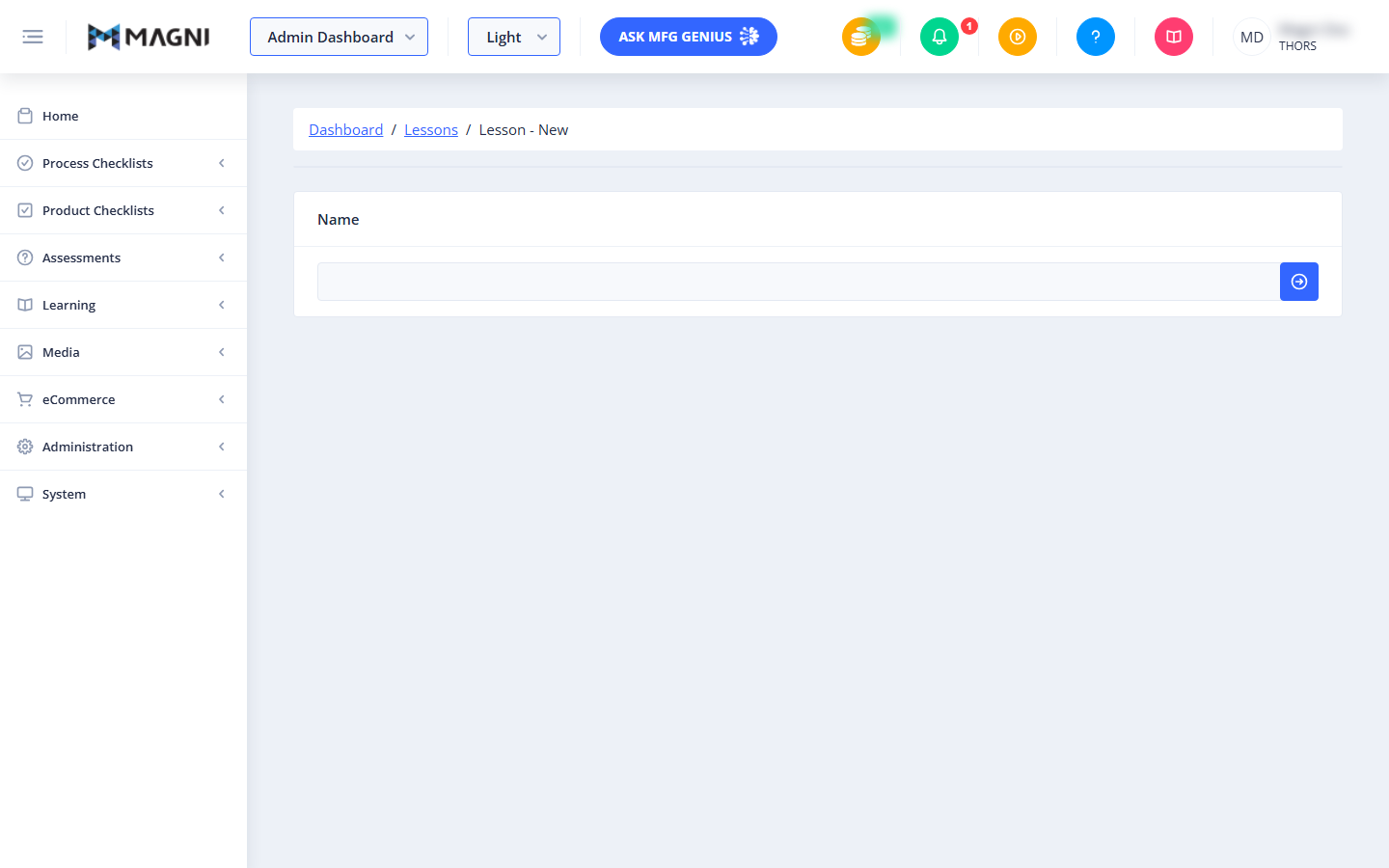
Dashboard / Lessons / Lesson - New
Manage Lesson Bar (Visible in Edit Mode Only)
This section appears at the top of the page only when you are editing an existing lesson draft, not when you are creating a brand new lesson. It provides quick actions related to the lesson's status and management.
- Draft Button: This is a status indicator, showing that the current lesson is in a "Draft" state. It is not an interactive button.
- Publish Button: Click this button to publish the lesson, making it available for users.
- Conditions: This button is enabled when the lesson is in draft mode and meets all validity requirements (e.g., has a name, content, etc.). If the lesson is not valid, publishing will fail, and a warning message will appear indicating the reasons.
- Delete Draft Button: Click this button to permanently delete the current lesson draft.
- Confirmation: A confirmation dialog will appear, asking you to confirm the deletion. If the lesson draft is associated with other LMS items, the dialog will also display this information.
- Last Modified By: Displays the name of the user who last modified the lesson and the date/time of the modification. This information is only shown if the lesson has been modified.
Lesson Form
This section contains the fields for defining your lesson.

- Name:
- Purpose: Enter a unique name for your lesson. This name will be displayed to users.
- Required: Yes.
- Validation: The lesson name must be unique. If you enter a name that already exists, a warning will appear: "Name already in use... Please pick a unique name."
- Behavior: When creating a new lesson, entering a name and moving out of the field will automatically save the lesson as a draft and transition the page into "edit mode," updating the URL to include the lesson's ID.
- Description:
- Purpose: Provide a detailed description of the lesson. This helps users understand what the lesson covers.
- Required: No.
- Enforce Order:
- Purpose: This toggle determines whether users must complete the activities within this lesson in a specific sequence.
- On: Users must complete activities in the order they are presented.
- Off: Users can complete activities in any order.
- Required: No.
- Purpose: This toggle determines whether users must complete the activities within this lesson in a specific sequence.
Tips
- Start with a clear name: A descriptive and concise name helps users quickly understand the lesson's focus.
- Use the description effectively: The description is your opportunity to provide context, learning objectives, or prerequisites for the lesson.
- Consider "Enforce Order" carefully: Decide if the learning path requires a specific sequence. For foundational topics, enforcing order can be beneficial, while for exploratory learning, leaving it optional might be better.