Lessons — Detail
Last updated on: 2026-05-25 | Updated by: MAGNI Docs Team
This page provides a detailed view of a specific lesson within the Magni Learning Management System (LMS). It allows administrators to review lesson content, check its status, and perform actions such as editing, restoring, or deleting the lesson. This page is primarily used by administrators and content managers responsible for managing learning materials.
Overview
The Lesson Detail page displays all the information related to a selected lesson, including its title, description, and associated activities. Depending on the lesson's status (published or historical), different actions are available to manage the lesson.
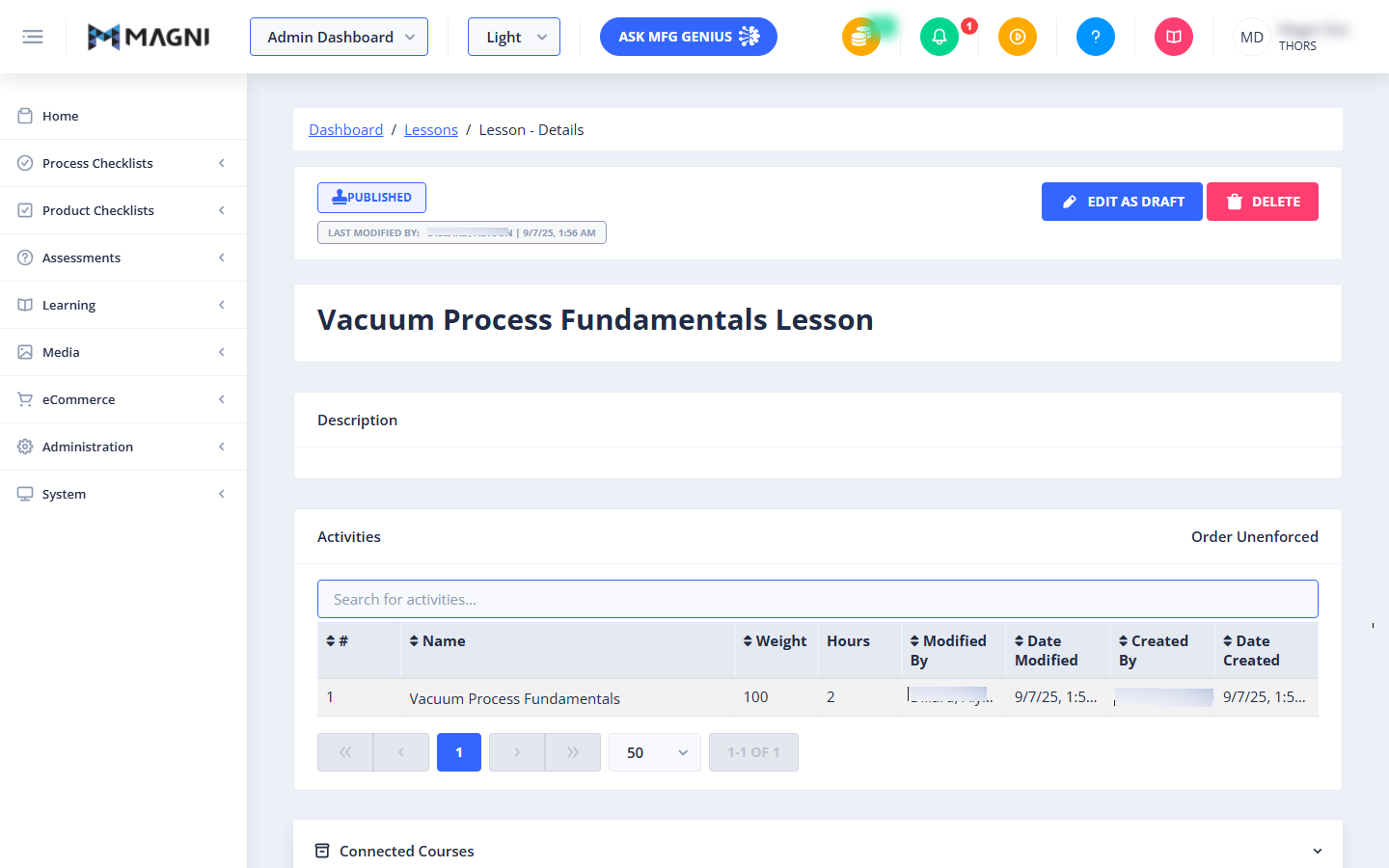
Page Sections
Unauthorized Access
If you do not have the necessary permissions to view a lesson, an alert message will be displayed at the top of the page.
⚠️ This section is only visible if you are unauthorized to view the lesson.
Breadcrumbs
At the top of the content area, a breadcrumb navigation path shows your current location within the system: Dashboard / Lessons / [Lesson Name]. You can click on "Dashboard" or "Lessons" to navigate back to those respective pages.
Lesson Header and Actions
This section displays the lesson's status, last modification details, and provides key management actions.
-
Status Indicator:
- Published: If the lesson is currently published, a "Published" badge is displayed.
- History: If you are viewing a historical version of a lesson, a "History" badge is displayed, along with the revision number (e.g., "History #1").
-
Last Modified By: Shows the name of the user who last modified the lesson and the date and time of the modification. The user's last name, first name, or username will be displayed.
-
Action Buttons:
- Edit as Draft: Click this button to create a new draft of the lesson or navigate to an existing draft if one already exists. This allows you to make changes without affecting the live published version.
- Restore: This button is visible only when viewing a historical version of a lesson. Click it to restore the selected historical version as the new published version.
- Delete: Click this button to permanently delete the lesson. A confirmation dialog will appear, showing any associated LMS items that will also be affected by the deletion.
Lesson Content
This section displays the core content of the lesson.
- Lesson Title: The main title of the lesson (e.g., "Vacuum Process Fundamentals Lesson").
- Description: A text area where the lesson's description is displayed.
- Activities: This section lists all activities associated with the lesson in a table format.
- Search Bar: Use the "Search for activities..." bar to filter the list of activities by name.
- Activities Table:
- #: The sequential number of the activity.
- Name: The title of the activity.
- Weight: A numerical value indicating the activity's weight or importance.
- Hours: The estimated time in hours required to complete the activity.
- Modified By: The user who last modified the activity.
- Date Modified: The date and time the activity was last modified.
- Created By: The user who created the activity.
- Date Created: The date and time the activity was created.
- Order Unenforced: This label indicates that the order of activities is not strictly enforced.
- Pagination: Use the pagination controls below the table to navigate through multiple pages of activities if the list is extensive. You can also adjust the number of items displayed per page.
Connected Courses
This section, if expanded, would display any courses that include this lesson. This helps you understand where the lesson is being used within the LMS.