Content Access Control — List
Last updated on: 2026-05-25 | Updated by: MAGNI Docs Team
The Content Access Control page allows administrators to manage and restrict access to specific media and learning content within the Magni platform. Administrators can use this page to set expiration dates, define view limits, and track the publication status of various content items.
Page Sections
Breadcrumb Navigation
The breadcrumb trail at the top of the page helps you keep track of your location and quickly navigate back to the main Admin Dashboard.
Content Access Control List
This is the main area of the page where you can view, search, and manage all existing access control configurations.
👤 Visible to: Administrator, System Administrator
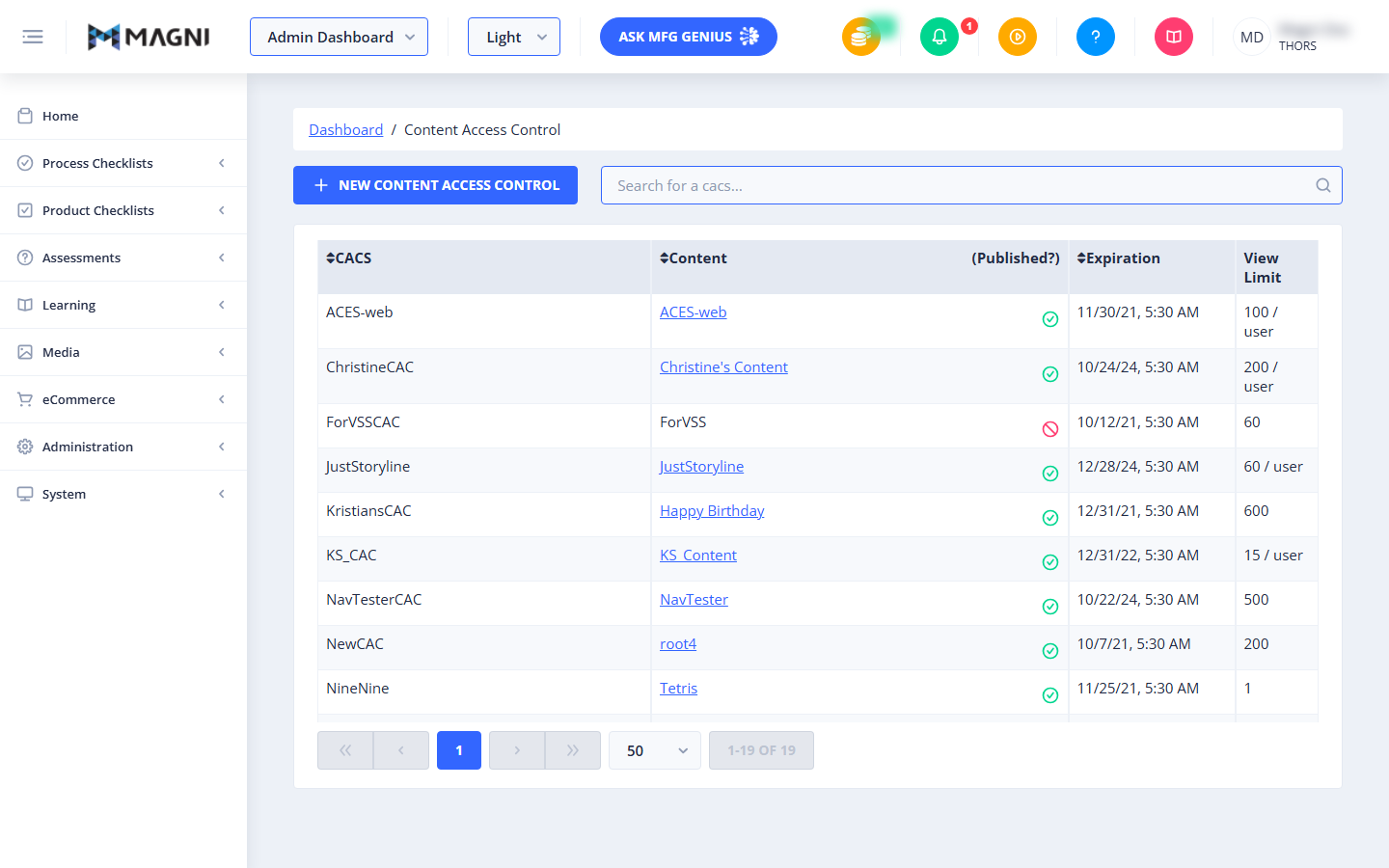
The list contains the following elements:
- New Content Access Control Button: Click this button to create a new access control rule for your media content.
- Search Bar: Use this input field to quickly filter the list of access control rules by name.

- CACS Column: Displays the unique name of the Content Access Control (CAC) rule.
- Content Column: Displays the name of the specific content item associated with the rule. Clicking on the content name will navigate you to the content details.
- Published? Column: Displays a status icon indicating whether the rule is currently active. A green checkmark indicates the rule is published, while a red icon indicates it is unpublished or inactive.
- Expiration Column: Shows the exact date and time when the access control rule expires.
- View Limit Column: Displays the maximum number of times the content can be viewed. This can be a flat total limit (e.g., 60) or a per-user limit (e.g., 100 / user).
- Pagination Controls: Located at the bottom of the table, these controls allow you to navigate through multiple pages of rules, change the number of records displayed per page, and view the total number of records.
Account Upgrade Alert
If your organization's account does not have Content features enabled, the main list will be hidden, and a red alert banner will be displayed instead.
⚠️ This alert is only visible if Content features are disabled for your account.
The alert banner contains the following message: "To enable Content features, please upgrade your account, contact sales@magni.ai"
Common Actions
| Action | How to do it |
|---|---|
| Create a new access control rule | Click the blue + New Content Access Control button above the search bar. |
| Search for an existing rule | Type the name of the rule in the Search for a cacs... search bar. |
| View or edit linked content | Click the blue hyperlink under the Content column for the desired rule. |
| Navigate pages | Use the pagination arrows or page number buttons at the bottom of the table. |
Tips
- Monitor Expiration Dates: Regularly check the Expiration column to ensure that active training materials do not expire unexpectedly for your users.
- Utilize View Limits: Use the "per user" view limits to prevent users from repeatedly streaming large media files, which helps optimize system bandwidth.
- Request Feature Access: If you see the red upgrade alert banner, contact your account manager or email sales@magni.ai to unlock Content Access Control features for your portal.