Content Access Control — Edit
Last updated on: 2026-05-25 | Updated by: MAGNI Docs Team
The Content Access Control (CAC) Edit page allows administrators to modify the access rules and restrictions for specific media content within the Magni LMS. Use this page to update access expiration dates, view limits, and assign or change the specific content governed by these rules.
Page Sections
Header Actions
This section contains breadcrumb navigation and primary action buttons for managing your edits.
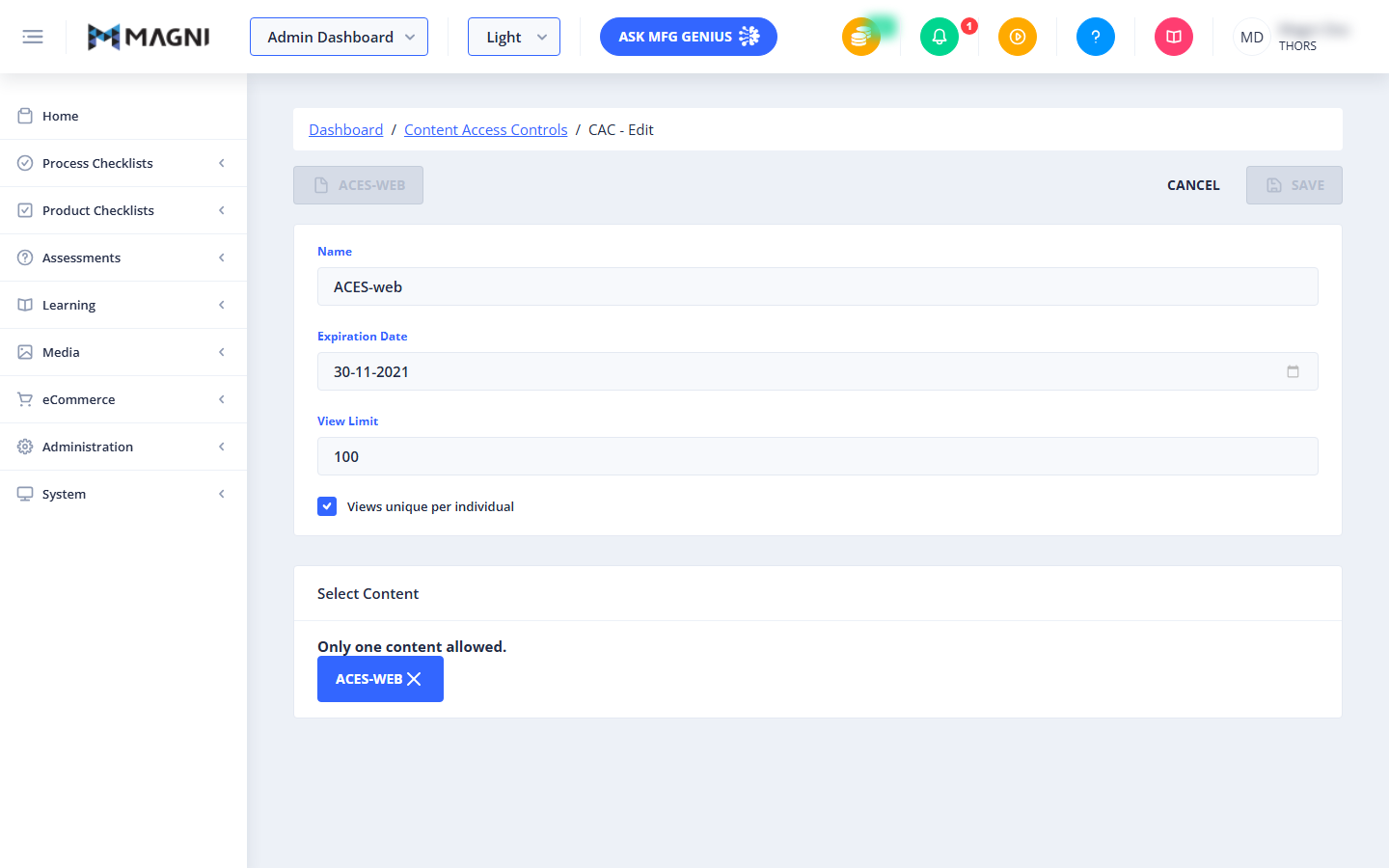
- Breadcrumbs: Clickable links at the top left that allow you to quickly navigate back to the Dashboard or the main Content Access Controls list.
- Access Control Name Badge: A disabled button on the left displaying the current name of the access control rule for quick reference.
- Cancel Button: Discards any changes made and returns you to the Content Access Controls list.
- Save Button: Saves your changes and updates the access control rule. This button remains disabled until all required fields are filled out correctly.
Access Control Details
This card contains the core configuration fields for the access control rule. All fields in this section are required.
- Name: The name of the Content Access Control rule. This field is required.
- Expiration Date: The date when access to the content will expire. This field is required and must be set to today's date or a date in the future.
- View Limit: The maximum number of times the content can be viewed. This field is required and must be a positive number of 1 or greater. Negative values are automatically converted to positive numbers.
- Views unique per individual: A checkbox that, when selected, tracks the view limit individually for each user. If unchecked, the view limit applies collectively to all users accessing the content.
Select Content
This card allows you to associate a single piece of media content with the access control rule. Only one content item can be assigned to a rule at a time.
When Content is Selected
If a content item is already associated with this rule, the system displays the message "Only one content allowed." and shows a blue badge with the content's name.
- Remove Content Button: Click the "X" icon on the blue content badge to remove the current content selection. This will reveal the search and selection tools so you can choose a different piece of content.
When No Content is Selected
If no content is currently selected, the following search and selection tools are displayed:
- Search Bar: Type in this field to search for published content by name.
- Content Table: Displays a list of available published content with the following sortable columns:
- Content Name: The title of the content.
- Modified By: The username of the person who last updated the content.
- Date Modified: The date and time the content was last updated.
- Pagination: Located below the table, this allows you to navigate through multiple pages of available content.
Account Upgrade Alert
⚠️ This section is only visible if your organization's subscription does not include Content features.
If content features are not enabled for your account, the edit form will be hidden, and a dark alert banner will display: "To enable Content features, please upgrade your account, contact sales@magni.ai".
Common Actions
| Action | How to do it |
|---|---|
| Change the Access Rule Name | Type a new name in the Name field. |
| Update the Expiration Date | Click the date picker in the Expiration Date field and select a current or future date. |
| Change the View Limit | Enter a positive number in the View Limit field. |
| Enable Individual View Tracking | Check the box next to Views unique per individual. |
| Replace the Assigned Content | 1. Click the "X" on the blue content badge to remove the current selection. 2. Use the search bar or table to find the new content. 3. Click on the desired content row in the table to select it. |
| Save Your Changes | Click the Save button in the top-right corner of the page. |
| Discard Changes | Click the Cancel button in the top-right corner of the page to return to the list without saving. |
Tips
- Future-Proof Expirations: Always ensure your expiration date is set to today or a future date. The system will prevent you from saving the form if the expiration date is set in the past.
- Understand View Limits: If you want a piece of content to be viewed a maximum of 5 times per user, check the Views unique per individual box and set the limit to 5. If you want the content to only be viewed 5 times in total across your entire organization, leave the checkbox unchecked.
- Quick Content Swapping: If you need to apply the exact same access rules to a different piece of media, you do not need to create a new rule. Simply remove the current content selection in the Select Content card, select the new item, and save.