Last updated on: 2026-05-25 | Updated by: MAGNI Docs Team
Certificates — Create
This page allows administrators to upload new certificate templates to the Magni Learning Management System. These certificates can then be assigned to courses or learning paths, and awarded to users upon completion.
👤 Visible to: Administrators
Overview
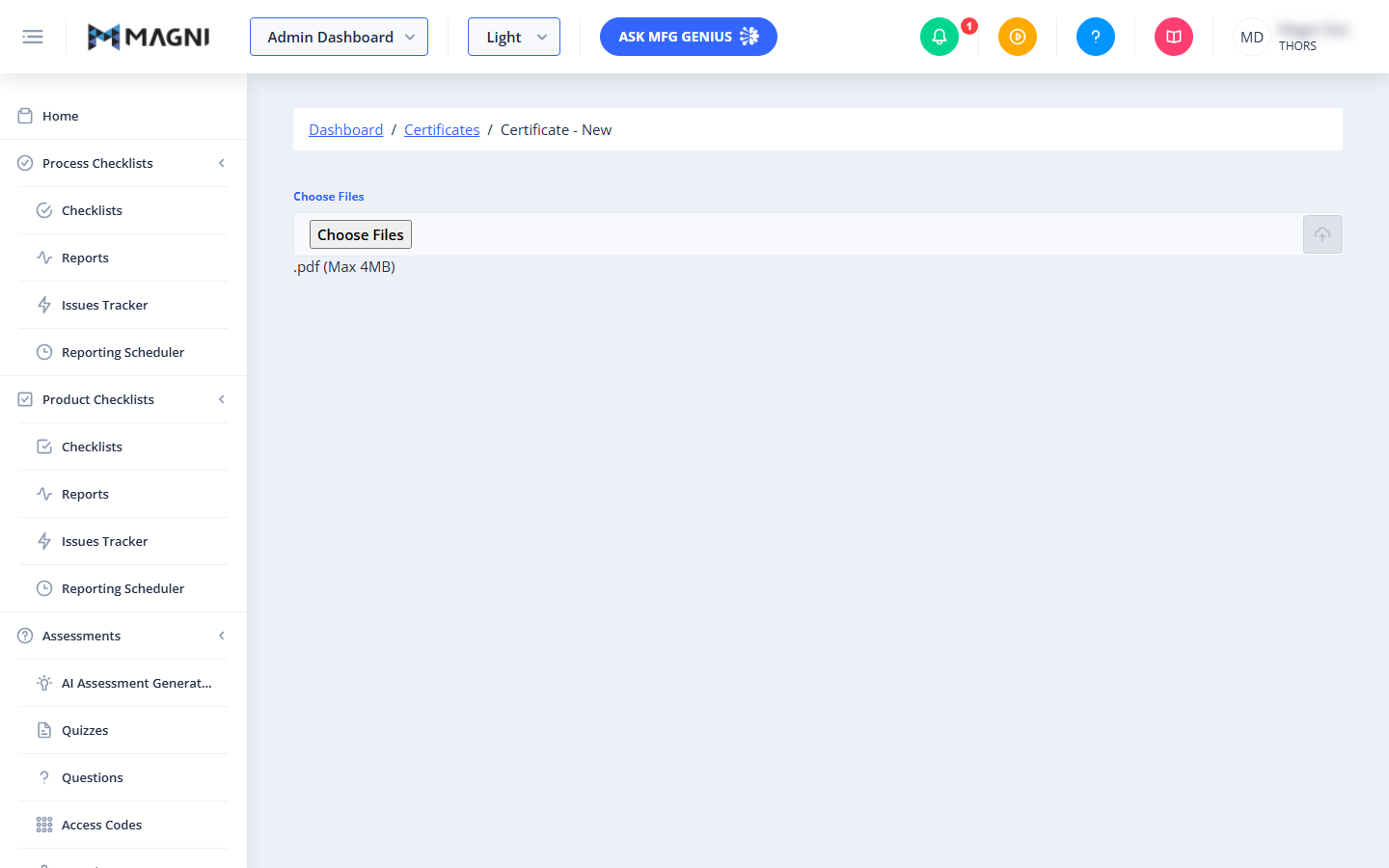
The Certificates — Create page provides a simple interface for uploading PDF certificate files. You can select one or multiple PDF files, view their upload progress, and manage them before or after the upload process.
Page Sections
Breadcrumbs
At the top of the page, a breadcrumb navigation shows your current location within the system:
Dashboard / Certificates / Create
You can click on Dashboard or Certificates to navigate to those respective pages.
File Upload Area
This section is where you select and manage the files you wish to upload.

- Choose Files Label: A label indicating where to select files.
- Choose Files Button: Click this button to open your computer's file browser and select one or more PDF files.
- File Type Restriction: Only
.pdffiles are accepted. If you try to upload a non-PDF file, an error message will appear. - File Size Limit: Each file must be a maximum of 4MB. If you select a file larger than 4MB, an error message will appear.
- File Type Restriction: Only
- Upload Button: This button, identified by a cloud icon, initiates the upload process for all selected files.
- It is disabled if no files have been selected.
- File Limits: Displays the allowed file type and maximum size:
.pdf (Max 4MB). - Error Message: If there are issues with the selected files (e.g., incorrect file type, exceeding size limit), an error message will appear here.
Upload Progress and Status
Once files are selected, they appear in a list below the "Choose Files" button.
- File Name and Size: Each entry shows the name of the file and its size in kilobytes.
- Remove Button (X): Before uploading begins, each file has an "X" button next to it. Clicking this removes the file from the upload queue. This button is hidden once the upload process starts.
- Progress Bar: During an upload, a progress bar indicates the completion percentage for each file.
- Status: Displays the current status of each file:
Ready to Upload: The file has been selected and is awaiting upload.Uploading...: The file is currently being uploaded.Upload Complete: The file has finished uploading successfully.
Upload Completion Messages
After you click the "Upload" button, the interface changes to show the overall upload status:
- Uploading Status: While files are being uploaded, a message indicates how many files have been uploaded and how many remain (e.g., "Files are being uploaded: 1 uploaded, 2 remaining").
- All Files Uploaded: Once all files have completed uploading, a message confirms: "All Files have been uploaded."
- Clear Button: Click this to clear the list of uploaded files and reset the page to allow new uploads.
- Exit Button: Click this to navigate back to the main Certificates page.
Common Actions
| Action | How to do it