Certificates — Detail
Last updated on: 2026-05-25 | Updated by: MAGNI Docs Team
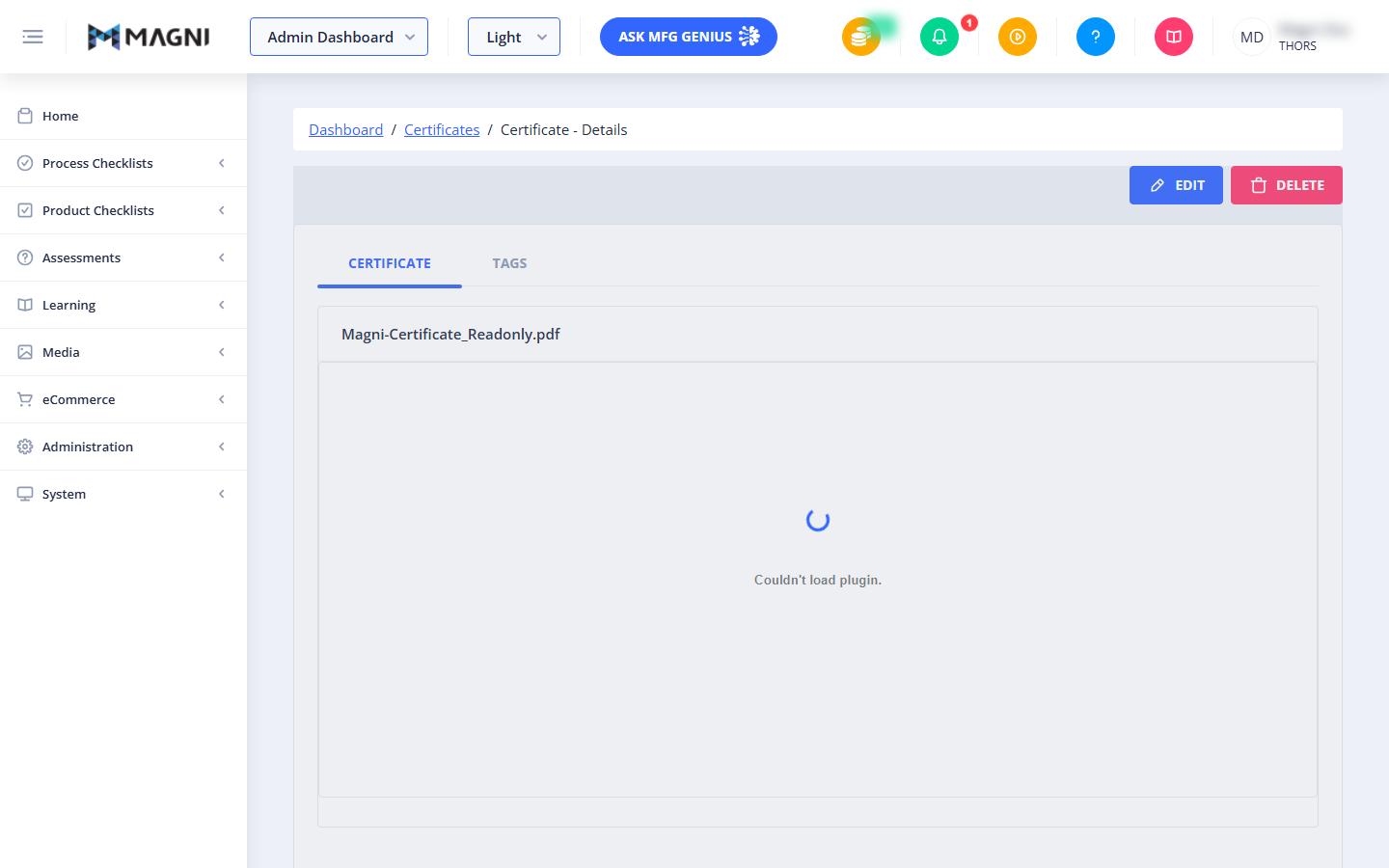
The Certificates Detail page allows administrators to view the contents and metadata of a specific certificate template uploaded to the Magni LMS. From this page, authorized users can preview the certificate PDF, manage associated tags, or proceed to edit or delete the certificate record.
Page Sections
Breadcrumb Navigation
Located at the top of the page, this helper path allows you to quickly navigate back to the Admin Dashboard or the main Certificates list.
Action Buttons
These buttons are located in the top-right corner of the page and allow you to manage the certificate record.
- Edit: Opens the edit form for this certificate.
👤 Visible to: Users with certificate update permissions.
- Delete: Initiates the deletion process.
👤 Visible to: Users with certificate delete permissions.
Certificate Tab
This tab displays the certificate's file name and embeds a live PDF preview of the certificate template.
Tags Tab
This tab displays a list of tags associated with this certificate. Selecting this tab loads the tag management interface, allowing you to view or organize tags linked to this specific certificate.
Common Actions
| Action | How to do it |
|---|---|
| Edit Certificate | Click the Edit button in the top-right corner. This will take you to the certificate modification form. |
| Delete Certificate | 1. Click the Delete button in the top-right corner. 2. Review the confirmation dialog, which displays any associated tags, quizzes, codes, groups, or customers linked to this certificate. 3. Confirm the deletion to permanently remove the certificate from the system. |
| View Associated Tags | Click on the Tags tab next to the Certificate tab to see all connected tags. |
Tips
- Review Associations Before Deleting: When deleting a certificate, always review the confirmation dialog carefully. It lists all connected resources (such as quizzes, groups, or customers) to help you avoid accidentally breaking active user pathways or course completions.
- Troubleshoot PDF Previews: If the certificate preview displays a "Couldn't load plugin" error, ensure your web browser's built-in PDF viewer is enabled, or try downloading the certificate directly to verify its contents.