Certificates — Edit
Last updated on: 2026-05-25 | Updated by: MAGNI Docs Team
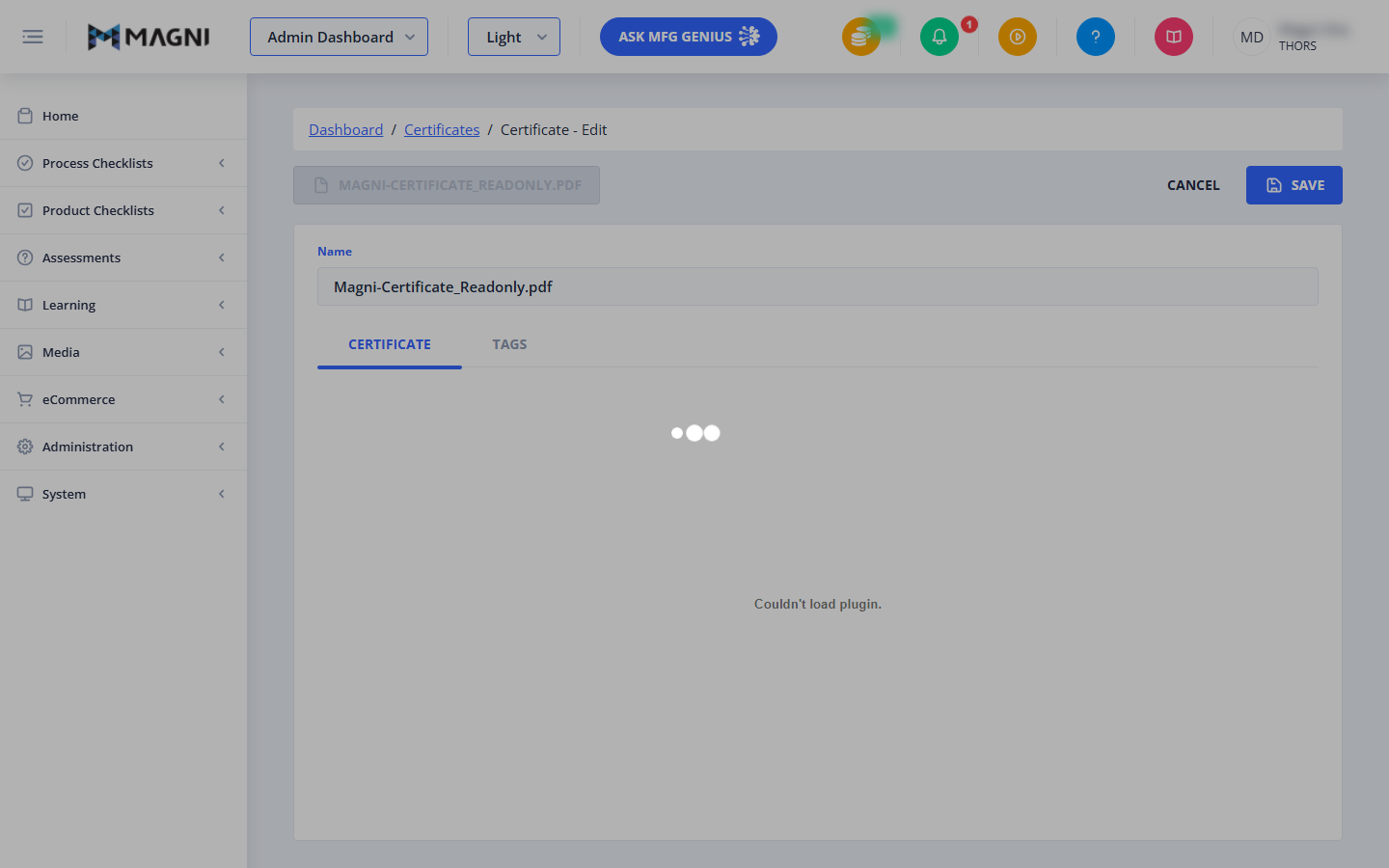
The Certificates — Edit page allows administrators to update the details of an uploaded certificate template. On this page, you can rename the certificate, preview the PDF file, and manage associated tags to organize your media library.
Page Sections
Header Actions
- Certificate File Identifier: A read-only button at the top left that displays the current file name of the certificate (for example, Magni-Certificate_Readonly.pdf).
- Cancel Button: Discards any unsaved changes and returns you to the main Certificates list page.
- Save Button: Saves your modifications and updates the certificate. This button is disabled if the Name field is empty or if the form is currently in the process of saving.
Certificate Details Form
- Name (Required): The display name of the certificate within the LMS. This field is pre-populated with the certificate's current name and must not be left blank.
Tabs
Certificate Tab
This tab displays an interactive preview of the uploaded PDF certificate file.
Note: If your browser does not support inline PDF viewing or has plugins disabled, you may see a "Couldn't load plugin" message in this area.
Tags Tab
This tab allows you to manage the tags associated with the certificate. You can add new tags to include the certificate in specific categories, or remove existing tags to exclude it. Managing tags helps you filter and organize your certificate templates more efficiently.
Common Actions
| Action | How to do it |
|---|---|
| Rename a certificate | 1. Click inside the Name text field. 2. Enter the new name for the certificate. 3. Click the Save button in the top-right corner. |
| Manage certificate tags | 1. Click on the Tags tab. 2. Use the tag management interface to select tags to include or exclude. 3. Click the Save button to apply the tag changes. |
| Cancel editing | Click the Cancel button in the top-right corner to return to the Certificates list without saving any changes. |
Tips
- Use Descriptive Names: Give your certificates clear, descriptive names (such as "Safety Compliance Certificate 2024") so they are easy to identify when assigning them to courses or learning paths.
- Leverage Tags for Organization: Group your certificates by department, language, or topic using the Tags tab. This makes it much easier to search and filter your media library as it grows.
- Resolve Preview Issues: If the PDF preview fails to load, try updating your web browser or checking your browser's extension settings to ensure PDF viewing is enabled.