Content — List
Last updated on: 2026-05-25 | Updated by: MAGNI Docs Team
The Content page in Magni allows administrators to manage, organize, and track all media content within the system. From this central hub, you can create new content, view publication histories, manage drafts across multiple languages, and monitor who last modified each item.
Page Sections
Upgrade Alert (Conditional)
If your organization's account does not have the Content feature enabled, a warning alert will display at the top of the page.
To enable Content features, please upgrade your account, contact sales@magni.ai
Language Selector
Located at the top-right of the content area, this selector allows you to filter and view content drafts and histories in a specific language.

- Language Dropdown: Displays the currently selected language and its abbreviation. Click to search and select from other available languages. A flag icon represents each language.
Search and Creation Bar
This section contains tools to quickly find existing content or start creating new items.
- New Content Button: Click this button to navigate to the creation form and start building a new content item.
- Search Bar: Type keywords into the "Search for content..." field to filter the content list by name.
Content Table
The main table displays all content items matching your search and language criteria.
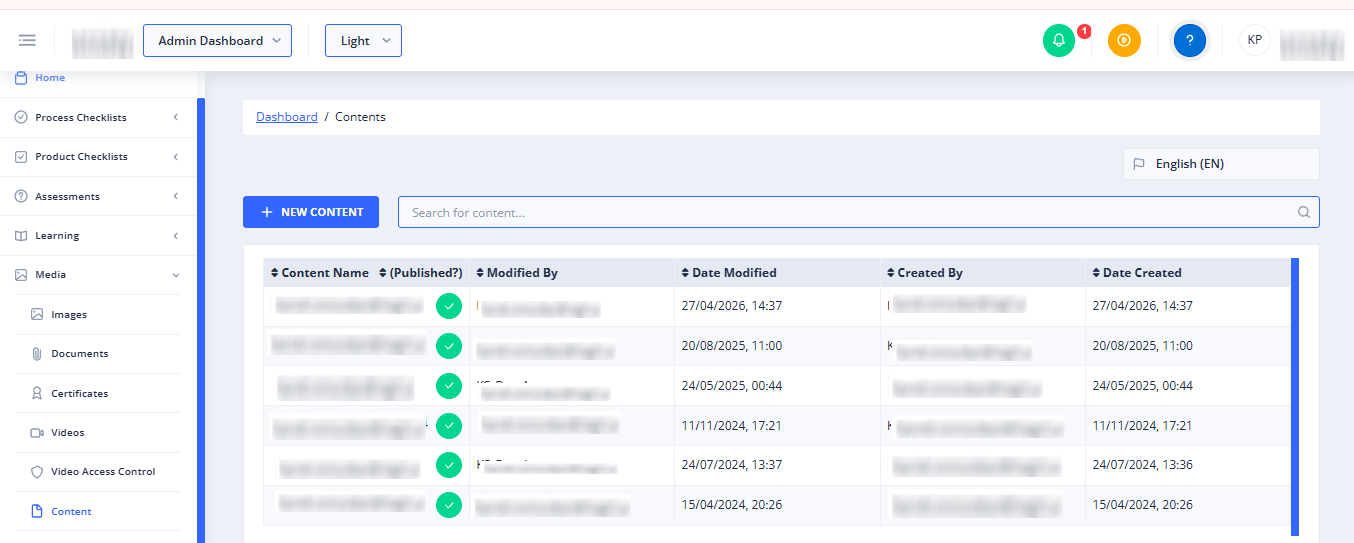
- Content Name (Published?): Displays the name of the content item.
- Published Content: If the content is published, its name is a clickable link that directs you to the published content details. It is accompanied by a green checkmark badge.
- Unpublished Content: Displays the name as plain text.
- No Data Alert: If an unpublished item has no drafts or history associated with it, an alert triangle icon is displayed with the text "This content has no data associated with it" and a red trash icon to permanently delete it.
- Revision Number: A blue badge displaying the current revision number of the content.
- Expand Chevron: If the content has drafts or history, a chevron icon appears next to the name. Clicking it expands the row to show associated drafts and history for the selected language.
- Modified By: Displays the username of the user who last modified the content.
- Date Modified: Displays the date and time of the last modification.
- Created By: Displays the username of the user who created the content.
- Date Created: Displays the date and time the content was created.
Pagination
Located at the bottom of the page, the pagination controls allow you to navigate through multiple pages of content. You can also use the dropdown on the right to change the number of items displayed per page (e.g., 50 items).
Common Actions
| Action | How to do it |
|---|---|
| Create new content | Click the New Content button at the top left of the table. |
| Search content | Type your query in the Search for content... field and press Enter. |
| Change language | Click the language dropdown in the top-right corner, select your preferred language, and the table will update. |
| Sort content | Click any column header (such as Content Name, Modified By, or Date Modified) to sort the list. Click again to toggle between ascending and descending order. |
| View drafts and history | Click the chevron icon next to a content name to expand the row and view its associated drafts and history. |
| Delete empty content | For unpublished content with no data, click the red trash icon next to the "This content has no data associated with it" warning. |
| View published content | Click on the name of any published content item (marked with a green checkmark) to view its details. |
Tips
- Check Drafts in Different Languages: Before expanding a content row to check its drafts and history, make sure you have selected the correct language from the language selector at the top right.
- Clean Up Empty Content: Use the red trash icon to delete empty content placeholders that have no drafts or history. This helps keep your content library clean and organized.
- Quick Sorting: Click the Date Modified column header to quickly bring your most recently updated content items to the top of the list.