Content — Create
Last updated on: 2026-05-25 | Updated by: MAGNI Docs Team
The Content Create page in Magni allows administrators and content creators to build, translate, and manage educational media and articles. This tool enables users to draft content in multiple languages, organize it with tags, and publish it directly to the learning platform.
👤 Visible to: Administrators, Content Creators
Page Sections
Account Upgrade Alert
If your organization's account does not have Content features enabled, a warning banner will appear at the top of the page. This banner prompts you to upgrade your account or contact sales to unlock these capabilities.
Action Toolbar
Located at the top right, this toolbar changes dynamically depending on whether you are creating new content or editing an existing draft.
- Cancel: Discards unsaved changes and returns you to the main Contents list.
- Translation View / Standard View Toggle: Switches between a single-column editor and a side-by-side translation layout.
- Tags (Edit Mode Only): Opens the tag management page to help categorize this content.
- Publish (Edit Mode Only): Publishes the current draft to make it live for learners.
- Delete Translation (Edit Mode Only): Opens a confirmation modal to delete only the translation for the currently selected language.
- Delete (Edit Mode Only): Opens a confirmation modal to delete the entire content item and all associated translations.
Last Modified Banner
When editing an existing piece of content, a banner will display at the top right showing the name of the user who last updated the content, along with the date and timestamp of the modification.
Content Form Area
This is the main workspace where you input your content details.
- Standard View: A single form where you can input content details, select the language, and upload media.
- Split View (Translation Mode): Displays the editable form on the left and a read-only reference version of the content in your preferred/default language on the right. This is highly useful for translating content accurately.
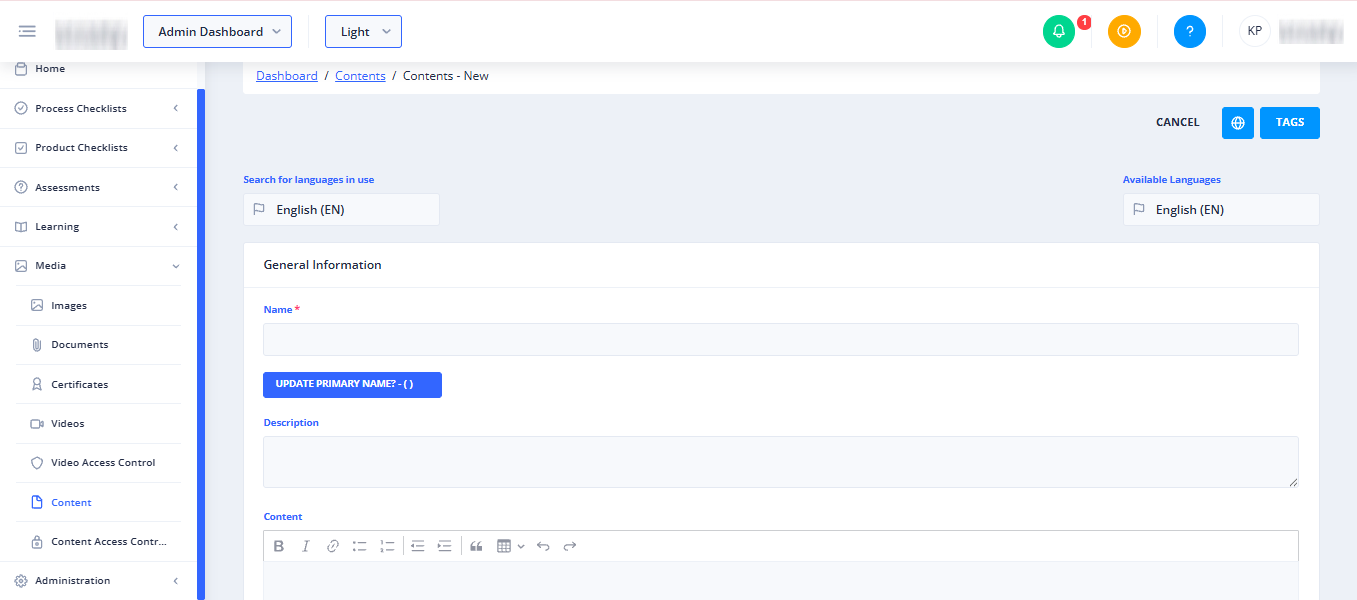
Common Actions
| Action | How to do it |
|---|---|
| Toggle Split View | Click the Globe icon in the action toolbar to enable side-by-side translation. Click the Text icon to return to the standard single-column view. |
| Publish Content | 1. Open an existing draft. 2. Click Publish in the top right toolbar. 3. Confirm the action to make the content live. |
| Delete a Translation | 1. Select the language translation you want to remove. 2. Click Delete Translation in the top right toolbar. 3. In the confirmation modal, click Yes to delete only that language version. |
| Delete Entire Content | 1. Open the content item. 2. Click Delete in the top right toolbar. 3. In the confirmation modal, click Yes to permanently delete the content and all of its translations. |
Tips
- Use Split View for Translations: When translating content, toggle the Split View to keep your source language visible on the right while you type the translation on the left.
- Check the Last Modified Banner: If multiple administrators manage content, check the modification banner to see who last updated the draft before making further changes.
- Avoid Duplicate Names: If you receive a "Could not save content" error, ensure that the name of your content is unique and not already in use by another item.