Content — Edit
Last updated on: 2026-05-25 | Updated by: MAGNI Docs Team
The Content — Edit page in Magni allows administrators and content creators to modify existing learning content, manage translations, assign tags, and publish updates. This page provides a comprehensive interface for updating content details, comparing translations side-by-side, and managing content lifecycles.
Overview
This page is primarily used by Administrators and Content Managers to maintain the LMS content library. It supports multi-language translations, allowing you to edit content in one language while referencing another, and provides tools to publish or delete content versions.
Page Sections
Breadcrumbs & Navigation
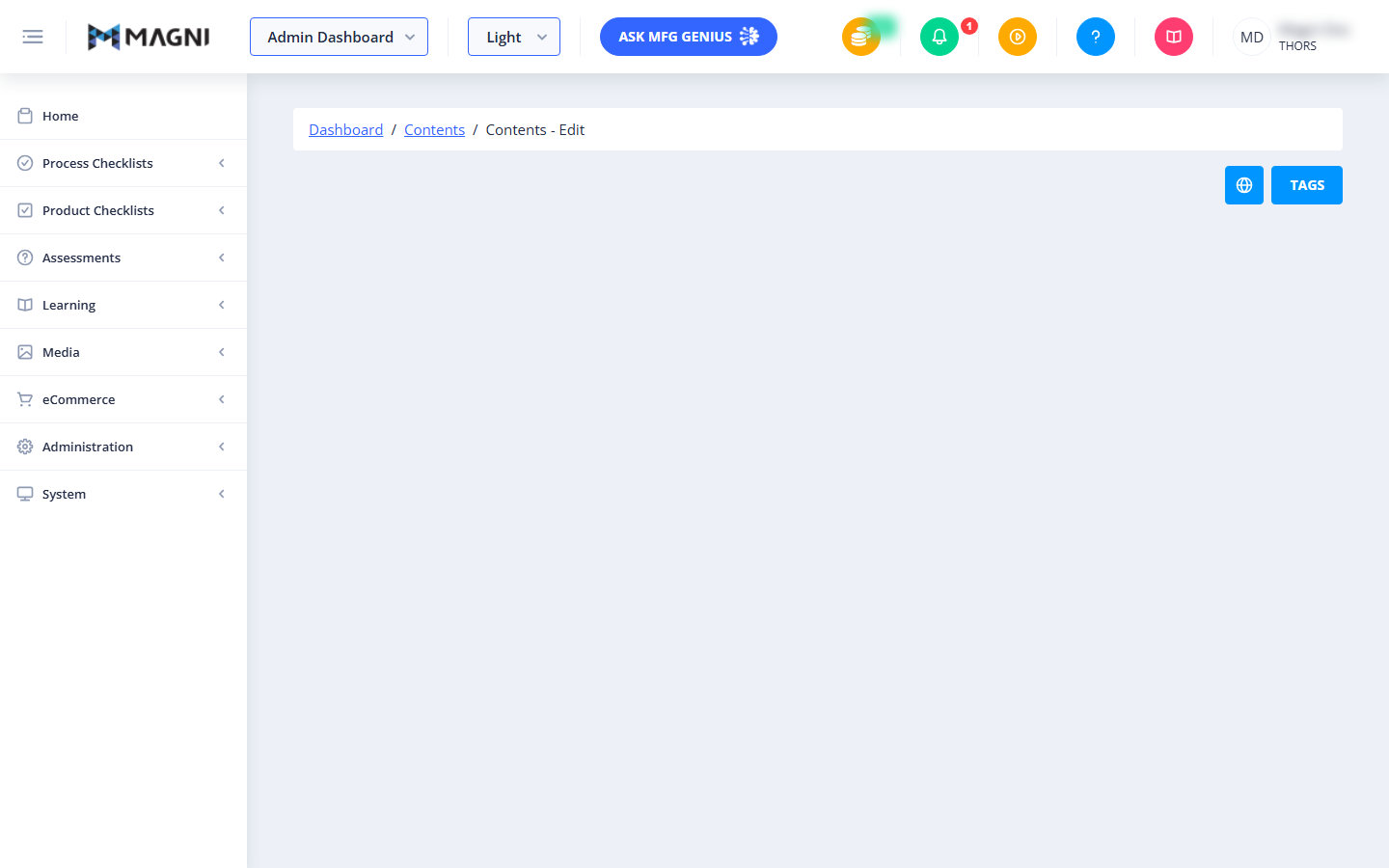
The breadcrumb trail at the top of the page allows you to quickly navigate back to the Admin Dashboard or the main Contents list.
Action Toolbar
Located at the top right of the page, this toolbar provides quick access to major content actions:
- Cancel: Discards unsaved changes and returns to the previous page. This button is only available when a language is selected.
- Translation View / Standard View Toggle: Switches the layout between a single-column edit form and a two-column split view.
- Tags: Opens the tag management screen for this content. This button is only available in edit mode.
- Publish: Publishes the current draft of the content. This button is only available in edit mode.
- Delete Translation: Opens a confirmation dialog to delete the translation for the currently selected language. This button is only available in edit mode.
- Delete: Opens a confirmation dialog to delete the content version and all of its associated translations. This button is only available in edit mode.
Feature Access & Save Alerts
- Upgrade Alert: If your organization's subscription does not have the Content feature enabled, a warning alert will display at the top of the page: "To enable Content features, please upgrade your account, contact sales@magni.ai".
- Save Error Alert: If the system fails to save your changes (for example, if the content name is already in use), a red alert banner will appear stating: "Could not save content! An error has occurred and this content could not be saved. Please make sure this name is not already in use."
Last Modified Information
When editing an existing piece of content, a read-only badge displays at the top right showing the name of the user who last modified the content and the date/time the modification occurred.
Content Form & Split View
The main area of the page contains the content form fields. Depending on your view selection, this area displays in one of two layouts:
- Standard View: Displays a single, editable form for the selected language.
- Split View (Translation View): Displays two columns side-by-side. The left column is the editable form for the current language, and the right column is a read-only reference form displaying the content in your preferred default language.

Common Actions
| Action | How to do it |
|---|---|
| Toggle Split Translation View | Click the Globe icon button in the top right toolbar to enable Split View. Click the Text icon button to return to Standard View. |
| Publish Content | Click the Publish button in the top right toolbar to make your draft changes live. |
| Delete a Single Translation | 1. Click the Delete Translation button. 2. In the confirmation dialog, verify the language name. 3. Click Yes to delete only that translation. |
| Delete Content Entirely | 1. Click the Delete button. 2. In the confirmation dialog, read the warning carefully (this deletes the content and all of its translations). 3. Click Yes to confirm deletion. |
| Manage Content Tags | Click the Tags button in the top right toolbar to navigate to the tag assignment screen. |
Tips
- Use Split View for Translations: When translating content, use the Translation View (Split View) to keep your primary language visible on the right side of the screen as a reference while you type the translation on the left.
- Check the Modification History: Before making changes, check the Last modified by badge to see who last updated the content and avoid overwriting a colleague's recent work.
- Verify Before Deleting: Remember that deleting a translation only removes the content for that specific language, while deleting the content itself removes all translations and versions. Always double-check the confirmation dialog prompt before proceeding.