Content — Detail
Last updated on: 2026-05-25 | Updated by: MAGNI Docs Team
The Content Detail page in Magni allows administrators and content managers to view, manage, and modify specific media content items. From this page, you can check the publishing status of a content item, switch between language translations, edit drafts, publish or unpublish content, and manage deletions.
👤 Visible to: Administrator, Content Manager
Page Sections
Breadcrumb Navigation
Located at the top of the page, this helper path allows you to quickly navigate back to the Dashboard or the main Contents list.
Feature Restriction Alert
If your organization's account does not have content features enabled, a warning banner will appear at the top of the page: "To enable Content features, please upgrade your account, contact sales@magni.ai"
Status Indicator & Action Bar
This section displays the current lifecycle state of the content item and provides contextual actions based on that state.
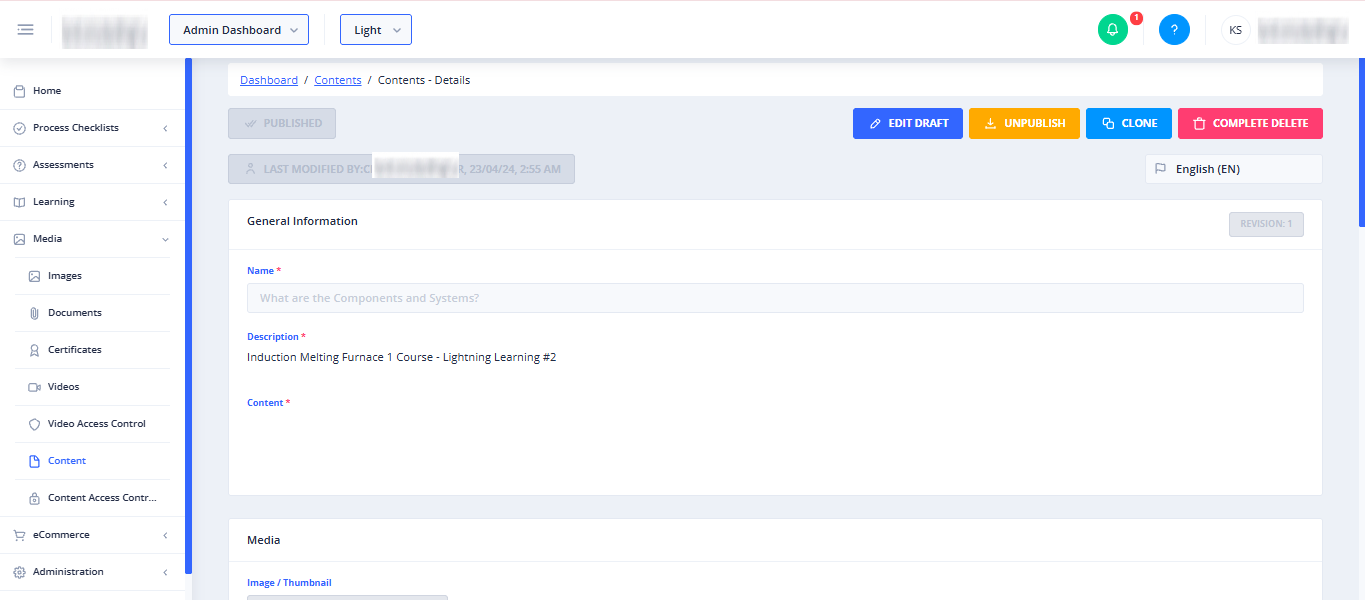
- Status Badge: A disabled button indicating the current version's status:
- Published (indicated by a double checkmark icon)
- Draft (indicated by a pencil icon)
- History (indicated by a clock icon)
- Edit / Edit Draft:
- Displays as Edit when viewing a Draft. Click to open the content editor.
- Displays as Edit Draft when viewing Published or History content. Click to create or open a draft version for editing.
- Publish: Only visible when viewing a Draft. Click to publish the draft and make it active.
- Unpublish: Only visible when viewing Published content. Click to take the content offline.
- Restore: Only visible when viewing a History version. Click to restore this historical version to active status.
- Clone: Always visible. Click to duplicate the current content item.
- Delete Translation: Only visible when viewing a Draft. Deletes only the currently selected language translation.
- Delete: Visible when viewing Draft or History content. Deletes the specific version and its translations.
- Complete Delete: Only visible when viewing Published content. Deletes all drafts, published versions, and histories associated with this content ID.
Metadata & Language Selector
This section provides information on who last modified the content and allows you to view different language versions.
- Last modified by: Displays the first name, last name, and date/time of the user who last updated this content version.
- Language Dropdown: Displays the current language flag and name. Click the field to search and select from other available language translations.
Common Actions
| Action | How to do it |
|---|---|
| Edit a Draft | Click the Edit button when the content status is "Draft". |
| Create/Edit a Draft from Published Content | Click the Edit Draft button when viewing a published or historical version. |
| Publish Content | Click the Publish button when viewing a "Draft" version. |
| Unpublish Content | Click the Unpublish button when viewing a "Published" version. |
| Restore History | Click the Restore button when viewing a "History" version. |
| Clone Content | Click the Clone button to create an exact duplicate of the content. |
| Switch Languages | Use the language dropdown flag selector in the metadata section to switch between available translations. |
| Delete a Single Translation | 1. Switch to the target language using the language dropdown. 2. Ensure the status is "Draft". 3. Click Delete Translation. 4. Confirm the deletion in the pop-up modal. |
| Completely Delete All Versions | 1. Ensure the status is "Published". 2. Click Complete Delete. 3. In the modal, check the I understand the above warning checkbox. 4. Click Delete. |
Tips
- Check the Status First: Before making edits or deletions, always check the status badge (Draft, Published, or History) to understand which version of the content you are currently viewing.
- Safe Deletions: Use "Delete Translation" if you only want to remove a specific language version while keeping other language translations intact.
- Complete Deletions require Confirmation: If you need to wipe out all history, drafts, and published versions of a content item, use "Complete Delete" on the published version and remember to check the confirmation box.