Images — List
Last updated on: 2026-05-25 | Updated by: MAGNI Docs Team
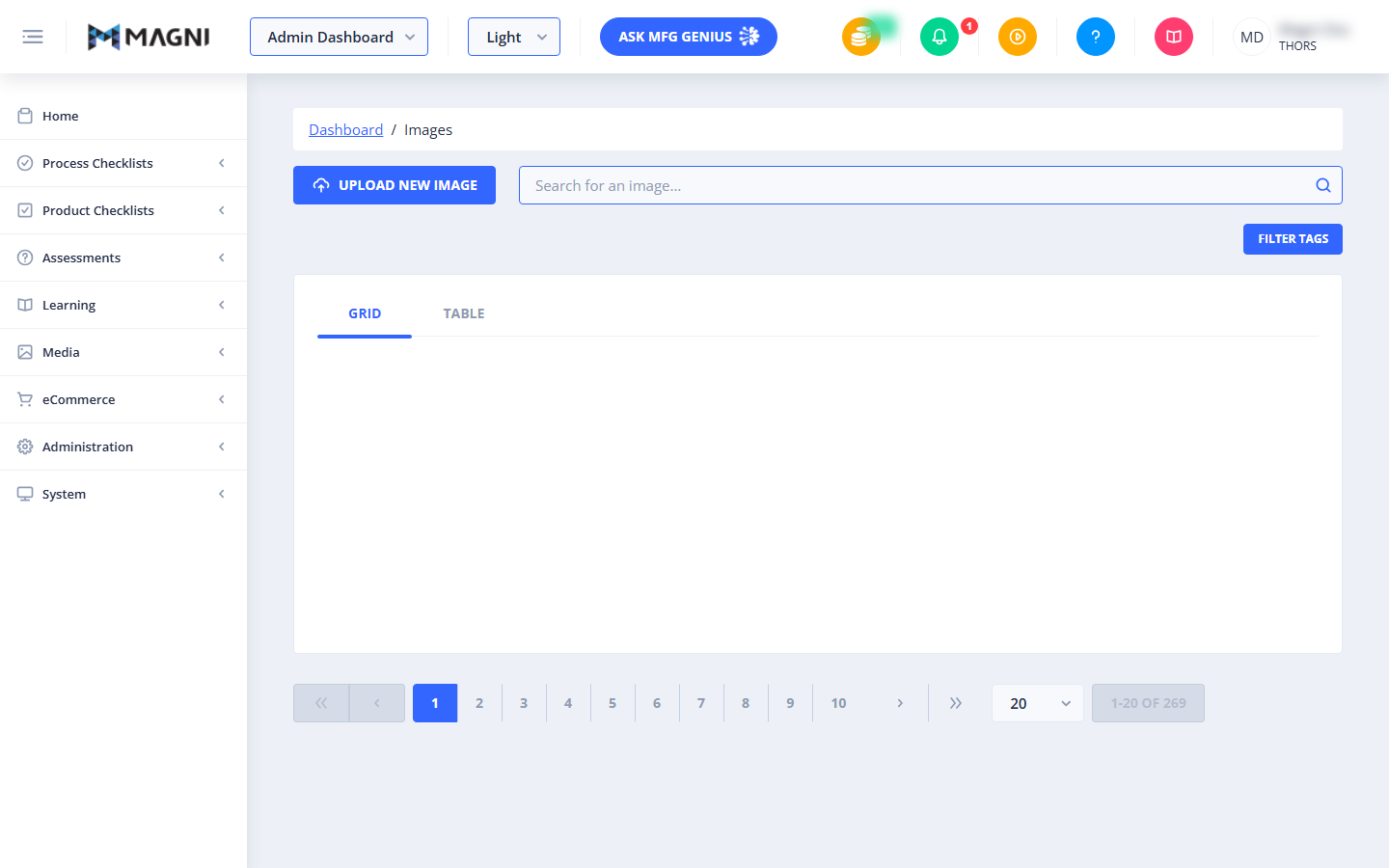
This page allows you to manage all images used across the Magni Learning Management System. You can upload new images, search for existing ones, apply filters, and view them in different layouts. This feature is primarily used by administrators and content creators to enrich learning materials and other system content.
Overview
The Images page provides a centralized hub for managing all visual assets in Magni. Here, you can easily add new images, organize them with tags, and quickly find specific images using search and filter options. This ensures that your content is visually engaging and consistent throughout the platform.
Page Sections
Breadcrumb Navigation
At the top of the page, you'll find a breadcrumb trail that shows your current location within the system:
Dashboard > Images
This allows you to easily navigate back to the main Dashboard.
Image Management Area
This is the main section where you interact with your image library.
-
Upload New Image Button: Click this button to open a dialog or page where you can upload new image files from your computer to Magni.
👤 Visible to: Users with permission to create media.
-
Search Bar: Use this input field to search for images by name, description, or other relevant keywords. Type your query and press Enter or click the search icon.

-
Filter Tags Button: Click this button to open a panel or dialog that allows you to filter the displayed images based on their assigned tags. This helps in organizing and finding images more efficiently.
-
View Toggle (Grid / Table): Switch between two display modes for your images:
- Grid: Shows images as thumbnails in a grid layout, ideal for visual browsing.
- Table: Displays images in a list format with additional details like file name, size, upload date, and tags.
-
Image Display Area: This area will display all your images according to the selected view (Grid or Table) and any applied search or filter criteria. When the page first loads or after applying filters, a loading indicator may appear while images are being fetched.
-
Pagination Controls: Located at the bottom of the image management area, these controls allow you to navigate through multiple pages of images if your library contains more images than can be displayed on a single page.
- Page Navigation: Use the
<<,<,1,2, ...,>>buttons to move between pages. - Items Per Page: A dropdown allows you to select how many images are displayed on each page (e.g., 20, 50, 100).
- Page Information: Indicates the current range of items being displayed and the total number of items (e.g., "1-20 OF 269"). Show Symbols Only Toggle: A toggle switch that filters the Image Display Area to show only images that have been uploaded/marked as Symbols.
- On: Only symbol images are displayed. Any new image uploaded while this toggle is enabled is uploaded and saved as a symbol, making it immediately available for selection in the Symbols picker on Critical To (CT) checklist questions (see the Process Checklists — Edit page documentation).
- Off (default): All images in the library are displayed, including regular content images and symbols.
- Page Navigation: Use the
Upload New Image Button:* Click this button to open a dialog or page where you can upload new image files from your computer to Magni. If the Show Symbols Only toggle is enabled when you upload, the image is saved as a symbol.
- Search Bar: Use this input field to search for images by name, description, or other relevant keywords. Type your query and press Enter or click the search icon.
Common Actions
| Action | How to do it
| Upload New Image | Click the Upload New Image button. This action is available if you have the necessary permissions.