Last updated on: 2026-05-25 | Updated by: MAGNI Docs Team
Images — Detail
This page provides a detailed view of a specific image within the Magni Learning Management System. It allows users to inspect the image content, view its associated tags, and, if permitted, manage the image by editing its details or deleting it from the system.
Overview
The Images — Detail page presents comprehensive information about a selected image. You can see the image itself, check its name, and view or manage any tags linked to it. This page is primarily used by administrators or content managers responsible for managing media assets within Magni.
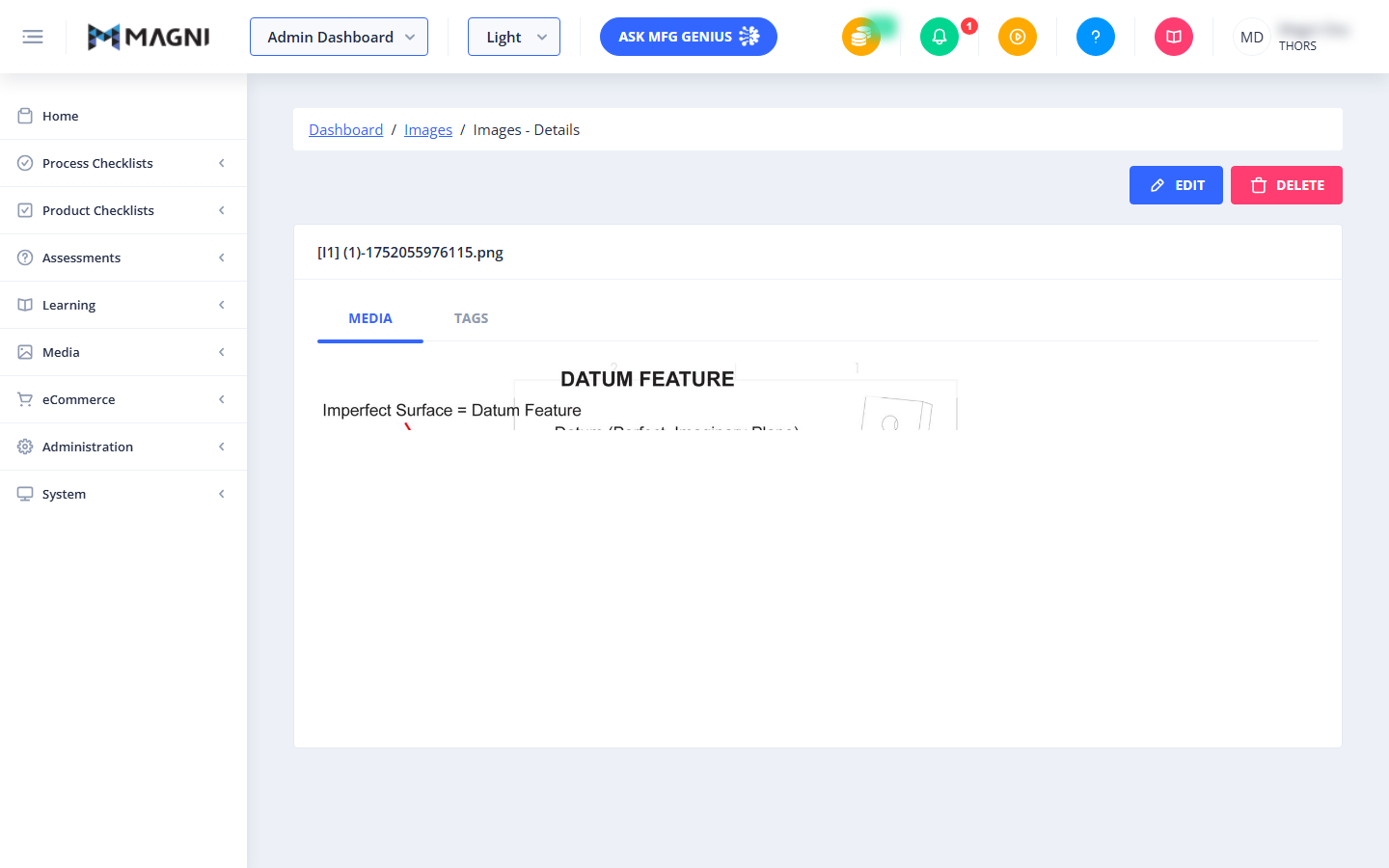
Page Sections
Breadcrumbs
At the top of the page, a breadcrumb navigation path helps you understand your current location within the system. It typically shows: Dashboard / Images / [Image Name]
Clicking on "Dashboard" will take you to the main dashboard, and clicking "Images" will return you to the list of all images. The final item displays the name of the image you are currently viewing.
Action Buttons
Located at the top right of the page, these buttons allow you to perform actions on the displayed image.
-
Edit Button This button allows you to modify the details of the current image.
👤 Visible to: Users with permission to update media, unless the image is a system-default "deleted image" placeholder.
- Availability: This button is enabled and visible if you have the necessary permissions to update media. It is disabled and hidden for system-default images that indicate a deleted image, preventing accidental modification of critical system assets.
- Action: Clicking this button navigates you to the image editing page.
-
Delete Button This button allows you to remove the current image from the system.
👤 Visible to: Users with permission to delete media, unless the image is a system-default "deleted image" placeholder.
- Availability: This button is enabled and visible if you have the necessary permissions to delete media. It is disabled and hidden for system-default images that indicate a deleted image.
- Action: Clicking this button first checks if the image is associated with any other content in Magni. A confirmation dialog will then appear, asking you to confirm the deletion. If confirmed, the image is permanently removed, and you are redirected to the Images list page.
Image Details Card
This central card displays the main content related to the image.
-
Card Header: The header of the card prominently displays the name of the image, for example,
[I1] (1)-1752055976115.png. -
Tabs: The card body is organized into two tabs:
Media Tab
This tab displays the actual image content.
- Image Display: The primary content of this tab is the image itself. It is displayed at full width within the available space, allowing you to clearly see the image file.
Tags Tab
This tab displays and allows you to manage tags associated with the image.
- Tag List: This section shows a list of all tags currently linked to the image. You can add new tags or remove existing ones to help categorize and organize your media assets.
Common Actions
| Action | How to do it