Images — Edit
Last updated on: 2026-05-25 | Updated by: MAGNI Docs Team
This help page provides information on how to edit an existing image within the Magni Learning Management System (LMS). Users can update an image's name and manage its associated tags, ensuring media content is well-organized and easily discoverable. This page is part of the Media feature.
Page Sections
The "Images — Edit" page is structured to allow you to view the image, modify its name, and manage its tags.
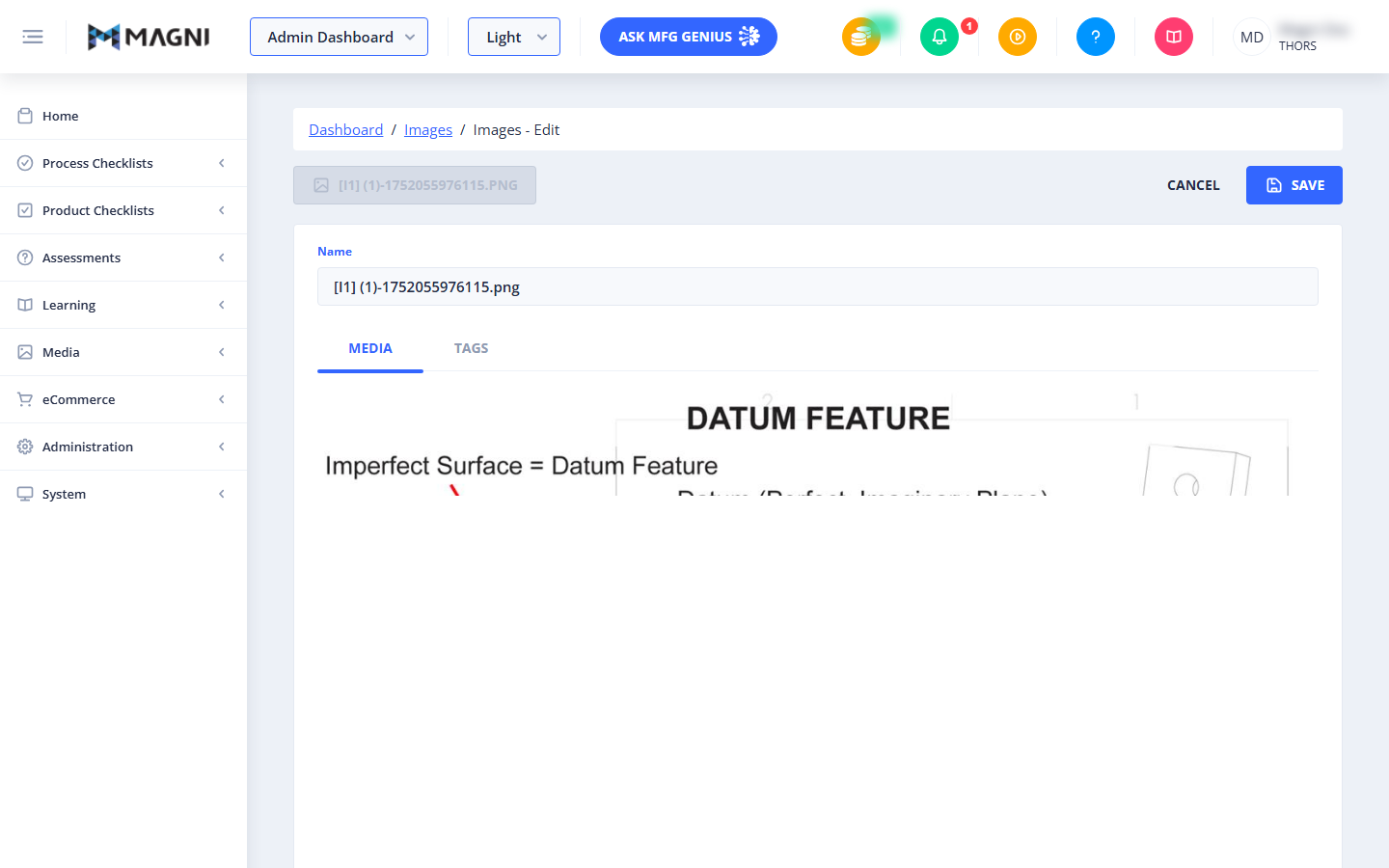
Breadcrumb Navigation
At the top of the page, a breadcrumb trail shows your current location: Dashboard > Images > Images - Edit. You can click on "Dashboard" or "Images" to navigate back to those respective pages.
Image Identifier
Located at the top left of the main content area, a disabled button displays the name of the image you are currently editing (e.g., [I1] (1)-1752055976115.PNG). If the image name is not available, it will display "Image". This is for informational purposes only and cannot be clicked.
Action Buttons
On the top right of the main content area, you will find buttons to manage your changes:
- Cancel: Click this button to discard any changes you've made and return to the main Images list page.
- Save: Click this button to apply and save your changes.
- This button is disabled if the image name field is empty or if the form is currently being submitted.
- Upon successful saving, you will be redirected to the image's detail page.
- If an error occurs during saving, an error message will appear below the buttons.
Error Message
If there is an issue with your input (e.g., a required field is left blank) or a problem occurs during saving, an error message will appear in a red alert box below the action buttons. For example, if the name field is empty, you might see "A valid name is required."
Image Details Card
This section contains the editable details for the image.
Name Field
- Label: Name
- Purpose: Use this text field to change the display name of the image.
- Required: Yes. The image name is a required field.
- Validation: If this field is left empty, the "Save" button will be disabled, and you will receive an error message if you attempt to submit.
Tabs
Below the Name field, there are two tabs:
Media Tab
This tab displays a preview of the actual image content. The image is shown at 100% width within its container.
Tags Tab
This tab allows you to manage the tags associated with the image. You can add new tags or remove existing ones to help categorize and organize your media. Any changes made here will be saved when you click the "Save" button.
Common Actions
| Action | How to do it