Last updated on: 2026-05-25 | Updated by: MAGNI Docs Team
Images — Create
The Images — Create page allows users to upload new image files to the Magni system. These images can then be used across various parts of the platform, such as in product listings, learning materials, or other content. This page is typically used by administrators or users with media management permissions.
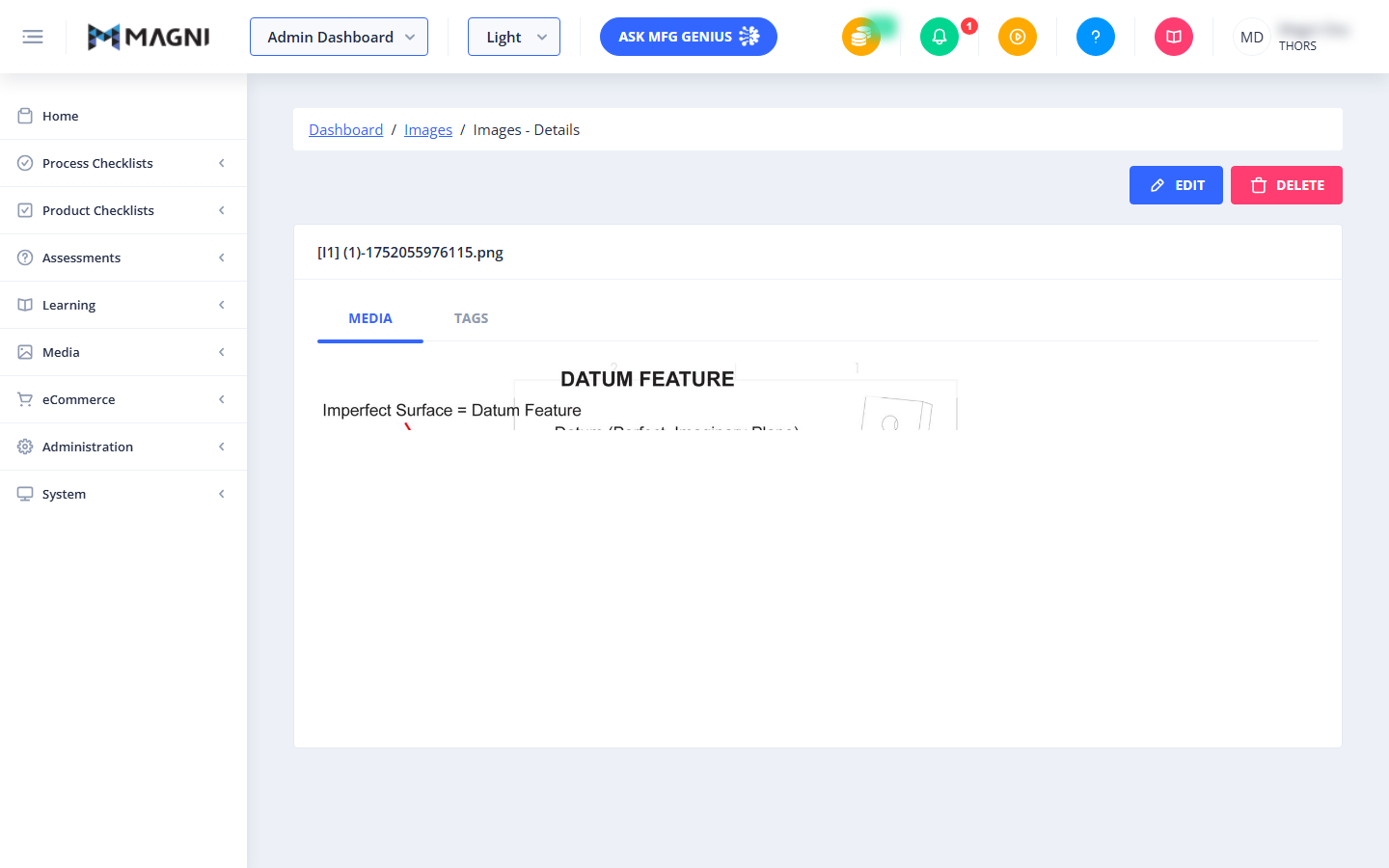
Page Sections
Navigation Controls
At the top of the page, you'll find navigation elements:
- Back Button: Returns you to the main Images list page.
- Breadcrumbs: Shows your current location within the system: Dashboard / Images / Images - New.
Upload Area
This is the main section where you can select and upload your image files.
- Choose Files Button: Click this button to open your computer's file browser and select one or more image files for upload.
- Supported File Types and Size: Below the "Choose Files" button, you'll see the accepted file formats and the maximum allowed file size:
.png, .jpg, .jpeg, .webp (Max 6MB). - Click to Upload Area: This area serves as a visual drop zone for files. You can either click the "Choose Files" button or drag and drop your image files directly into this area. Once files are selected, they will be staged here before the final upload process begins.
- Loading Indicator: While an upload is in progress, a loading spinner will appear, indicating that the system is busy processing your request.
Common Actions
| Action | How to do it