Video Access Control — Create
Last updated on: 2026-05-25 | Updated by: MAGNI Docs Team
The Video Access Control (VAC) Create page allows administrators to set specific access restrictions on video media within the Magni LMS. By creating a VAC, you can control how long a video is available, how many times it can be viewed, and whether those limits apply per individual user.
Page Sections
Header Actions
The top header area contains the navigation breadcrumbs and primary form actions.
- Cancel Button: Discards your current input and returns you to the Video Access Controls list page.
- Save Button: Saves the new Video Access Control configuration. This button remains disabled until all required fields are filled out correctly.
Video Access Control Form
This form contains the configuration settings for restricting video access.
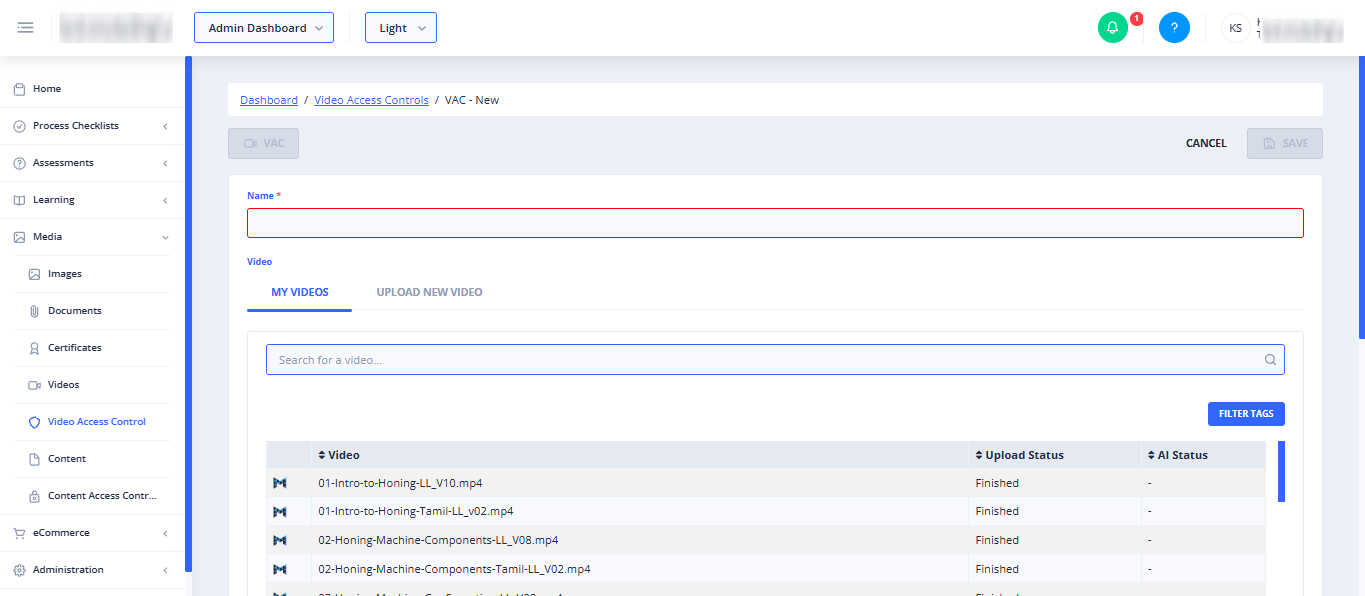
- Name (Required): A descriptive name for the Video Access Control configuration. This field is marked with a red asterisk and must be filled out.
- Video Selection:
- My Videos Tab: Displays a searchable list of existing videos uploaded to your library. Use the search bar to filter videos by name.
- Upload New Video Tab: Allows you to upload a new video file directly from your device.
- Selected Video: Once a video is selected, its name is displayed as a button with an "X" icon. Click this button to remove the selected video and choose a different one.
- Expiration Date (Required): The date when access to the video will expire. This field requires a valid date format (mm/dd/yyyy) and must be set to today's date or a date in the future.
- View Limit: The maximum number of times the video can be viewed. This must be a positive number greater than zero. If an invalid value (zero or negative) is entered, a warning message will appear: "View Limit cannot be zero or negative."
- Per Individual Checkbox: When checked, the view limit is enforced individually for each user (e.g., if the limit is 3, every user can watch it up to 3 times). When unchecked, the limit applies globally across all users.
Video Search Bar
Use the search bar within the video selection area to quickly find specific videos in your library.

Video Feature Restriction
⚠️ This feature is only available to accounts with video permissions enabled.
If your organization's account does not have video features enabled, the form will be hidden and a warning banner will display: "To enable Video features, please upgrade your account, contact sales@magni.ai".
Common Actions
| Action | How to do it |
|---|---|
| Select an Existing Video | 1. Navigate to the My Videos tab. 2. Use the search bar to find your video. 3. Click on the video from the list to select it. |
| Remove a Selected Video | Click the button displaying the selected video's name and the "X" icon to clear the selection. |
| Set an Expiration Date | Click inside the Expiration Date field and select a date from the calendar picker that is today or in the future. |
| Apply View Limits Per User | 1. Enter a number greater than zero in the View Limit field. 2. Check the Per Individual checkbox. |
| Save the Access Control | Ensure all required fields (Name, Video, and Expiration Date) are filled out, then click the Save button in the top right corner. |
Tips
- Enforce Individual Compliance: Always check the Per Individual checkbox if you are using view limits for compliance or certification training, ensuring each learner gets the exact number of allowed attempts.
- Keep Names Descriptive: Use clear naming conventions for your VACs (e.g., "Q3 Safety Video - Compliance Limit") so they are easy to identify and manage later in your Video Access Controls list.
- Check Expiration Dates: Double-check your expiration date before saving, as setting a past date will immediately restrict access for all users once saved.