Video Access Control — Edit
Last updated on: 2026-05-25 | Updated by: MAGNI Docs Team
The Video Access Control (VAC) Edit page allows administrators to modify the access rules, availability windows, and view restrictions for specific video assets within Magni. This page ensures that training videos are only accessible to authorized users within a defined timeframe and view count.
Page Sections
Breadcrumbs and Header Actions
The top of the page features a breadcrumb trail for easy navigation back to the Dashboard or the main Video Access Controls list. Next to the breadcrumbs, you will find the name of the current Video Access Control rule and the primary action buttons:
- Cancel: Discards any changes made and returns you to the Video Access Controls list.
- Save: Saves your changes. This button remains disabled if any required fields are incomplete or contain validation errors.
Video Access Control Form
This form contains the configuration settings for the video access rule.
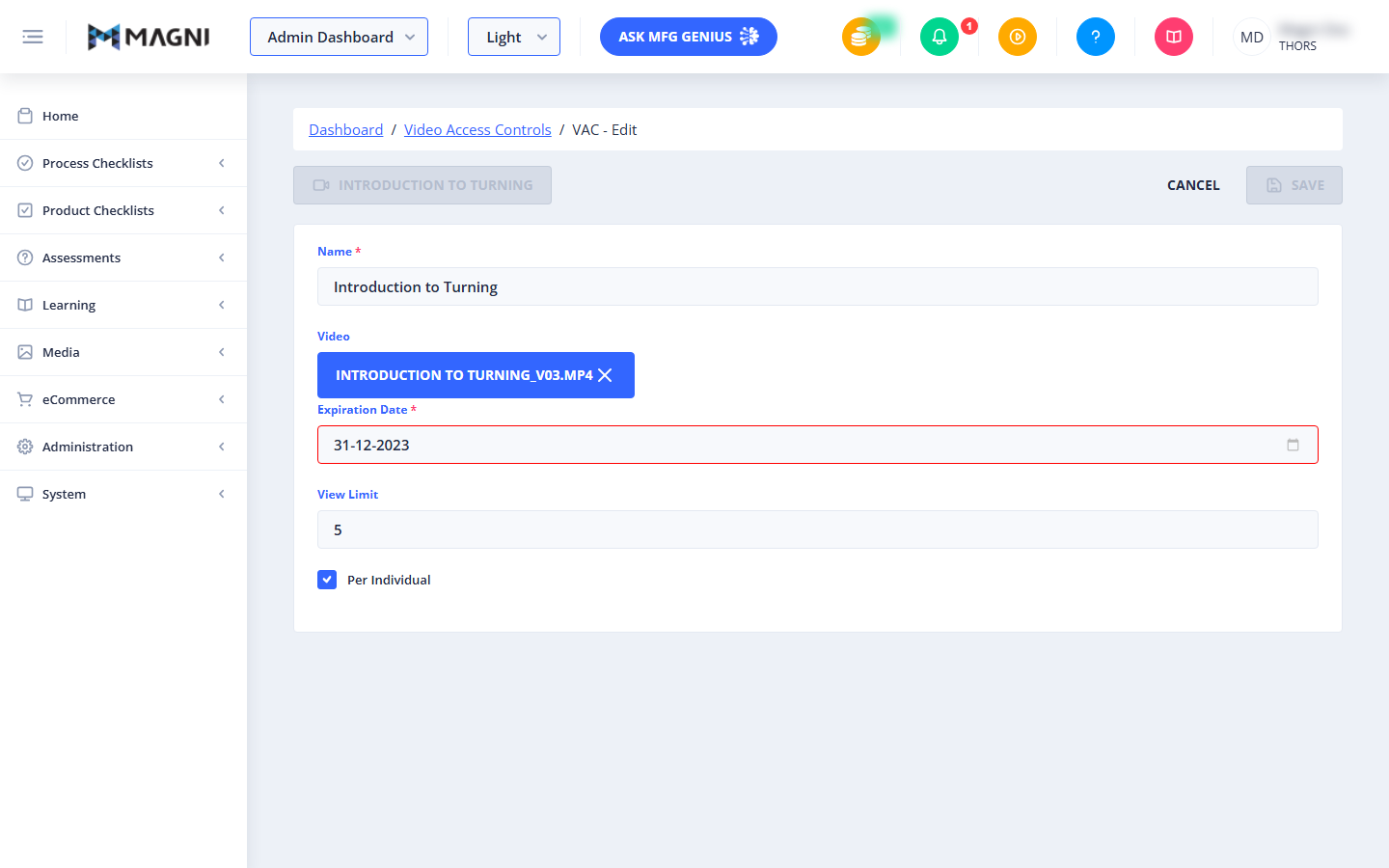
- Name (Required): The administrative name for this Video Access Control rule.
- Video: Displays the video file currently associated with this rule.
- To remove the current video, click the X icon on the blue video badge.
- If no video is selected, a video selection interface will appear allowing you to choose an uploaded video.
- Expiration Date (Required): The final date on which the video is allowed to be viewed.
- Validation: The expiration date must be set to today or a future date. Past dates are not permitted.
- View Limit (Required): The maximum number of times the video can be played.
- Validation: This value must be greater than 0. If you enter 0 or a negative number, an error message stating "View Limit cannot be zero or negative" will appear, and you will not be able to save the form.
- Per Individual: A checkbox that determines how the view limit is applied.
- Checked: The view limit is applied to each individual user (e.g., if set to 5, every user can watch the video up to 5 times).
- Unchecked: The view limit is a global cap for the entire organization.
Video Feature Restriction Alert
If your organization's subscription level does not include video capabilities, the form will be hidden, and a restriction banner will display instead.
⚠️ To enable video features, please upgrade your account by contacting sales at sales@magni.ai.
Common Actions
| Action | How to do it |
|---|---|
| Update the Rule Name | Enter a new name in the Name field. |
| Replace the Video | Click the X on the blue video badge to remove the current video, then select a new video from the list that appears. |
| Extend the Expiration Date | Click the calendar icon in the Expiration Date field and select a new future date. |
| Change View Restrictions | Enter a new number in the View Limit field. Toggle the Per Individual checkbox depending on whether the limit should apply per user or globally. |
| Save Changes | Click the Save button in the top-right corner of the page once all validation errors are resolved. |
Tips
- Individual vs. Global Limits: Always double-check the Per Individual checkbox. Leaving it unchecked means a single user could accidentally exhaust the entire organization's view limit for a video.
- Keep Expirations in Mind: If a video is part of an ongoing training curriculum, set the expiration date far enough into the future to prevent unexpected access interruptions for your learners.