Video Access Control — Detail
Last updated on: 2026-05-25 | Updated by: MAGNI Docs Team
This page allows administrators to view the configuration details of a specific Video Access Control (VAC) rule. From here, you can review the assigned video, expiration date, view limits, and manage the rule by editing or deleting it.
Page Sections
Breadcrumbs
The breadcrumb trail at the top of the page allows you to quickly navigate back to the Dashboard or the main Video Access Controls list.
Header and Action Bar
The header displays the name of the Video Access Control rule (or "Video Access Control" if no specific name is set) alongside management actions.
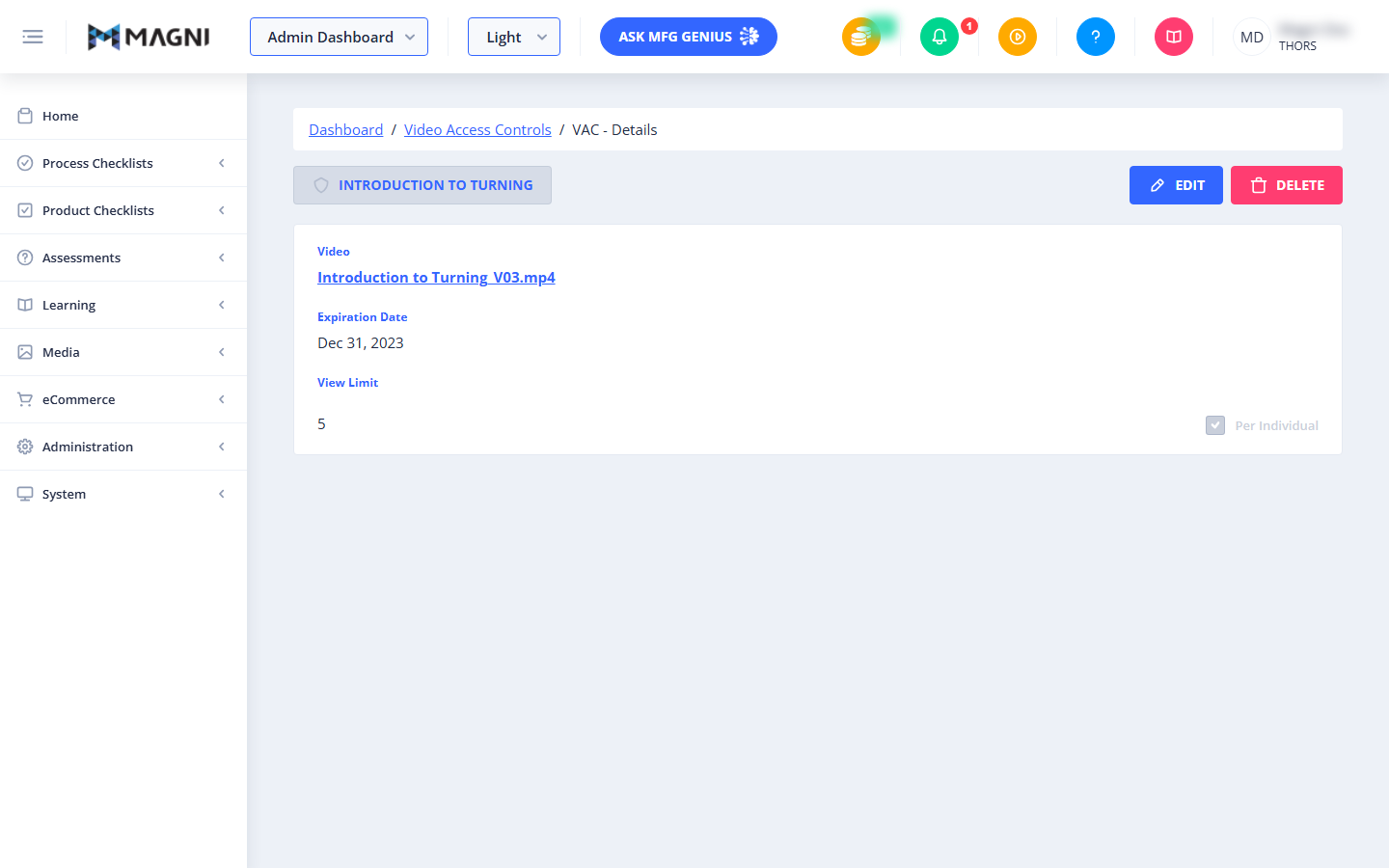
- Edit Button: Click this button to modify the settings of this Video Access Control rule.
👤 Visible to: Users with video update permissions.
- Delete Button: Click this button to permanently remove this Video Access Control rule. This will open a confirmation dialog before deletion.
👤 Visible to: Users with video delete permissions.
Video Access Control Details Card
This card displays the specific restrictions and configurations applied to the video.
- Video: Displays the name of the restricted video. The video name is a clickable link that takes you directly to the video's administration page.
- Expiration Date: The date when this access control rule expires and no longer applies.
- View Limit: The maximum number of times the video can be viewed under this rule.
- Per Individual: A checkbox indicating whether the view limit is tracked per individual user. When checked, each user can view the video up to the specified view limit. This checkbox is read-only on this page.
Account Restriction Alert
If video features are not enabled for your organization's account, the details card will be hidden, and a warning banner will display:
"To enable Video features, please upgrade your account, contact sales@magni.ai"
Common Actions
| Action | How to do it |
|---|---|
| Edit Access Control | Click the Edit button in the top-right corner of the page to open the modification form. |
| Delete Access Control | 1. Click the Delete button in the top-right corner. 2. Confirm the action in the pop-up dialog to permanently remove the rule. |
| View Linked Video | Click the blue underlined video name link under the Video label to navigate to the video's details. |
Tips
- Check Expiration Dates: Regularly review the expiration dates on your Video Access Controls to ensure users do not lose access to critical training materials unexpectedly.
- Individual Limits: Use the "Per Individual" setting when you want to ensure every assigned user gets the same number of allowed views, rather than sharing a collective pool of views.