Product Checklist Submission — Detail
Last updated on: 27 May 2026 | Updated by: MAGNI Docs Team
The Product Checklists — Response Detail page allows users to view, analyze, and manage the specific submission details of a completed product checklist. Depending on your user role, you can review operator answers, filter component statuses, export data to Excel, print the response, or delete the submission.
Page Sections
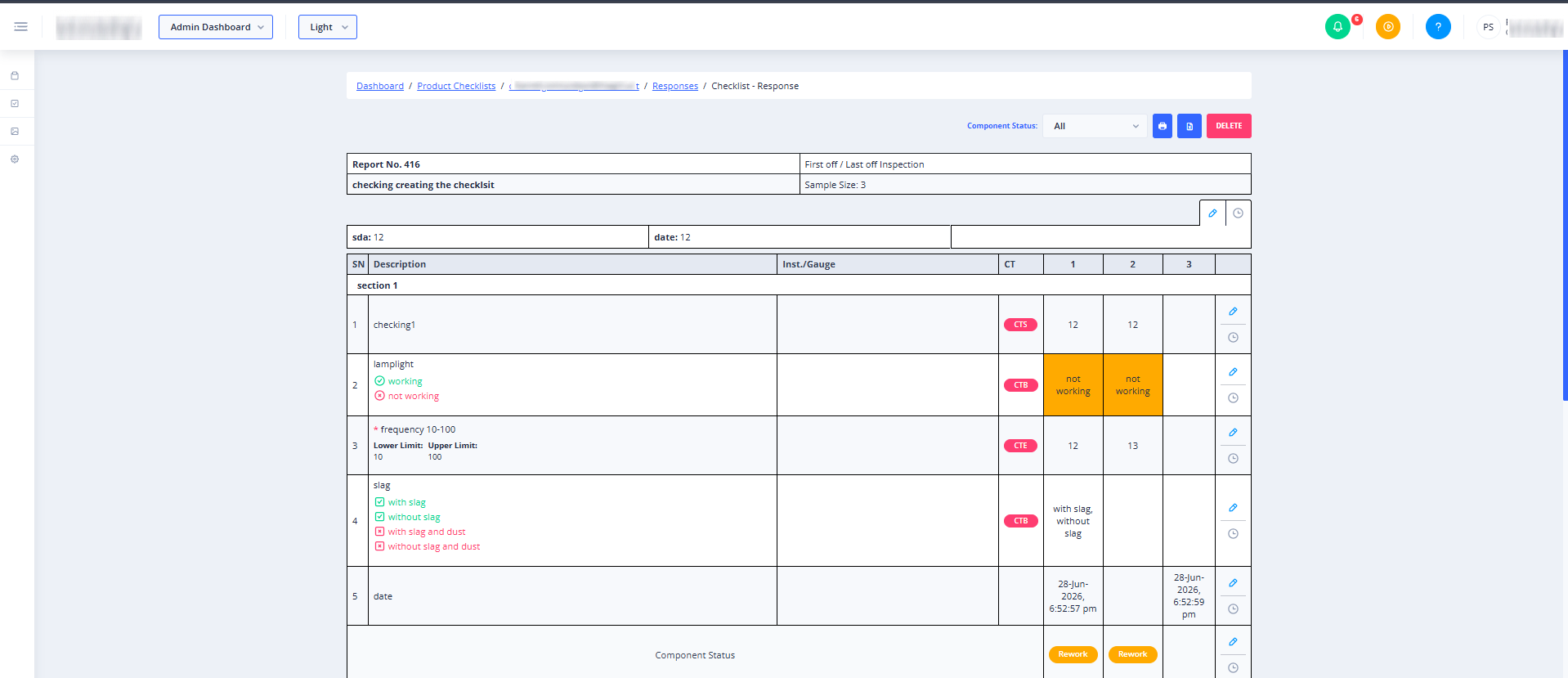
Navigation Breadcrumbs
The breadcrumb trail at the top of the page dynamically changes based on your user role and how you navigated to the response detail:
👤 Visible to: Administrators Dashboard → Product Checklists (or Process Checklists) → [Checklist Name] → Responses → [Response Title]
👤 Visible to: Operators Dashboard → Checklists → Checklist Submissions → [Response Title]
👤 Visible to: Report Viewers Dashboard → Checklist Reports → [Response Title]
👤 Visible to: Supervisors Dashboard → Checklist - Submissions → [Checklist Name] → [Response Title]
Action Bar
Located in the top-right corner of the page, this bar contains tools to filter, export, print, or delete the checklist response.
- Component Status Filter:
This dropdown is only visible for standard Product Checklists (it is hidden for Min/Max checklists). Use this to filter the displayed checklist items by their status:
- All: Displays all submitted items.
- Pass: Displays only items that passed inspection.
- Rework & Scrap: Displays only items marked for rework or scrap.
- Print Button (Printer Icon): Prints the current checklist response. This button is disabled if the submission has been bypassed or if a print job is already loading.
- Export to Excel Button (Excel Icon): Downloads the checklist response data as an Excel spreadsheet (.xlsx). This button is disabled if the submission has been bypassed.
- Delete Button:
Permanently deletes the checklist submission from the system. Clicking this triggers a confirmation dialog before deletion.⚠️ This button is only visible to Administrators with explicit delete permissions.
Response Content Area
The main body of the page displays the detailed checklist submission data.
- Product Checklist Details: If viewing a Product Checklist, this area displays the specific product component measurements, pass/fail statuses, operator comments, and any uploaded media or documents associated with the response.
Common Actions
| Action | How to do it |
|---|---|
| Filter by Component Status | Select "All", "Pass", or "Rework & Scrap" from the Component Status dropdown in the action bar. |
| Print Checklist Response | Click the blue Printer icon button in the action bar. |
| Export Response to Excel | Click the green Excel icon button in the action bar. |
| Delete Checklist Submission | Click the red Delete button (Administrators only) and confirm the action in the pop-up dialog. |
Tips
- Isolate Failures Quickly: Use the Component Status filter to select "Rework & Scrap" to instantly view only the failed items in a long product checklist, making it easier to identify production issues.
- Offline Reporting: Export your checklist responses to Excel to keep offline records for compliance audits or to perform advanced data analysis.
- Feature Access: If you see a "Feature Not Enabled" message instead of the checklist details, contact your system administrator to ensure the Checklists module is active for your account.