Product Checklist Submissions List - Workflow
Last updated on: July 29, 2026 | Updated by: MAGNI Docs Team
This page documentation helps you navigate and manage product checklist submissions within Magni.
Overview
The Checklists Product Submissions page allows Quality Assurance (QA) Supervisors, QA Managers, and Manufacturing (MFG) Supervisors to track, review, and manage product checklist submissions. Users can easily monitor submissions pending their direct action, track team progress, and filter records by date, category, or status to maintain quality standards.
Page Sections
Search and Filter Panel
Use this panel to quickly locate specific checklist submissions using search terms or advanced filter criteria.
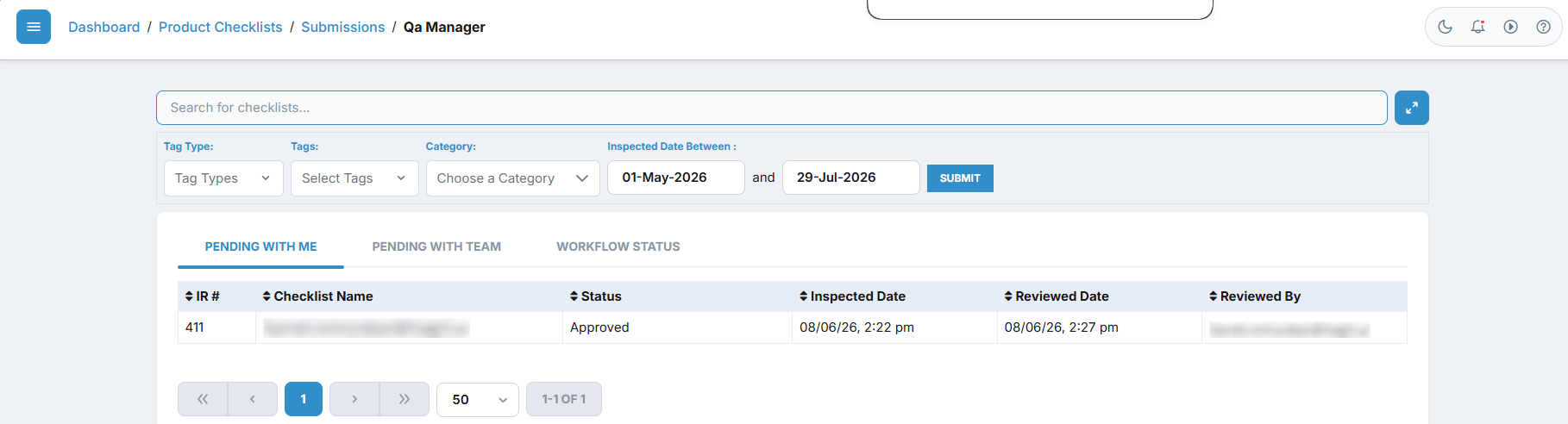 ![[checklists-product-submissions-workflow-full qa supervisor.png]]
![[checklists-product-submissions-workflow-full mgf supervisor.png]]* Search Input: Type in this field to search for checklists by name.
![[checklists-product-submissions-workflow-full qa supervisor.png]]
![[checklists-product-submissions-workflow-full mgf supervisor.png]]* Search Input: Type in this field to search for checklists by name.
- Toggle Filters Button: Click the expand icon on the right to show or hide the advanced filter options.
- Filter by Tags: Filter checklist submissions by selecting specific tags and tag types.
- Category Dropdown: Select a checklist category from the dropdown to view only submissions belonging to that category.
- Status Multi-Select: Select one or more statuses to filter the list.
⚠️ This filter is only visible when you are viewing the Workflow Status tab.
- Date Range: Filter submissions by the date they were inspected. By default, this is set to the last 30 days. Use the start and end date pickers to customize the range.
- Submit Button: Click this button to apply your selected filters to the list.
Workflow Tabs
The submissions are organized into three tabs to help you prioritize your work.
Pending With Me Tab
This tab displays all checklist submissions that are currently awaiting your review or approval.
- IR #: The Inspection Report number. If a submission has been sent back or reversed in the workflow, a red arrow icon appears next to the number indicating "Workflow is reversed".
- Checklist Name: The name of the submitted checklist.
- Status: The current workflow status of the submission.
- Inspected Date: The date and time when the inspection was performed.
- Reviewed Date: The date and time when the submission was reviewed.
👤 Visible to: MFG Supervisor, QA Manager
- Inspected By / Reviewed By: Displays the name of the user who performed the inspection or review.
👤 QA Supervisors will see the Inspected By column. MFG Supervisors and QA Managers will see the Reviewed By column.
Pending With Team Tab
This tab displays checklist submissions that are currently assigned to other members of your team and are awaiting their action. The Pending With Team tab helps us :
- View all checklist submissions pending with team members.
- Monitor the current workflow status of assigned inspections.
- Filter submissions using search and filter options.
- Track inspection ownership and inspection dates.
Workflow Status Tab
The Workflow Status tab displays the workflow history of checklist submissions, allowing supervisors to monitor the final status of each submission and review the approval or rejection history. The Workflow Status tab helps users to:
- View the current workflow status of checklist submissions.
- Track the inspector and reviewer involved in the workflow.
- View the inspection date for each submission.
- Expand a submission to view its complete workflow history.
Common Actions
| Action | How to do it |
|---|---|
| Search checklists | Type your search terms into the search bar at the top of the page. The list will update automatically. |
| Filter by category | 1. Click the toggle filters button to expand the filter panel. 2. Select a category from the Category dropdown. 3. Click Submit. |
| Filter by custom date range | 1. Click the toggle filters button to expand the filter panel. 2. Select a start date and end date using the calendar pickers. 3. Click Submit. |
| View submission details | Click on any row in the submissions table to open and review the detailed checklist response. |
| Sort submissions | Click on any column header with a sort icon (such as IR #, Checklist Name, Status, or Inspected Date) to toggle between ascending and descending order. |
Tips
- Watch for Reversed Workflows: Keep an eye out for the red arrow icon next to the IR #. This indicates that a submission was rejected or sent back to a previous step in the workflow for corrections.
- Check Your Date Filters: If you cannot find a recent submission, make sure the date range filter is not excluding it. By default, the page only displays submissions from the last 30 days.
- Monitor Team Progress: Regularly check the Pending With Team tab to identify any bottlenecks in the review pipeline and ensure checklists are processed in a timely manner.