Product Checklist Issues — Edit
Last updated on: 2026-05-27 | Updated by: MAGNI Docs Team
The Admin Checklists Product Issues — Edit page is designed for administrators to modify and update issues logged against checklists or specific tasks. This interface serves as a centralized hub for resolving quality control issues, tracking corrective actions, and ensuring compliance across product and process checklists.
👤 Visible to: Administrators and System Administrators
Page Sections
Dynamic Issue Editor
The editor dynamically adapts its interface based on the type of issue you are modifying (either a checklist-level issue or a task-level issue).
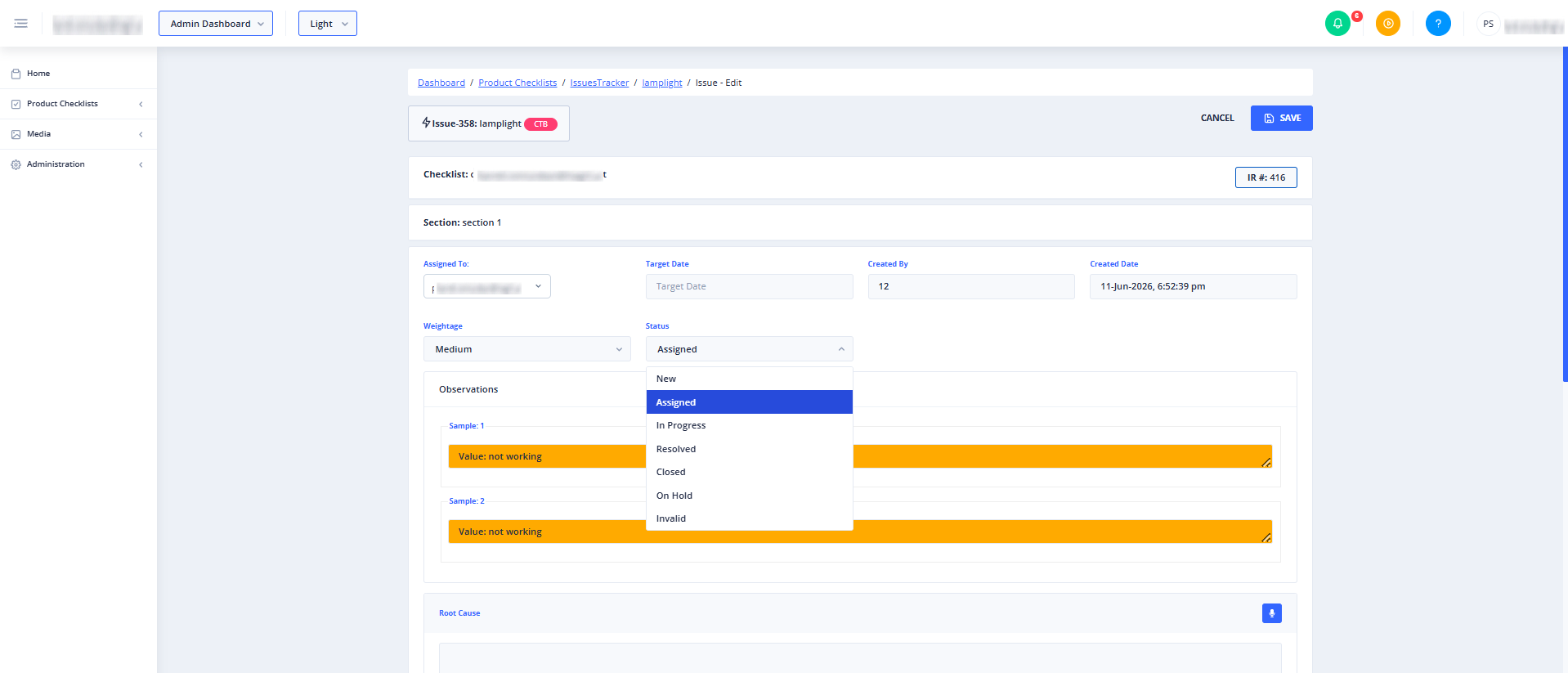
Depending on the configuration of your organization and the specific issue selected, you will see one of the following states:
1. Feature Not Enabled Alert
If the Issues Tracker feature is not enabled for your organization, or if the specific checklist type (Process or Product) does not have issue tracking permitted, you will see a Feature Not Enabled notification.
- Process Checklist Issues: Require the "Issues Tracker for Customer", "Allow Checklists", and "Allow Issues Tracker for Checklist" settings to be enabled.
- Product Checklist Issues: Require the "Issues Tracker for Customer", "Allow Product Checklists", and "Allow Issues Tracker for Product Checklist" settings to be enabled.
- Task Issues: Require the "Issues Tracker for Customer" setting to be enabled.
2. Checklist Issue Editor
This interface displays when editing an issue that is associated with an entire checklist. It allows you to update high-level checklist issue details, status, and resolution notes.
3. Task Issue Editor
This interface displays when editing an issue associated with an individual task within a checklist. It allows you to modify task-specific issue parameters, assignees, and corrective actions.
Common Actions
| Action | How to do it |
|---|---|
| Edit a Checklist Issue | Navigate to the checklist issue edit route. If permissions are active, the Checklist Issue Editor will load automatically. Update the required fields and save your changes. |
| Edit a Task Issue | Navigate to the task issue edit route. If permissions are active, the Task Issue Editor will load automatically. Update the task-specific details and save your changes. |
Tips
- Verify Feature Permissions: If you encounter a "Feature Not Enabled" screen, verify with your system administrator that the Issues Tracker is fully enabled for your active customer profile and checklist type.
- Identify the Issue Context: Pay attention to whether you are editing a checklist-level issue or a task-level issue, as the available fields and resolution workflows will differ.
- **Microphone:Use the Microphone icon to quickly fill the following fields using voice input for Root Cause Counter Measures New Comment Tap the Microphone icon, speak your input clearly, and the spoken text will be automatically converted into text and entered into the selected field.