Process Checklist Issues — History
Last updated on: July 17, 2026 | Updated by: MAGNI Docs Team
This page allows administrators and quality managers to view the complete chronological history and audit trail of a specific issue raised during a product checklist execution. It provides a detailed log of all modifications, status updates, and comments associated with the issue to ensure full accountability and traceability.
Overview
The Process Checklist Issues History page is designed for administrators, quality control managers, and compliance officers who need to track the lifecycle of an issue. By reviewing this history, users can see exactly when an issue was created, who updated it, what changes were made, and when it was resolved.
👤 Visible to: Administrators, Quality Managers, and users with permission to manage Process Checklists.
Page Sections
Issues History List
This section displays a chronological timeline of all activities related to the selected issue. Each entry in the history log details the action taken, the user who performed the action, and the date and timestamp of the occurrence.
If the Issues Tracker feature is enabled for your organization, the system automatically loads the history list for the specific issue ID.
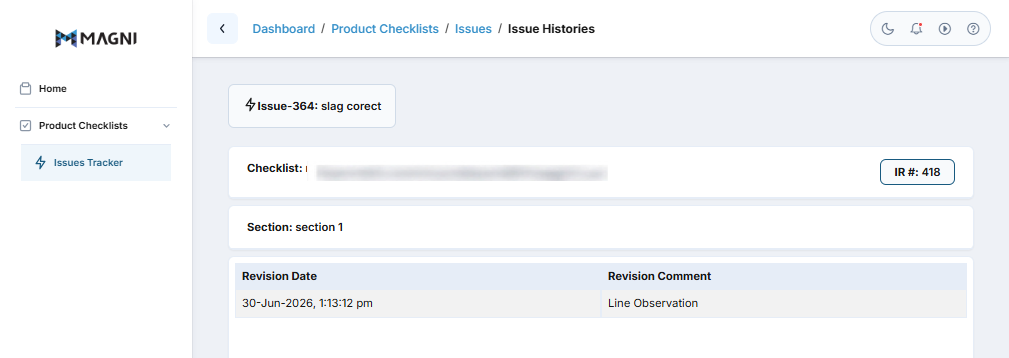
Feature Not Enabled State
If your organization does not have the Issues Tracker feature enabled, or if it is disabled for Process Checklists specifically, the history list will be hidden. Instead, you will see a Feature Not Enabled notification screen.
To display the history, the following administrative settings must be enabled for your organization:
- Issues Tracker for Customer: The global issues tracking feature must be turned on.
- Allow Checklists: Process checklists must be enabled.
- Allow Issues Tracker for Checklist: Issues tracking must be explicitly enabled for checklists.
Common Actions
| Action | How to do it |
|---|---|
| View Issue History | Navigate to the Process Checklists area, open an existing issue, and click on the History tab or link. |
| Enable Issues Tracker | If you see the "Feature Not Enabled" screen, contact your system administrator to enable the Issues Tracker and Checklist Issues Tracker settings in your organization's customer profile. |
Tips
- Audit Compliance: Use this page during quality audits to prove that non-conformances and product issues were addressed, verified, and resolved by authorized personnel.
- Troubleshooting Access: If you or your team members cannot see the issue history, double-check that the Issues Tracker is enabled in your customer settings for both the platform and the specific checklist type (Process or Product).