Access Codes — List
Last updated on: 2026-05-25 | Updated by: MAGNI Docs Team
This page allows administrators to manage access codes, which can be used to grant users access to specific courses or assessments within Magni. Administrators can create new codes, search existing ones, and view their details.
Overview
The Access Codes page provides a centralized location for administrators to oversee and manage all access codes configured in the system. From here, you can create new codes, search for specific codes, and view essential details such as their creation and expiration dates. This feature is primarily used by administrators to control user access to various learning content.
Page Sections
Feature Not Enabled
If the Access Code feature is not enabled for your customer account, a message will be displayed indicating that the feature is not available.
⚠️ This section is only visible if the "Access Code" feature is disabled for your organization.
Actions Bar
This section contains controls for creating new access codes and searching existing ones.
New Code Button Click this button to open a wizard for creating a new access code.
👤 Visible to: Users with permission to create access codes.
Search Bar
Use this field to search for specific access codes by typing a code or name. The table below will dynamically update to show matching results.

Access Codes Table
This table displays a list of all access codes in the system, along with their key details. You can click on any row to view the detailed information for that specific access code.
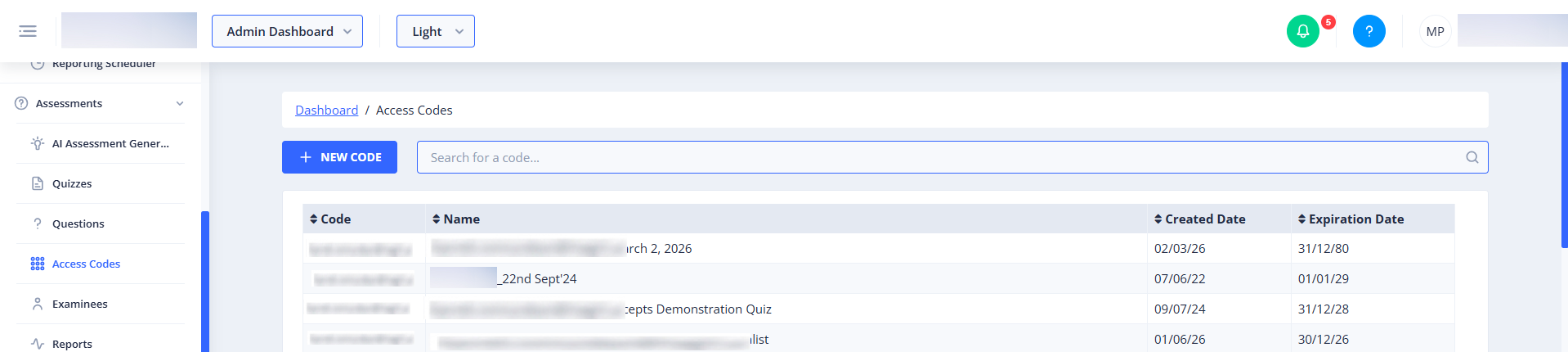
- Column Reordering: You can reorder the columns in the table by dragging the column headers to your desired position.
- Column Sorting: Click on a column header (e.g., "Code", "Name", "Created Date", "Expiration Date") to sort the table by that column. Clicking again will reverse the sort order.
The table includes the following columns:
- Code: The unique alphanumeric code that users will enter to gain access.
- Name: A descriptive name for the access code, often indicating its purpose or the content it unlocks.
- Created Date: The date when the access code was created in the system. Dates are displayed in a short date format (e.g., MM/DD/YY).
- Expiration Date: The date when the access code will no longer be valid. Dates are displayed in a short date format (e.g., MM/DD/YY).
Pagination
Located at the bottom of the page, the pagination controls allow you to navigate through multiple pages of access codes if the total number of codes exceeds the display limit per page. You can adjust the number of items shown per page and move between pages.
Common Actions
| Action | How to do it |
|---|---|
| Create a New Access Code | 1. Click the New Code button. 2. Follow the steps in the wizard to define the new access code's properties. |
| Search for an Access Code | 1. Type the code or name into the Search for a code... field. 2. The table will automatically filter to show matching results. |
| Sort Access Codes | Click on the header of the column you wish to sort by (e.g., Code, Name, Created Date, Expiration Date). Click again to reverse the sort order. |
| Reorder Columns | Click and drag a column header (e.g., Code, Name) to a new position in the table. |
| View Access Code Details | Click on any row in the Access Codes Table to navigate to the detailed view of that specific access code. |
| Navigate Pages | Use the pagination controls at the bottom of the page to move between pages of results or adjust the number of items displayed per page. |
Tips
- Use descriptive names for your access codes to easily identify their purpose later.
- Regularly review the "Expiration Date" column to manage code validity and prevent unauthorized access.
- If you have many access codes, using the search bar and sorting features can help you quickly find the one you need.