Access Codes — Detail
Last updated on: 2026-05-27 | Updated by: MAGNI Docs Team
This page allows administrators to view and manage the specific configurations of an assessment access code. From here, you can retrieve the direct assessment link or QR code to share with examinees, review passing thresholds, and inspect associated quizzes, notification settings, and certificates.
👤 Visible to: Administrators and users with access code management permissions.
Page Sections
Header Actions
The top-right corner of the page contains management actions for the access code.
- Edit: Opens the edit form to modify the access code's details, expiration date, passing threshold, or notifications.
- Delete: Permanently removes the access code from the system.
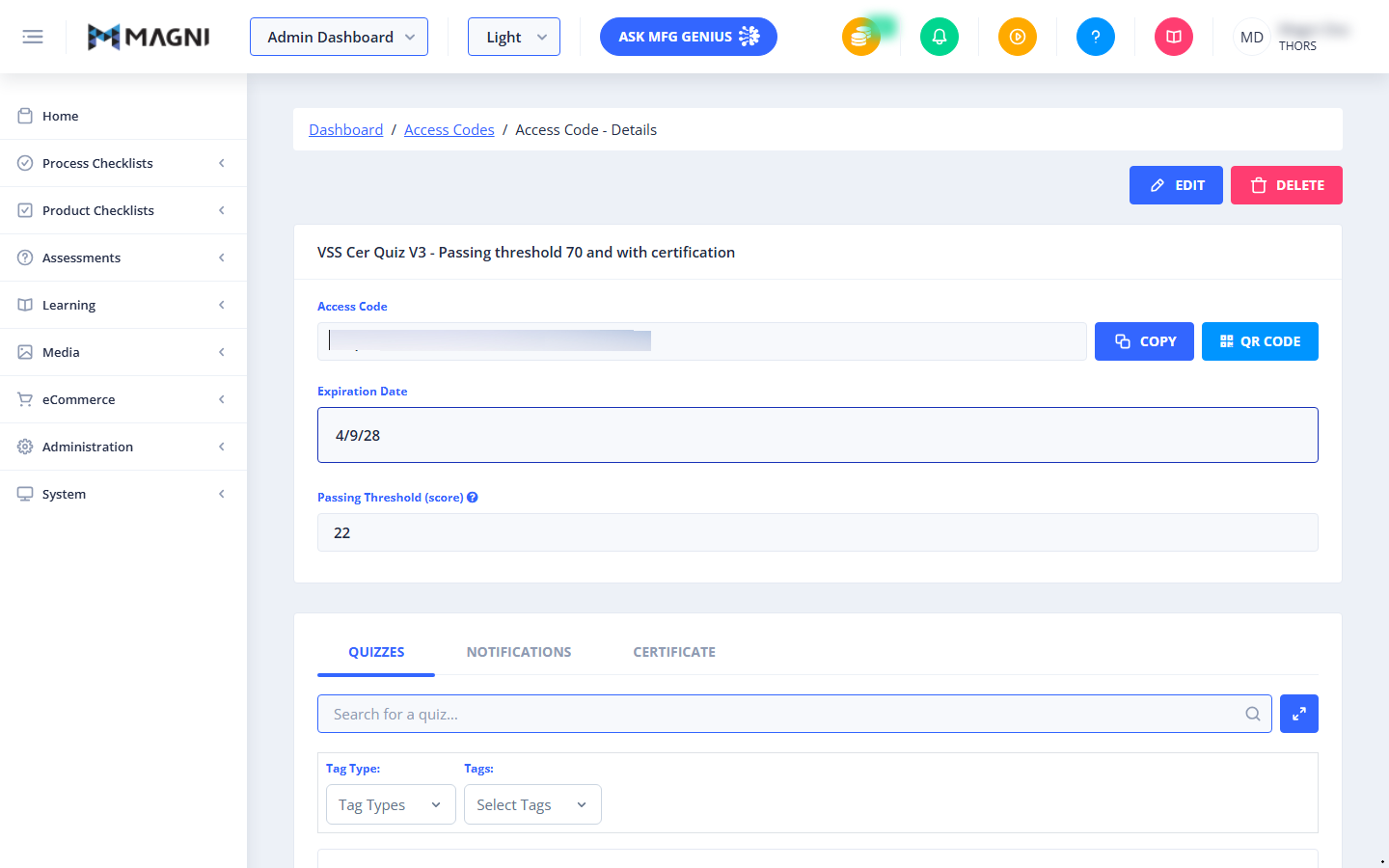
Access Code Details Card
This card displays the core configuration of the access code.
- Access Code Name: Shown in the header of the card (e.g., "VSS Cer Quiz V3 - Passing threshold 70 and with certification").
- Access Code Link: The direct URL that examinees use to access and take the assessment.
- Copy Button: Copies the assessment link to your clipboard and displays a confirmation message.
- QR Code Button: Opens a dialog to view, copy, or download a QR code for the assessment.
- Expiration Date: The final date on which the access code can be used.
- Passing Threshold (score): The minimum percentage score required to pass the assessment. If no threshold is set, this field displays "Disabled".
Quizzes Tab
This tab displays all quizzes currently linked to this access code.
- Search Bar: Allows you to filter the list of quizzes by typing a quiz name.
- Tag Type & Tags Dropdowns: Use these filters to narrow down the quiz list by specific categories or tags.
Search Bar:

Notifications Tab
This tab displays the read-only notification preferences configured for this access code.
- Common Settings:
- Email Template: Indicates whether the access code uses the "Default" system email template or a "Custom" template.
- Message Template: Indicates whether the access code uses the "Default" system SMS template or a "Custom" template.
⚠️ Note: Message Template settings are only visible if SMS features are enabled for your organization.
- For Admin: Shows which events trigger an administrator notification:
- When someone starts a quiz.
- When a quiz is completed (sends a report).
- When someone aborts a quiz.
- For Examinee: Shows which events trigger an examinee notification:
- When they receive their results.
- When they abort a quiz.
- Mailing List: Displays the list of email addresses that receive the administrator notifications.
- Custom Email Templates: If custom templates are enabled, this section displays the read-only Subject and Body text for both Passing and Failing emails.
Certificate Tab
If certificates are enabled for your organization and a certificate template is linked to this access code, this tab displays the certificate details and preview.
Common Actions
| Action | How to do it |
|---|---|
| Copy Assessment Link | Click the Copy button next to the Access Code field. A success toast notification will confirm the link has been copied. |
| Generate QR Code | Click the QR Code button next to the Access Code field. In the pop-up window, you can click Copy to copy the image or Download to save it as a PNG file. |
| Edit Access Code | Click the Edit button in the top-right corner of the page to modify settings. |
| Delete Access Code | Click the Delete button in the top-right corner of the page. |
| Search Quizzes | Select the Quizzes tab, click into the search bar, and type the name of the quiz you want to find. |
Tips
- Use QR Codes for In-Person Training: Download the assessment QR code and print it on training materials or display it on a presentation screen so examinees can quickly scan and start the quiz on their mobile devices.
- Verify Expiration Dates: Always check the Expiration Date before distributing an access code to ensure examinees have sufficient time to complete their assessments.
- Review Custom Templates: Before sharing a code, check the Notifications tab to ensure any custom passing or failing email templates contain the correct instructions and branding for your examinees.