Access Codes — Edit
Last updated on: 2026-05-27 | Updated by: MAGNI Docs Team
The Access Codes — Edit page allows administrators to modify the settings, quiz associations, notification rules, and certificates for an existing access code. Access codes are used to grant examinees access to specific quizzes under controlled parameters, such as expiration dates and passing thresholds.
Overview
This page is primarily used by Administrators and Training Managers to manage how quizzes are distributed and monitored. From this interface, you can update basic details, manage associated quizzes, configure automated email/SMS notifications, and link completion certificates.
Page Sections
Header & Breadcrumbs
The top of the page features a breadcrumb trail for easy navigation and key action buttons:
- Access Code Badge: Displays the unique, system-generated code (e.g.,
QXL66Z5O) in a read-only format. - Cancel Button: Discards any unsaved changes and returns you to the Access Codes list.
- Save Button: Saves your changes. This button is only enabled when all required fields are valid, at least one quiz is associated with the code, and a valid score is provided (if the passing threshold is enabled).
👤 Role Access: The Save button is only visible to users with update permissions for access codes.
Access Code Details
This section contains the core settings for the access code.
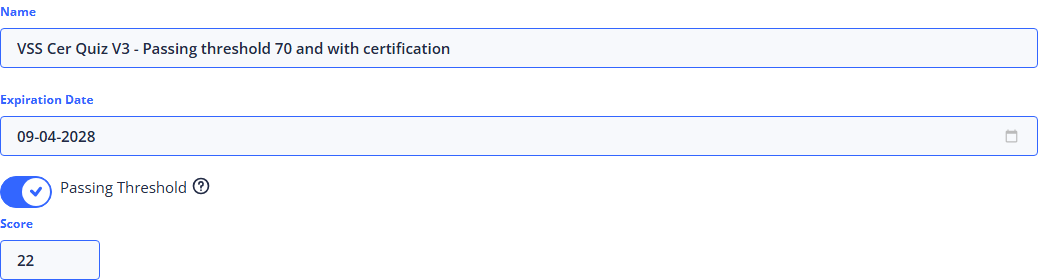
- Name (Required): The descriptive name for the access code. This helps identify the code's purpose in reports and dashboards.
- Expiration Date (Required): The date when the access code will deactivate. Examinees cannot start new quizzes using this code after this date. The date must be set to today or a future date.
- Passing Threshold Toggle: Turn this toggle on to enforce a minimum passing score for quizzes taken with this access code.
- Score (Conditional): This field appears only when the Passing Threshold toggle is enabled. Enter a minimum passing score (must be 1 or greater).
Quizzes Tab
Use this tab to manage which quizzes are associated with the access code. An access code must have at least one associated quiz to be saved.
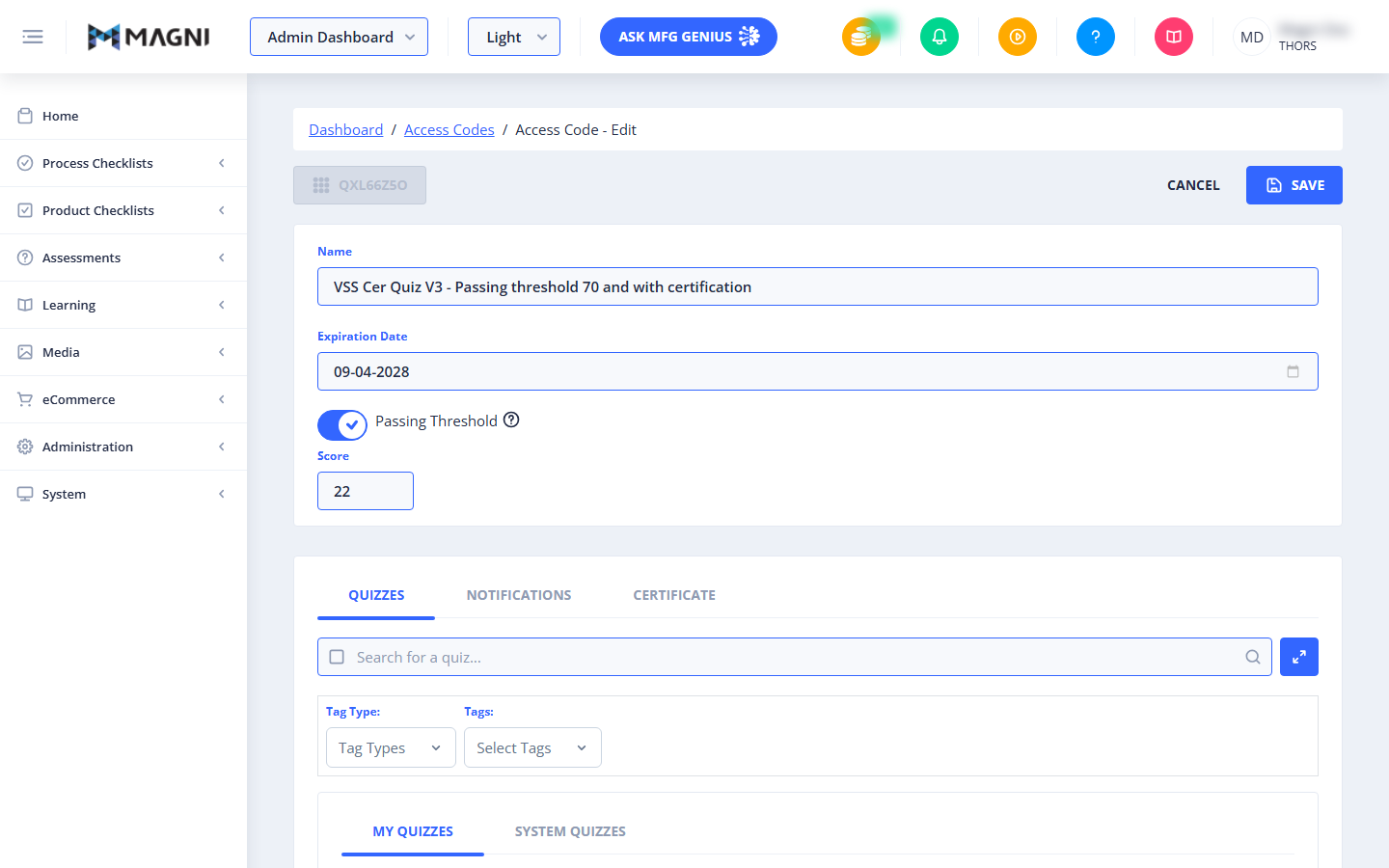
- Search Bar: Search for quizzes by typing their name.
- Tag Type & Tags Dropdowns: Filter the available quizzes by specific categories or organizational tags.
- My Quizzes / System Quizzes Tabs: Switch between quizzes created by your organization and pre-configured system quizzes.
Notifications Tab
This tab configures automated email and SMS alerts triggered by examinee activity.
Common Settings
- Email Template: Choose Default to use the system-standard email templates, or Custom to customize the email messages sent to examinees and administrators.
- Message Template (Conditional): Choose Default or Custom for SMS notifications.
⚠️ This option is only visible if SMS features are enabled for your organization's account.
For Admin Settings
Check these boxes to receive administrative updates:
- Notify me every time someone starts a quiz: Sends an alert when an examinee begins.
- Notify me of reports when quizzes are completed: Sends completion and score reports.
- Notify me every time someone aborts the quiz: Sends an alert if an examinee exits a quiz before completing it.
For Examinee Settings
Check these boxes to send automated updates to the test-taker:
- Notify examinee of their results: Automatically emails score reports to the examinee upon completion.
- Notify examinee on quiz abort: Emails the examinee if their quiz session is aborted.
Emails Sub-tab
- Mailing List: Displays all administrator and staff email addresses configured to receive the selected admin notifications. Click Remove next to any email to stop sending notifications to that address.
- Notify Others (Add Email): Enter an email address and click Add to add new recipients to the mailing list.
- Validation: If you enter an incorrectly formatted email address, an error message will state: "You have entered an invalid email address. Please try again."
- Empty List Warning: If you have enabled any admin notifications but the mailing list is empty, a warning banner will display: "There are no emails in the list. No email notifications will be sent."
- Examinee Info Note: An informational banner reminds you: "The email of the examinee does not need to be in this list for the examinee to receive a report."
Certificate Tab
⚠️ This tab is only visible if certificates are enabled for your organization's account.
Use this tab to select and link a completion certificate to the access code. When examinees successfully pass an associated quiz, they will be issued this certificate.
Common Actions
| Action | How to do it |
|---|---|
| Change the Expiration Date | Click the Expiration Date field, select a date from the calendar picker (must be today or in the future), and click Save. |
| Enable a Passing Score | 1. Toggle the Passing Threshold switch to the right (blue). 2. Enter a minimum score of 1 or higher in the Score field. 3. Click Save. |
| Add Admin Notification Recipients | 1. Go to the Notifications tab and select the Emails sub-tab. 2. Under Notify Others, enter the recipient's email address. 3. Click Add. 4. Click Save at the top of the page. |
| Remove a Quiz Association | 1. Go to the Quizzes tab. 2. Locate the quiz you want to remove and deselect it. 3. Click Save. |
Tips
- Check Your Mailing List: If you select any of the "For Admin" notification checkboxes, always ensure there is at least one valid email address in the Mailing List. If the list is empty, no notifications can be delivered.
- Keep Expiration Dates Current: Access codes automatically deactivate at the end of their expiration date. If examinees report they cannot access a quiz, check this page first to ensure the expiration date has not passed.
- Enforce passing scores for Certificates: If you link a certificate in the Certificate tab, it is highly recommended to enable the Passing Threshold and set an appropriate passing score so certificates are only awarded to examinees who pass.