Last updated on: 2026-05-25 | Updated by: MAGNI Docs Team
Admin Codes Wizard Final
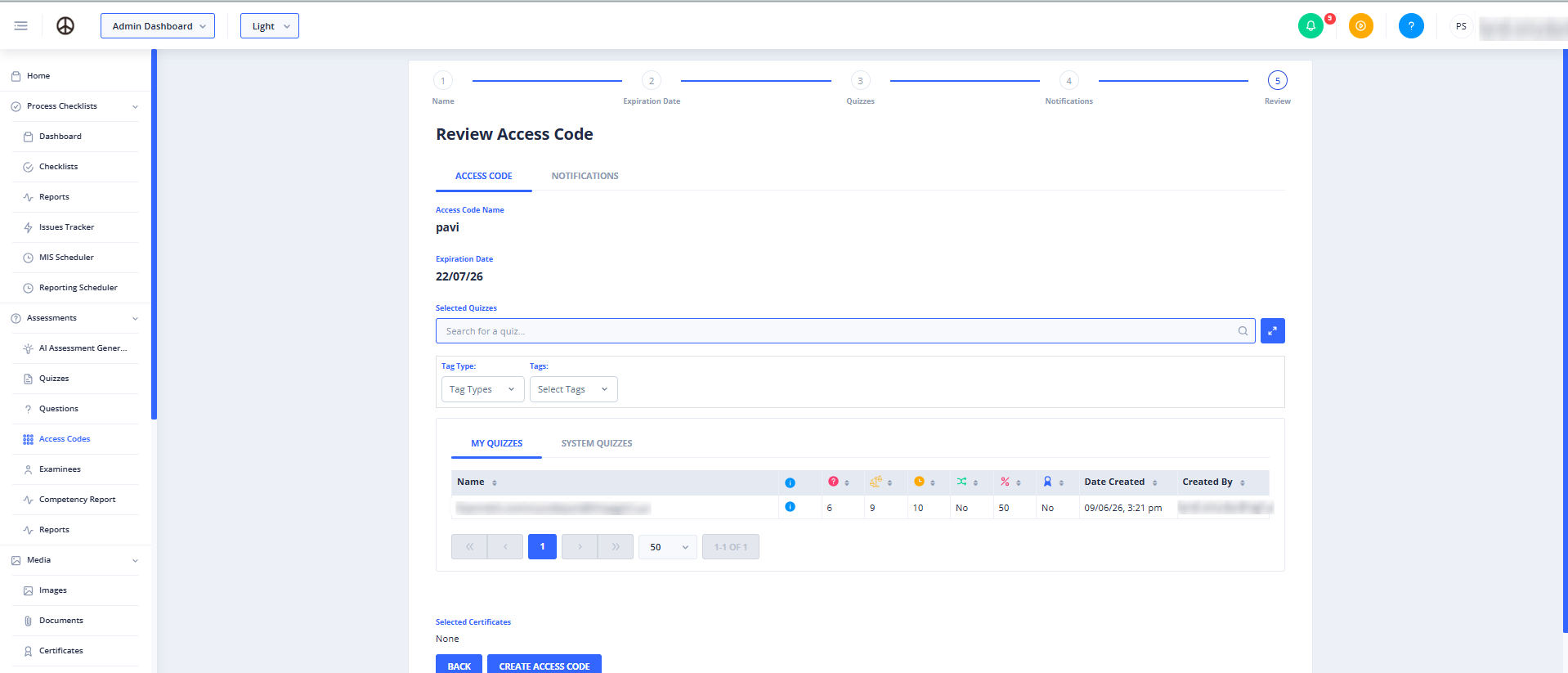
This page is the final step in creating a new Access Code within Magni. It provides a comprehensive review of all the details you've entered in the previous steps of the wizard, including the access code's name, expiration, associated quizzes, and notification settings. Before submitting, you can review everything to ensure accuracy.
Page Sections
The page is structured as a five-step wizard, with the "Review" step currently active. The content of the "Review" step is further organized into two tabs: "Access Code" and "Notifications".
Wizard Stepper
At the top of the page, a stepper visually indicates your progress through the Access Code creation wizard. The steps are:
- Name: The initial step where you define the access code's name.
- Expiration Date: Where you set the validity period for the access code.
- Quizzes: Where you select the quizzes associated with this access code.
- Notifications: Where you configure notification preferences.
- Review: The current step, allowing you to review all entered information.
Access Code Tab
This tab displays a summary of the basic access code details.
- Access Code Name: Shows the name you provided for this access code.
- Expiration Date: Displays the expiration date set for the access code.
- Selected Quizzes: Lists all the quizzes that have been linked to this access code.
- Selected Certificates:
⚠️ This section is visible only if certificates are enabled for your customer account. If certificates are enabled and selected, this displays the name of the certificate template associated with the access code. If no certificate is selected, it will show "None".
Notifications Tab
This tab provides a detailed overview of all the notification settings configured for the access code.
- Notify me on Quiz Starts: Indicates whether notifications will be sent when a quiz associated with this code starts.
- Notify me on Quiz Completions: Indicates whether notifications will be sent when a quiz associated with this code is completed.
- Notify examinees of their results: Indicates whether examinees will automatically receive their quiz results.
- Passing Threshold: Displays the percentage score required for an examinee to pass, visualized with a progress bar.
- Email Notifications: Lists all email addresses that will receive notifications.
- Phone Notifications:
⚠️ This section is visible only if SMS notifications are enabled for your customer account. Lists all phone numbers that will receive SMS notifications.
- Use Default Email Template: Indicates whether the system's default email template will be used for notifications.
- Use Default Text Template:
⚠️ This section is visible only if SMS notifications are enabled for your customer account. Indicates whether the system's default text (SMS) template will be used for notifications.
- Passing Email Template:
⚠️ This section is visible only if "Use Default Email Template" is set to 'No'. Displays the subject and body of the custom email template used for examinees who pass a quiz.
- Failing Email Template:
⚠️ This section is visible only if "Use Default Email Template" is set to 'No' and a "Passing Threshold" greater than 0 is defined. Displays the subject and body of the custom email template used for examinees who fail a quiz.
- Quiz Starts Email Template:
⚠️ This section is visible only if "Use Default Email Template" is set to 'No'. Displays the subject and body of the custom email template used for quiz start notifications.
- Quiz Completions Email Template:
⚠️ This section is visible only if "Use Default Email Template" is set to 'No'. Displays the subject and body of the custom email template used for quiz completion notifications.
Common Actions
| Action | How to do it |
|---|---|
| Back | Click the BACK button to return to the "Notifications" step (Step 4) to make changes. |
| Next | Click the NEXT button to finalize the creation of the access code. This action will save the access code and redirect you to its details page. This button is disabled if there are any validation errors from previous steps. |
Tips
- Always review all information carefully on this page before clicking NEXT, as this is your last chance to make changes easily.
- If you notice any incorrect information, use the BACK button to navigate to the relevant step and make the necessary adjustments.
- Pay close attention to the "Notifications" tab to ensure all recipients and template settings are as intended, especially if custom templates are in use.