Admin Codes Wizard Step 3
Last updated on: 2026-05-25 | Updated by: MAGNI Docs Team
This help page guides administrators through the third step of creating or editing an access code in the Magni Learning Management System (LMS). In this step, you will select the quizzes that will be associated with the access code, determining which assessments users with this code can access.
Overview
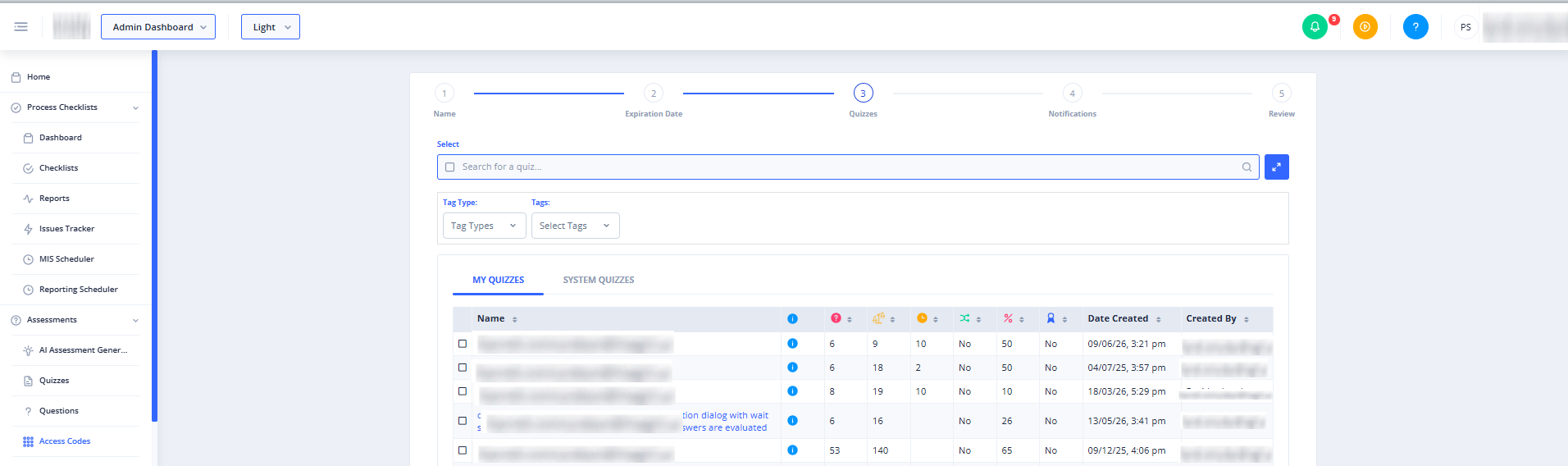
The "Admin Codes Wizard Step 3: Quizzes" page allows administrators to select one or more quizzes to assign to a new or existing access code. This is a crucial step in configuring an access code, as it directly controls the learning content available to users who redeem the code. You must complete the previous steps (Name and Expiration Date) before proceeding to this step.
Page Sections
Access Code Wizard Stepper
At the top of the page, a horizontal stepper visually indicates your progress through the access code creation wizard. The "Quizzes" step (Step 3) is highlighted, showing that you are currently on this step. The stepper also outlines the upcoming steps: Notifications and Review. You cannot click on the steps to navigate directly; you must use the "Back" and "Next" buttons.
Quiz Selection Area
This section is where you select the quizzes to be included with the access code.
- Select Label: A prominent "Select" label indicates the purpose of this area.
- Quiz List: An interactive list of available quizzes will be displayed here. You can select one or more quizzes from this list.
- Description: A helper text, "Select one or more quizzes to assign to this access code," provides clear instructions on how to use this section.
Navigation Buttons
At the bottom of the content area, you will find buttons to navigate through the wizard.
- Back Button:
- Purpose: Returns you to the "Expiration Date" step (Step 2) of the wizard.
- State: Always enabled.
- Action: Saves your current quiz selections before navigating back.
- Next Button:
- Purpose: Proceeds to the "Notifications" step (Step 4) of the wizard.
- State: Always enabled.
- Action: Saves your current quiz selections before navigating forward.
Common Actions
| Action | How to do it