Admin Codes Wizard Step 2
Last updated on: 2026-05-25 | Updated by: MAGNI Docs Team
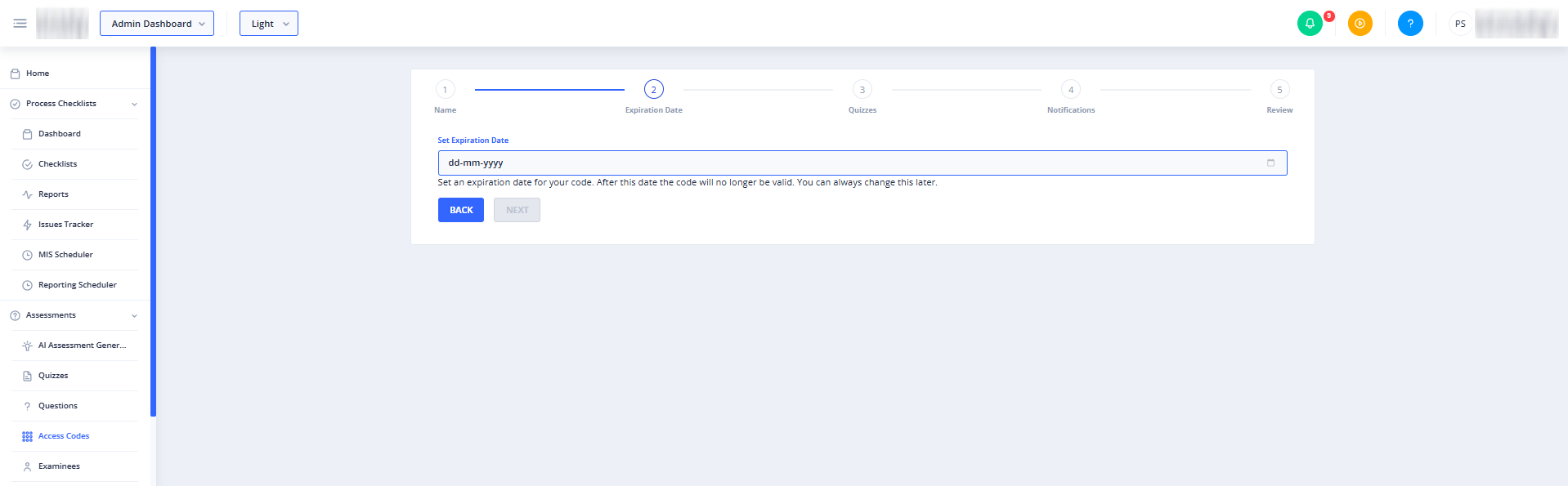
This page is the second step in the Admin Codes Wizard, used by Administrators to create new access codes for assessments. Here, you define the expiration date for the access code, determining how long it remains valid.
👤 Visible to: Administrator
Page Sections
-
Wizard Stepper: The top of the page displays a five-step wizard progress bar, indicating your current position in the code creation process. The steps are:
- Name
- Expiration Date (Current Step)
- Quizzes
- Notifications
- Review
-
Set Expiration Date: This section allows you to specify when the access code will cease to be valid.
- Set Expiration Date (Date Input): Enter the date when the access code should expire.
- Purpose: To define the validity period of the access code.
- Required: Yes. You must set an expiration date to proceed.
- Validation: The date cannot be in the past; it must be today or a future date.
- Tooltip: "Set an expiration date for your access code here." (Visible on click or blur of the input field).
- Information Text: "Set an expiration date for your code. After this date the code will no longer be valid. You can always change this later."
- Set Expiration Date (Date Input): Enter the date when the access code should expire.
Common Actions
| Action | How to do it |
|---|---|
| Back | Click the Back button to return to Step 1: Name, where you can modify the access code's name. |
| Next | Click the Next button to proceed to Step 3: Quizzes. This button is enabled only after you have selected a valid expiration date (today or a future date). |
Tips
- Always set an expiration date that provides sufficient time for users to utilize the access code, but not so far in the future that it becomes a security risk.
- Remember that you can always modify the expiration date later if your requirements change.
- The system prevents you from selecting a date in the past, ensuring all access codes are valid from the moment they are created.