Examinees — List
Last updated on: 2026-05-25 | Updated by: MAGNI Docs Team
This help page provides information on managing examinee reports within the Magni Learning Management System (LMS). Here, you can view a list of all registered examinees, search for specific individuals, and filter reports by customer, date range, or other criteria. This page is primarily used by administrators and managers to monitor assessment participation and access individual examinee details.
Overview
The Examinees page allows you to access a comprehensive list of all users who have registered for or completed assessments. You can quickly find specific examinee reports using the search bar and refine your view with various filtering options, including customer, start date, and end date. Each entry in the list provides key details about the examinee and links to their individual report for more in-depth information.
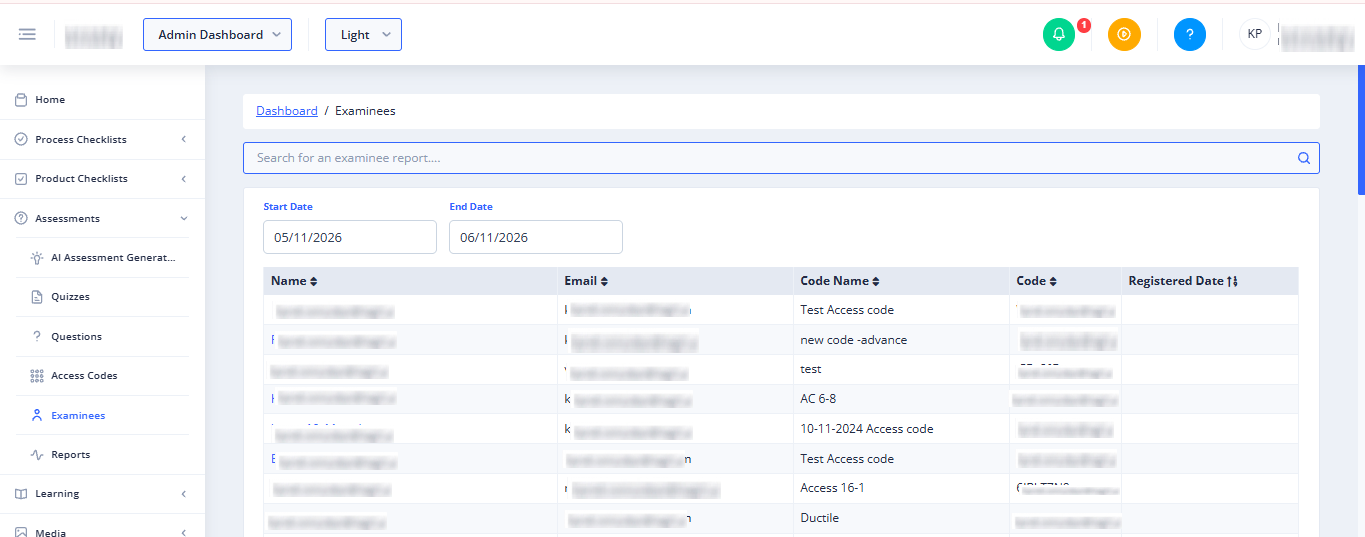
Page Sections
Breadcrumb Navigation
At the top of the page, the breadcrumb navigation shows your current location within the Magni LMS: Dashboard > Examinees. You can click on Dashboard to return to the main administration dashboard.
Search Bar
Use the search bar to quickly find examinee reports by name, email, or code. As you type, the list of examinees will automatically update to show matching results.

Field: Search for an examinee report...
- Purpose: Filters the examinee list based on the entered text.
- Behavior: The search is performed automatically after a short delay (300ms) as you type.
Filters
Below the search bar, a card contains various filters to help you narrow down the examinee list.
- Customer Filter
👤 Visible to: Thors users only
- Purpose: Allows you to select a specific customer to view examinees associated with them.
- Field: Customer dropdown
- Purpose: Select a customer from the list.
- Behavior:
- The dropdown supports searching within the list of customers.
- A loading spinner appears while customer data is being fetched (
customerBusy). - B2C Checkbox: Toggling this checkbox (
customerOptions.isB2C) includes or excludes Business-to-Consumer (B2C) customers in the dropdown list.
- Start Date Filter
- Purpose: Sets the beginning of the date range for examinee registration. Only examinees registered on or after this date will be shown.
- Field: Start Date picker
- Default Value: One month prior to the current date.
- Constraint: Cannot be a date after the selected End Date.
- End Date Filter
- Purpose: Sets the end of the date range for examinee registration. Only examinees registered on or before this date will be shown.
- Field: End Date picker
- Default Value: The current date.
- Constraint: Cannot be a date before the selected Start Date.
Examinees Table
This table displays the list of examinees based on your search and filter criteria.
- Columns:
- Name: The full name of the examinee.
- Sorting: Click the column header to sort the list alphabetically by name (ascending/descending).
- Action: Clicking an examinee's name (displayed as a blue link) will navigate you to their individual examinee report page.
- Email: The email address of the examinee.
- Sorting: Click the column header to sort the list alphabetically by email (ascending/descending).
- Code Name: The name of the assessment code the examinee is associated with.
- Sorting: Click the column header to sort the list alphabetically by code name (ascending/descending).
- Code: The unique code identifier for the assessment.
- Sorting: Click the column header to sort the list alphabetically by code (ascending/descending).
- Registered Date: The date and time when the examinee was registered.
- Sorting: Click the column header to sort the list by registration date (newest/oldest).
- Name: The full name of the examinee.
- Empty State: If no examinees match your search or filter criteria, the table will display "No data found."
Pagination
Below the examinees table, the pagination component allows you to navigate through multiple pages of results if the total number of examinees exceeds the display limit per page.
- Page Number: Indicates the current page you are viewing.
- Total: Shows the total number of examinees found.
- Page Size: You can typically adjust the number of items displayed per page.
Common Actions
| Action | How to do it |
|---|---|
| Find a specific examinee | Type their name, email, or code into the Search for an examinee report... bar — the list updates automatically as you type |
| View examinees for a specific customer | Use the Customer dropdown filter (visible to Thors users only) and search/select the customer |
| Include B2C customers in the customer list | Check the B2C checkbox in the Customer filter |
| Narrow results to a date range | Set the Start Date and End Date filters; both default to the last month through today |
| View an examinee's full report | Click their name (blue link) in the Name column of the Examinees table |
| Sort the list by name, email, code name, code, or registered date | Click the corresponding column header to toggle ascending/descending order |
| Browse a large result set | Use the Pagination controls below the table to move between pages, and adjust the page size if needed |
| Return to the main dashboard | Click Dashboard in the breadcrumb navigation |
Tips
- Start Date can't be set after End Date, and End Date can't be set before Start Date — the pickers enforce this automatically.
- If your filters are too narrow, the table will show "No data found" — try widening the date range or clearing the Customer/search filters.
- Click a column header again to reverse the sort order (e.g., newest-to-oldest vs. oldest-to-oldest on Registered Date).
- Clicking an examinee's name takes you straight to their individual report — this is the fastest way to drill into a specific person's assessment history.