Examinee — Report
Last updated on: 2026-05-27 | Updated by: MAGNI Docs Team
The Examinees — Report Detail page provides a comprehensive breakdown of an individual examinee's performance on a specific quiz or assessment. This page is primarily used by administrators and instructors to review scores, completion times, recommended learning paths, and detailed cognitive analyses of the examinee's answers.
Overview
This report helps administrators evaluate an examinee's strengths and weaknesses. It automatically generates recommendations—such as suggested courses, documents, or related content—based on the questions the examinee answered incorrectly. Additionally, it offers multiple analytical views to break down performance by concept, difficulty level, and cognitive category.
👤 Visible to: Administrators, Instructors, and Training Coordinators
Page Sections
1. Header and Actions
The top of the page displays the quiz code and name. It also contains quick action buttons for exporting or viewing credentials.
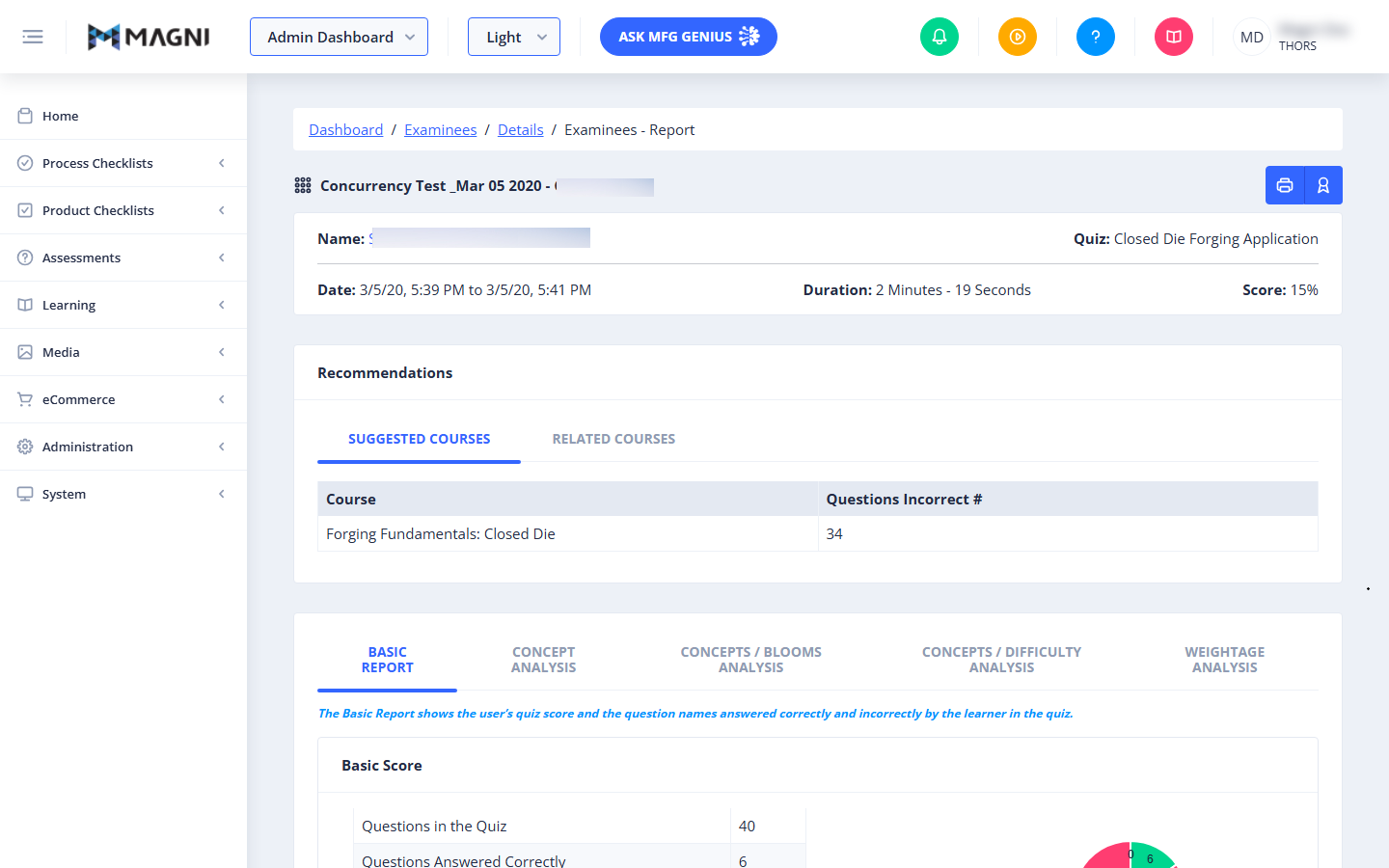
- Quiz Title & Code: Displays the name of the quiz and its unique system code.
- Print Button (Printer Icon): Prints the current report. This button is temporarily disabled while the print preview is loading.
- View Certificate Button (Award Icon): Opens the certificate viewer for this examinee's attempt, allowing you to view or download their earned certificate.
2. Examinee & Quiz Summary
This card provides high-level metadata about the examinee and their quiz attempt.
- Name: The full name of the examinee. If an email address is associated with their account, their name links directly to a mailto link to email them.
- Quiz: The full name of the quiz.
- Date: The exact start and end date and time of the quiz attempt.
- Duration: The total time taken by the examinee to complete the quiz (formatted in minutes and seconds).
- Score: The final score percentage achieved on the quiz.
3. Recommendations
This section only appears if there are recommendations available based on the examinee's performance. It is divided into tabs that suggest targeted learning materials to help the examinee improve in areas where they struggled.
Suggested Courses
Displays a list of courses recommended for the examinee based on the questions they missed.
- Course: The name of the recommended course. Clicking the name opens the course. Depending on the course type, this may open an internal course player, an external link, or a filtered catalog view.
- Questions Incorrect #: The number of questions the examinee answered incorrectly that are mapped to this specific course.
Suggested Documents
Displays a list of reference documents recommended for review.
- Document: Clicking a document name initiates a secure download or opens the document in a new tab. A loading spinner icon appears next to the document name while it is being retrieved.
Related Courses
Displays courses that are topically related to the quiz content, even if they do not directly map to missed questions.
- Course: The name of the related course, which links directly to the course player or external training portal.
Related Contents
Displays specific content modules or lessons related to the quiz topic.
- Content: The name of the content module, linking directly to the learning player.
4. Analysis Tabs
The bottom section of the page features five tabs that provide deep-dive analytical reports of the examinee's performance.
Basic Report
Provides a straightforward numerical and visual summary of the quiz results.
- Questions in the Quiz: The total number of questions.
- Questions Answered Correctly: The count of correct answers.
- Questions Answered Incorrectly: The count of incorrect answers.
- Unanswered Questions: The count of questions skipped or left blank.
- Quiz Score: The final percentage score.
- Score Chart: A visual pie chart illustrating the ratio of correct, incorrect, and unanswered questions.
Concept Analysis
Breaks down the examinee's performance by specific competency and subject concepts. This helps identify exact subject areas where the examinee requires additional training.
Concepts / Blooms Analysis
Maps the examinee's performance against Bloom's Taxonomy categories (such as Knowledge, Comprehension, Application, Analysis, Synthesis, and Evaluation) cross-referenced with quiz concepts. This reveals whether the examinee struggles with basic recall or higher-order application of the material.
Concepts / Difficulty Analysis
Cross-references quiz concepts with the difficulty level of the questions (e.g., Easy, Medium, Hard). This helps determine if the examinee understands the basics of a concept but struggles with advanced applications.
Weightage Analysis
Displays performance weightage reports categorized by Concept, Bloom's Category, and Question Difficulty. This shows how heavily different topics and cognitive levels weighted into the final score.
Common Actions
| Action | How to do it |
|---|---|
| Print Report | Click the Printer icon in the top-right action group. |
| View/Download Certificate | Click the Award icon in the top-right action group to open the certificate viewer. |
| Email the Examinee | Click the examinee's name/email link in the summary card to open your default email client. |
| Launch a Suggested Course | Click the course name link under the Suggested Courses or Related Courses tab in the Recommendations section. |
| Open a Suggested Document | Click the document name under the Suggested Documents tab. |
Tips
- Targeted Remediation: Use the Suggested Courses tab to assign specific follow-up training. The "Questions Incorrect #" column tells you exactly which topics caused the most trouble.
- Identify Cognitive Gaps: If an examinee has a high score but failed all "Application" level questions in the Concepts / Blooms Analysis tab, they may have memorized facts without understanding how to apply them in practice.
- Exporting Records: If you need to archive physical training records or upload them to an external HR system, use the Print button to save the entire report as a clean, print-formatted PDF.