Examinee — Detail
Last updated on: 2026-05-27 | Updated by: MAGNI Docs Team
The Examinees — Detail page provides administrators with a comprehensive overview of a specific examinee's quiz history and performance. From this page, administrators can track completed and in-progress quizzes, check scores, monitor progress, and access detailed performance reports.
👤 Visible to: Administrator, System Administrator
Page Sections
Breadcrumb Navigation
Located at the top of the page, this path allows you to quickly navigate back to the Admin Dashboard or the main Examinees directory.
Examinee Profile Badge
A prominent blue tag displaying the examinee's full name and email address (for example, "Shuresh K | shuresh@thors.com"). This ensures you always know whose records you are currently viewing.
Quizzes Table
This table lists all assessments associated with the selected examinee. If the examinee has not started or completed any quizzes, this table will remain empty.
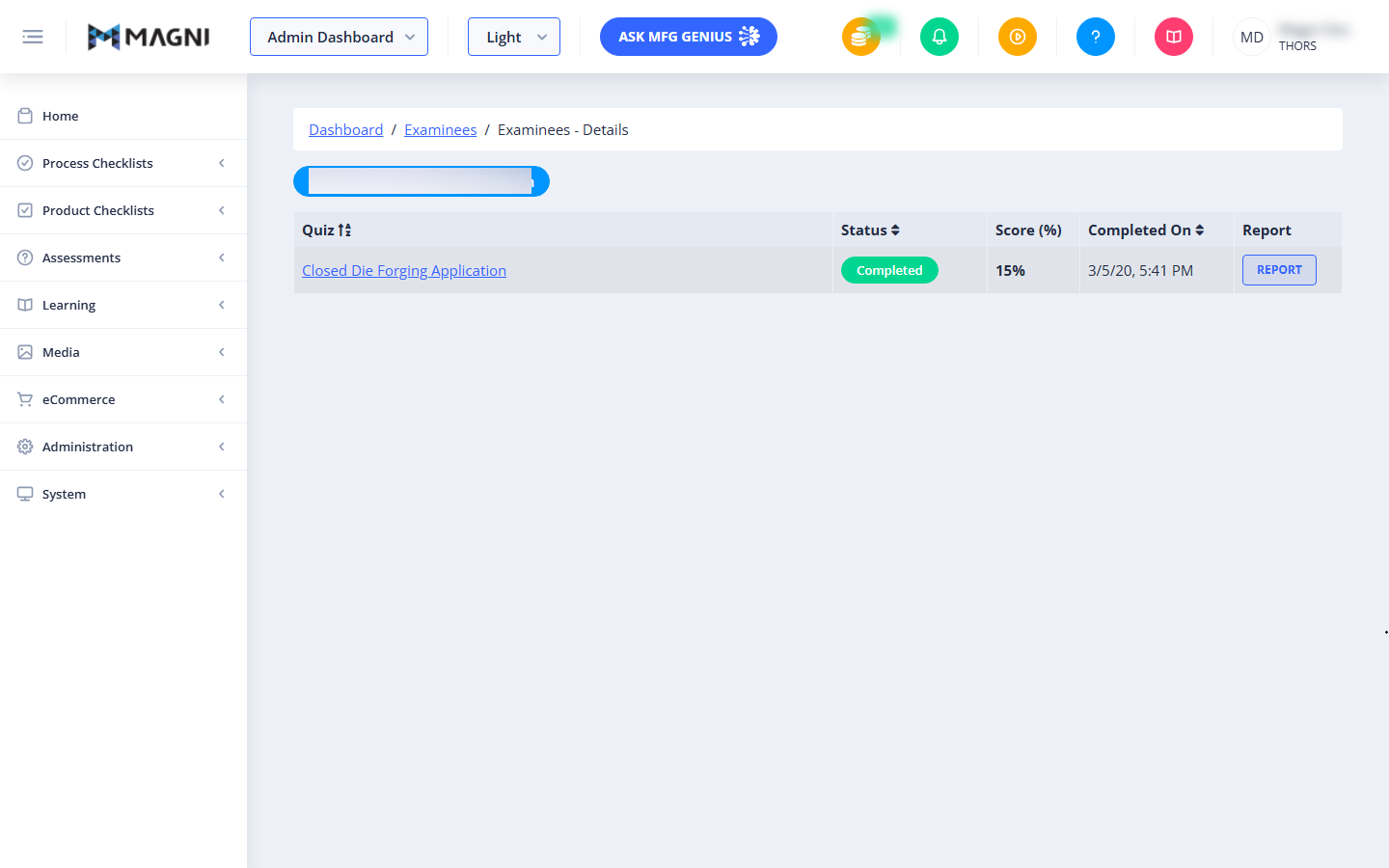
The table includes the following columns:
- Quiz: Displays the name of the assessment. Clicking the quiz name redirects you based on its status:
- If the quiz is Completed, clicking the name opens the detailed quiz report.
- If the quiz is In Progress, clicking the name redirects you to the quiz administration page.
- Status: Displays the current state of the quiz:
- Completed (Green badge): Indicates the examinee has finished the quiz.
- In Progress (Blue badge): Indicates the examinee is currently taking the quiz. This badge also displays the exact progress percentage (for example, "In progress (45%)") based on how many questions have been answered out of the total.
- Score (%): Displays the final score achieved by the examinee, shown as a rounded percentage. This field is only populated for completed quizzes and remains blank for quizzes that are still in progress.
- Completed On: Displays the date and time when the quiz was completed or last updated.
- Report: Provides a Report button. Clicking this button opens the detailed performance report for that specific quiz attempt.
Common Actions
| Action | How to do it |
|---|---|
| Sort the Quiz List | Click on the Quiz, Status, or Completed On column headers to sort the table. Click the same header a second time to reverse the sort order (toggle between ascending and descending). |
| View a Quiz Report | Click the Report button in the row of any completed quiz, or click the quiz's name link. |
| Track Active Progress | Look at the Status column for any "In Progress" quiz to see the real-time percentage of questions the examinee has answered. |
Tips
- Monitor Real-Time Progress: You don't need to wait for an examinee to finish a quiz to see how they are doing. Check the Status column to see exactly what percentage of the quiz they have completed so far.
- Quick Sorting: If an examinee has a long history of assessments, click the Completed On header to quickly sort the list and bring their most recent attempts to the top.