Questions — List
Last updated on: 2026-05-25 | Updated by: MAGNI Docs Team
Overview
The Questions page in Magni is where administrators can manage all the questions available for use in assessments. This central repository allows you to create new questions, organize existing ones with tags, search, filter, and import questions in bulk.
👤 Visible to: Administrators
Page Sections
Breadcrumb Navigation
At the top of the page, the breadcrumb navigation shows your current location within the Magni system. You can click on "Dashboard" to return to the main administrator dashboard.
- Dashboard: Navigates to the administrator's main dashboard.
- Questions: Indicates you are currently on the Questions management page.
Search Bar
Use the search bar to quickly find specific questions by entering keywords from their name or description.

Action Buttons
This section provides key actions for managing your question library.
- New Question: Click this button to open a form for creating a brand new question from scratch. This button is always enabled for administrators.
- Download Template: Downloads a template file (e.g., CSV or Excel) that you can use to structure your questions for bulk import.
- Import: Opens a dialog or page to upload a file containing multiple questions, allowing you to add many questions to Magni at once.
Filters
These dropdown menus help you narrow down the list of questions based on specific criteria.
- Tag Type: Select a tag type from the dropdown to filter questions by their primary categorization.
- Tags: After selecting a Tag Type, choose specific tags from this dropdown to further refine your question list.
My Questions List
This section displays a table of all questions, allowing you to view, sort, and manage them.
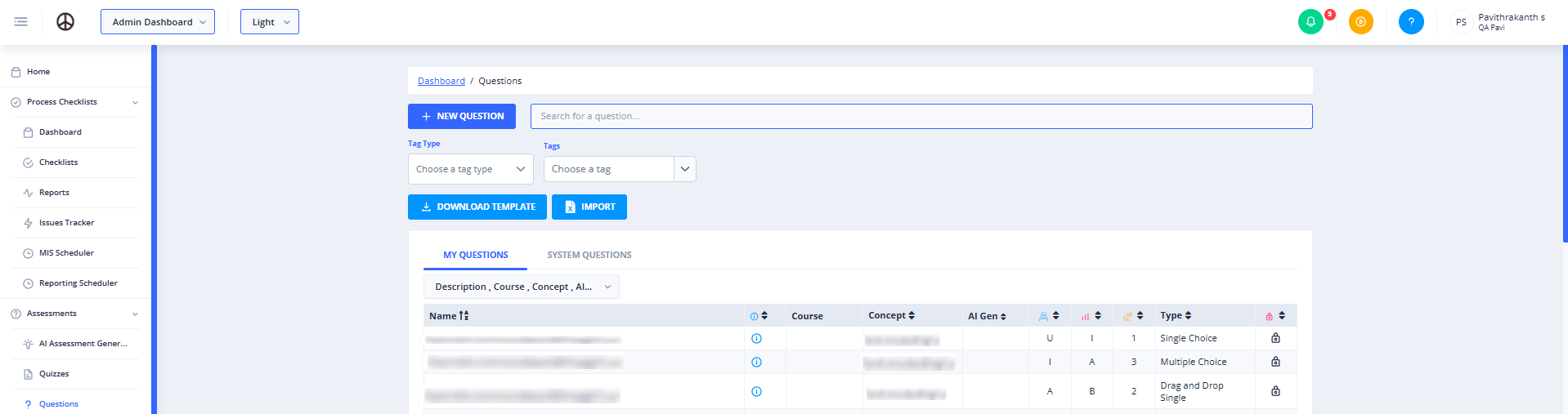
The table includes the following columns:
- Name: The title or main identifier of the question. Click the sort icon next to "Name" to sort questions alphabetically.
- Course: The course associated with the question.
- Concept: The specific concept or topic the question relates to. Click the sort icon next to "Concept" to sort questions by concept.
- AI Gen: Indicates if the question was generated by AI.
- Type: The type of question (e.g., Multiple Choice, True/False, Essay). Click the sort icon next to "Type" to sort questions by type.
- Actions: This column (represented by icons) provides options to edit, view details, or delete individual questions.
Pagination
Below the question list, pagination controls allow you to navigate through multiple pages of questions.
- Previous/Next Arrows: Move to the previous or next page of results.
- Page Numbers: Click a specific page number to jump directly to that page.
- Items per Page: A dropdown allows you to select how many questions are displayed per page (e.g., 10, 25, 50).
Common Actions
| Action | How to do it |
|---|---|
| Return to the main dashboard | Click Dashboard in the breadcrumb navigation |
| Find a specific question | Type keywords from the question's name or description into the search bar |
| Create a new question from scratch | Click New Question |
| Get a template for bulk import | Click Download Template to download the CSV/Excel template |
| Add many questions at once | Click Import, then upload your completed template file |
| Filter questions by category | Select a value from the Tag Type dropdown |
| Further narrow questions by tag | After choosing a Tag Type, select specific values in the Tags dropdown |
| Sort questions by name | Click the sort icon next to the Name column header |
| Sort questions by concept | Click the sort icon next to the Concept column header |
| Sort questions by type | Click the sort icon next to the Type column header |
| Check if a question was AI-generated | Review the AI Gen column in the questions table |
| Edit, view, or delete a question | Use the icons in the Actions column for that row |
| Move between pages of results | Use the Previous/Next arrows, or click a specific page number |
| Change how many questions are shown per page | Use the Items per Page dropdown (e.g., 10, 25, 50) |
Tips
- New Question is always enabled for administrators, so you can create a question at any time without needing to apply filters first.
- Download the template before importing — matching its structure (column order/headers) helps your bulk Import succeed without errors.
- Select a Tag Type first; the Tags dropdown only becomes useful (and relevant) once a tag type has narrowed down which tags are available.
- Combine the search bar with Tag Type/Tags filters to zero in on a question quickly in a large library.
- Only the Name, Concept, and Type columns are sortable — Course and AI Gen are for reference/filtering context but don't have sort icons.
- Double-check the Actions column before deleting a question — this action is typically permanent and may affect any quizzes the question is used in.
- If you're managing a large question bank, increasing Items per Page can reduce how much you need to paginate while scanning the list.